Scriptorium
An AI assistant that works in your document, not beside it
Scriptorium’s assistant reads your document, writes into it and shows what it did. Use Claude, ChatGPT, Gemini or four other services, your Claude subscription, or a model on your own computer.
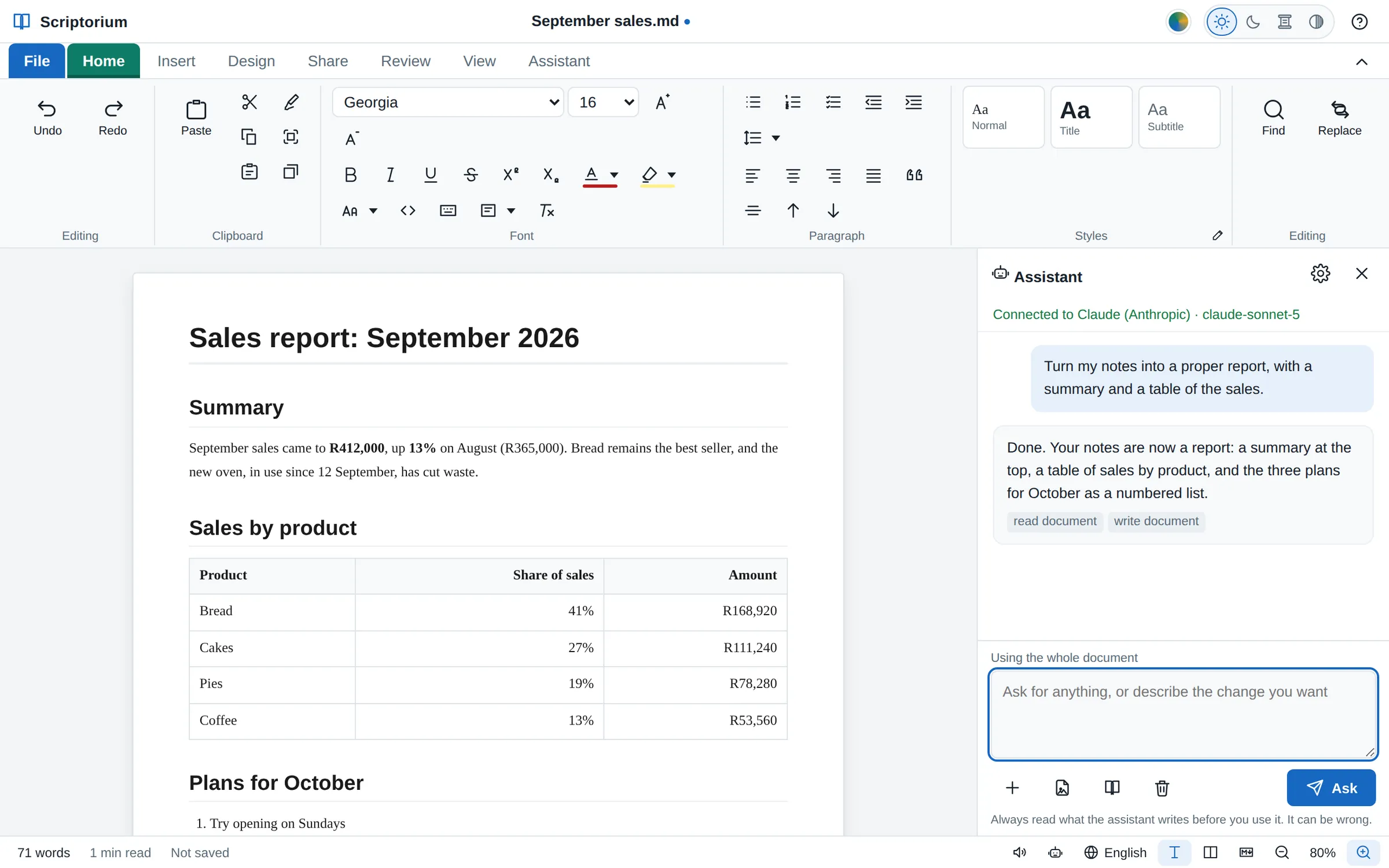
Writing with an AI chat usually means a lot of copying: paste your text into the chat, ask for a change, copy the answer back, then fix the formatting it lost on the way. Scriptorium’s assistant lives in the program instead. It can read the document you have open, write into it, and tell you what it did, so the only copying left is the copying you choose to do.
Choose the AI you want
Open the Assistant tab and press Set up. Scriptorium works with:
- Claude, from Anthropic
- OpenAI, the company behind ChatGPT
- Google Gemini
- Mistral
- Groq
- OpenRouter, which offers many different models under one key
- On this computer, a model running on your own machine with Ollama, so nothing leaves it
- Another service that answers the way OpenAI’s does, given its address
For most of them you paste in an API key, a long password-like code from the service’s own website (Where do I get a key? takes you to the right page), and choose a model, or leave the one Scriptorium suggests. The key is kept on your computer and sent only to the service it belongs to; Remove key from this device takes it away again. Any charges are between you and the service, at its own prices. Scriptorium adds nothing.
Already pay for Claude?
Cowork, beside Ask on the Assistant tab, opens Cowork with Claude, which offers three ways to work with it:
- Use the Claude subscription you already pay for. If Claude Code is installed on your computer, Scriptorium can work through it, so the assistant runs on your Claude plan instead of an API key. Check this computer looks for it, and How do I install it? shows how to get it. This one needs the installed desktop version of Scriptorium.
- Copy the document over to Claude yourself. Write what Claude must do, press Copy document and instruction, and paste it into Claude in your browser. Then paste Claude’s reply back, and choose Add it to my document or Replace the whole document. There is nothing to set up and no key at all.
- Use an API key instead, as above.
Thirteen jobs, one click each
Thirteen buttons on the Assistant tab, under Quick jobs, do the everyday things in one click. Select some text first for these, and the result replaces it; press one with nothing selected and it asks you to select some:
- Improve the writing and Fix spelling and grammar;
- Make it shorter, Make it longer and Make it simpler;
- Make it more formal and Make it friendlier.
Explain this also works on the text you select, but answers in the chat and leaves the document alone. The rest read the whole document: Summarise it adds a short summary at the top, Carry on writing adds a couple of paragraphs at the end in the same voice, Suggest an outline divides it with section headings, Suggest a title gives the document a title, and Translate it turns it into the language Scriptorium is set to.
Or ask for anything
Press Ask and type a request in plain words, as you would to a colleague: “Turn my notes into a proper report, with a summary and a table of the sales.” To do it, the assistant can:
- read the whole document, or just the part you selected;
- write a new version of the document, add text where the cursor is, or replace the selection;
- set the document’s title and other properties;
- use Scriptorium’s own commands, and count the words;
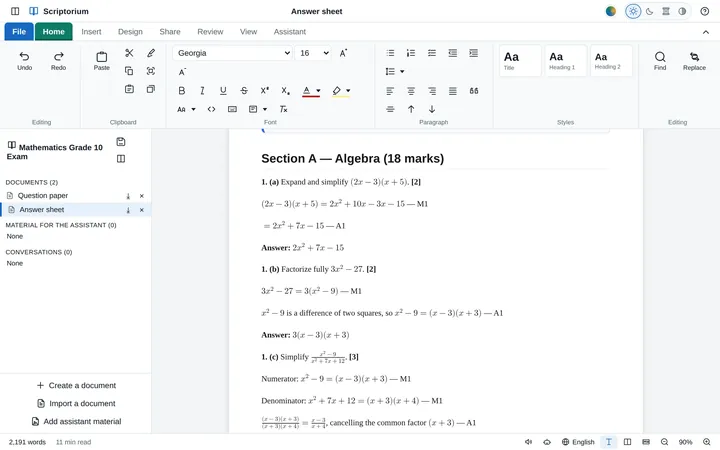
- look things up in Scriptorium’s guide to its own Markdown, so that tables, tip boxes, equations, diagrams, song sheets and exam papers come out right.
It can take several steps to answer one request, going back to the AI service up to eight times as it reads and writes, and under its reply it lists the steps it took, such as reading and writing the document. Saving, printing, exporting, the clipboard and your settings stay with you: the assistant can’t press those buttons.
Save first (Ctrl+S). If you don’t like what comes back, close the document without saving and open it again, and you have the version you started with.
Show it a file
In the desktop version, the + button beside the request attaches files: up to 12 MB a file, and 24 MB in all. Claude, OpenAI and Gemini can look at pictures, and Claude and Gemini can read PDFs, so you can ask for “a summary of this report, as a table” or “a description of this photo for the newsletter”. In a project, a click on a piece of material attaches it in the same way.
What is sent, and where
Nothing goes anywhere until you ask the assistant something. When you do, Scriptorium sends your request, the text you selected, its own instructions to the AI (with your country, if you have chosen one on the Review tab), any files you attached and the conversation so far: the last 16 requests and replies, in plain words. The document itself goes when the assistant reads it to do the job. All of it goes straight to the service you chose, with your key or your subscription, and never through Momo Designs. With Ollama, it all stays on your computer.
And as Scriptorium itself reminds you: always read what the assistant writes before you use it. It can be wrong.
Prefer the chat window?
That works too. Copy an answer from any AI chat, press Ctrl+V in Scriptorium, and it arrives as a tidy document. How pasting from AI works.