Scriptorium
How to paste an AI answer into a proper document
Copy an answer from ChatGPT, Copilot, Claude or Gemini, press Ctrl+V in Scriptorium, and you get a document: headings, lists, tables, code and formulas, without the chat window’s clutter.
AI assistants are good at first drafts: a plan for a school event, a letter to the body corporate, notes for a meeting, a summary of a long report. The trouble starts when you want the answer in a proper document. Paste it into an ordinary word processor and you may bring the chat window along with it: its grey background and fonts, a “Copy” button stuck in the middle of a block of code, little website icons, “3 Sources” chips and odd marks such as 【4:0†source】. Use the chat’s own copy button instead, and you often get the raw text the assistant wrote, with asterisks round the bold words and hash marks in front of the headings.
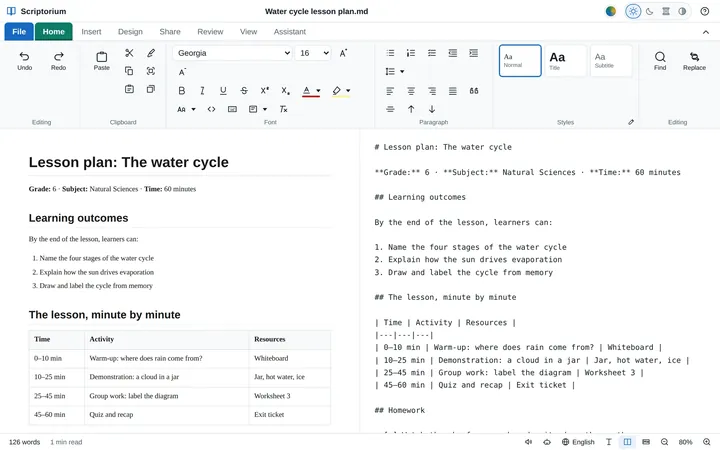
Those asterisks and hash marks are Markdown, the plain-text format nearly every AI assistant writes in. Scriptorium is a word processor built on Markdown, so it can take an AI answer the way it was meant to be read, and give you a document.
The short version
- In the chat, select the answer and copy it with Ctrl+C, or press the chat’s own copy button under the answer.
- In Scriptorium, click where the answer should go.
- Press Ctrl+V, or Paste on the Home tab, which does the same.
That is all there is to it. What happens behind the scenes depends on which way you copied, but both roads end in the same place: a document with real headings, lists and tables that you can edit, save, print and send.
When you select the answer and copy it
Selecting an answer on the screen copies it as a piece of web page, with everything the chat window wrapped round it. Before the answer goes in, Scriptorium takes that wrapping away:
- the chat window’s colours, fonts and text sizes (a colour that is part of the answer, such as red for a warning, stays);
- the buttons and language labels on blocks of code, while the code keeps its language, so it is still shown in colour;
- icons, hidden parts of the page and the little website icons beside links (an emoji that was drawn as a picture comes back as a real emoji);
- “Sources” chips, bracketed citation marks and the invisible characters some assistants leave behind where a citation was.
Then it puts back what belongs there. Formulas the chat window drew on the screen, whether with KaTeX, MathJax or MathML, become equations you can double-click and change. Citation numbers become small raised links, so you can still see where a fact came from.
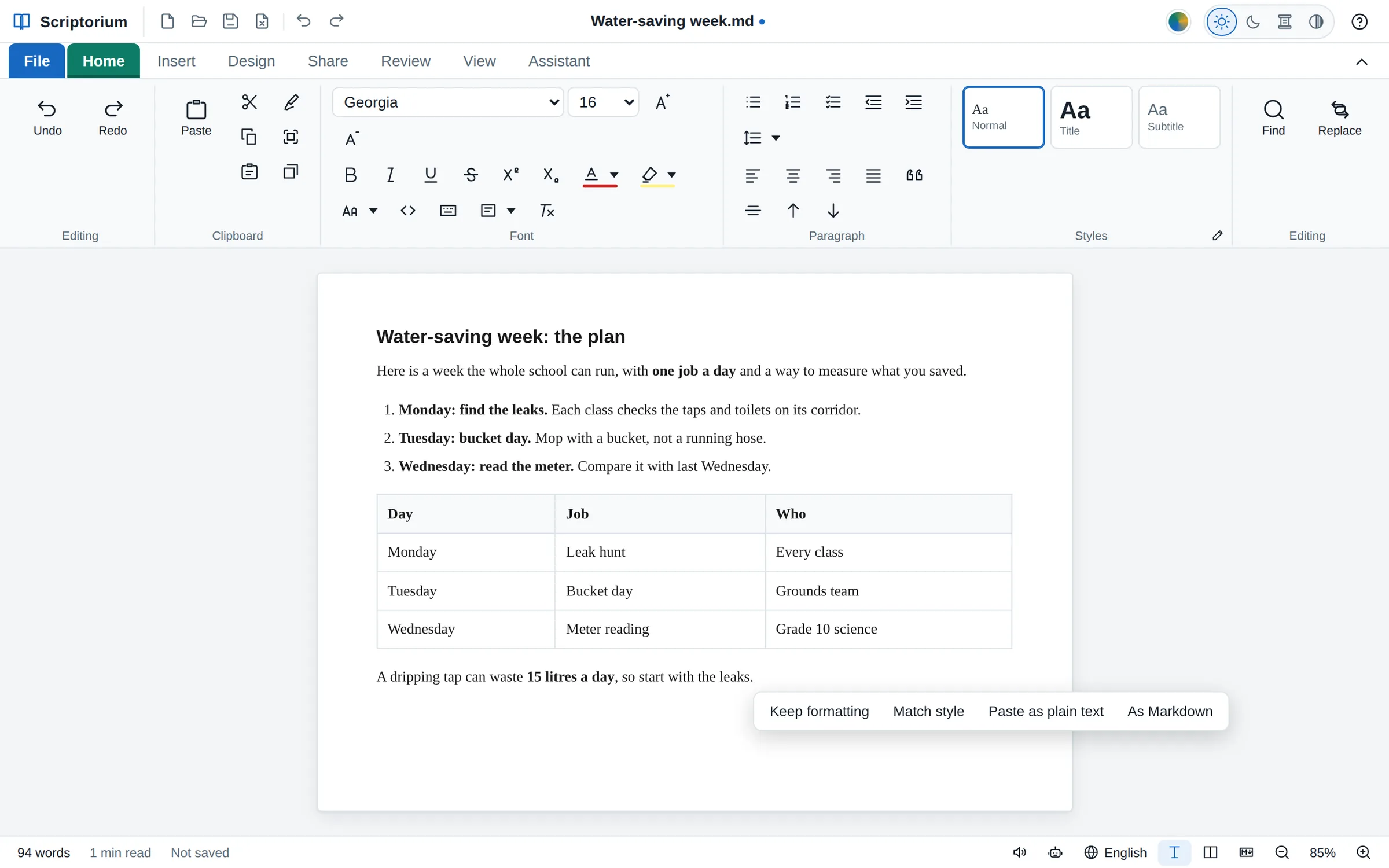
When that is done, a small box appears under the pasted answer with four choices:
| Choice | What you get |
|---|---|
| Keep formatting | The tidied answer, with its headings, lists, tables, code and formulas. It is what you already have, so you can simply carry on typing. |
| Match style | The headings, lists, bold words, links and formulas stay, but the answer takes on your document’s own fonts and colours. |
| Paste as plain text | Just the words, with no formatting at all. |
| As Markdown | The text of the paste, read as Markdown. It is only offered when that text looks like Markdown, which helps when a page shows an answer’s raw marks instead of drawing them. |
The box gets out of the way by itself after a few seconds, or as soon as you press Esc or click somewhere else.
When you use the chat’s copy button
Most assistants have a copy button under each answer, and it usually copies the answer as Markdown text: the words with their marks, and nothing else. Scriptorium recognises the marks and lays out the document straight away. There is no box to answer this time, because there is nothing to tidy.
It reads the Markdown that assistants actually write, not just the textbook kind. A few of the things it copes with:
- numbered lists that start at any number, and lists with blank lines between the items;
- a second paragraph, or a block of code, tucked inside a list item;
- bold italic written with three asterisks;
- maths written between
\[and\], between\(and\), or between dollar signs; - bits of HTML that assistants mix in, such as
<br>for a new line inside a table cell, and<sup>,<sub>and<kbd>; - web addresses written out in full, which become links, and task lists with tick boxes;
- lines that start with a bullet character (•), the way a list often looks when it is copied as plain text, which become a real list.
If an assistant offers its answer as a .md file to download, there is nothing to paste: open the file with File ▸ Open (Ctrl+O).
What to do with it next
Once the answer is in, it is an ordinary Scriptorium document. Change a heading with the styles on the Home tab, add your own paragraphs, and fix whatever the assistant got wrong. Press Ctrl+S and it is saved as a Markdown file: plain text, in the same format the assistant wrote in, which any computer can open.
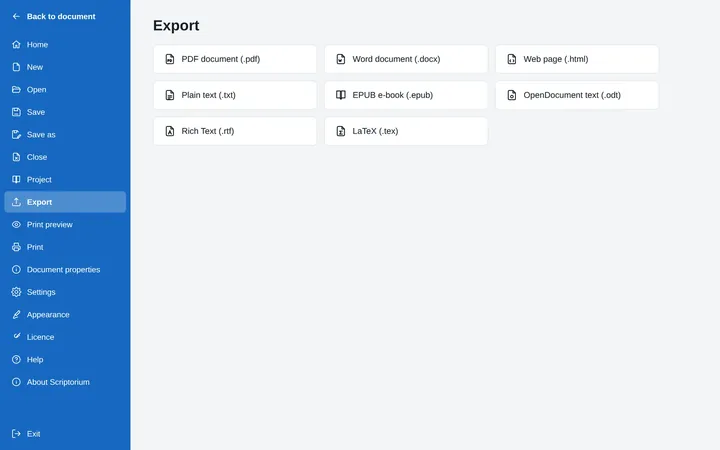
When somebody needs it in another form, File ▸ Export makes a PDF, a Word document, a web page, an e-book and more. From Markdown to Word, and back again explains what each one gets.
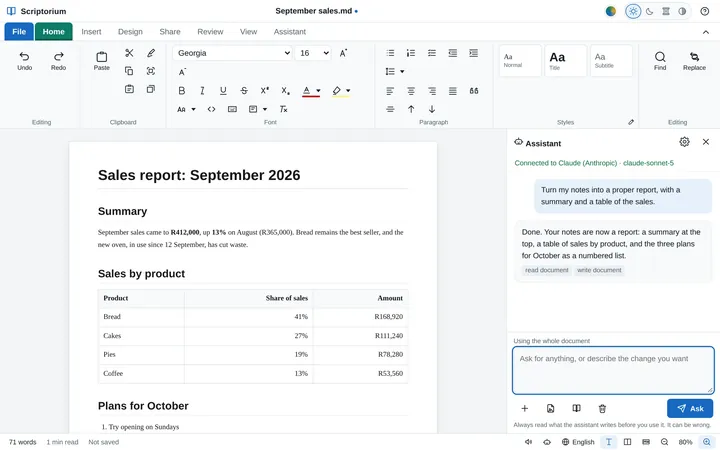
You can also skip the copying altogether. The Assistant tab works with Claude, ChatGPT, Gemini and other services, and its answers go straight into your document. Here is how the assistant works.
Scriptorium cleans up how an answer looks, not what it says. Check names, numbers, dates and quotations before the document goes anywhere, as you would with anything an AI writes.