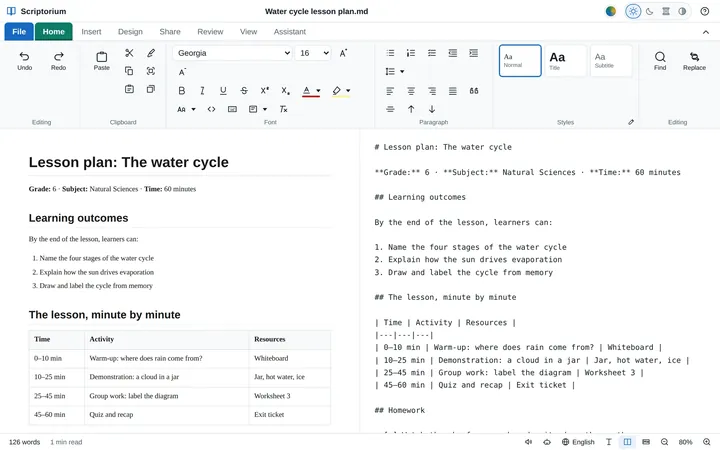
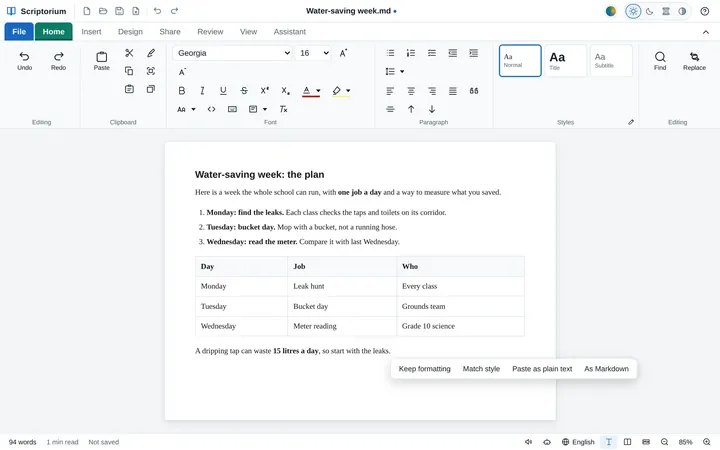
Scriptorium
From Markdown to Word, and back again
Scriptorium opens Word documents and makes them, along with PDFs, e-books and five other formats. Here is what comes across each way, and what to keep in mind.
Most people still swap documents as Word files and PDFs. A colleague sends a .docx to update, a client wants a PDF, the school office asks for “the Word version”. Scriptorium keeps your own documents as Markdown, but it is built to live in that world: it opens Word documents, and it makes Word files, PDFs and six other formats whenever somebody needs one.
Opening a Word document
Use File ▸ Open (Ctrl+O) and choose the .docx file. Scriptorium reads it and opens it as a new document. The Word file itself is never changed: when you save, Scriptorium asks where to keep the new Markdown file.
Most of what people put in Word documents comes across:
- headings 1 to 6, Title and Subtitle, quotations and code
- bold, italic, underline, strikethrough, coloured text and highlighting
- bulleted and numbered lists, including lists inside lists
- left, centred and right alignment
- links, and pictures at the size they were in Word
- footnotes
- page breaks, including a paragraph set to start on a new page and a section that starts on one
- tables, with their heading row, cells merged across a row and the alignment of each column, and the column widths too when the table has fixed widths in Word
Some things don’t, either because Markdown has no place for them or because Scriptorium leaves them out: Word’s own equations, comments, superscript and subscript, fonts and font sizes, cells merged downwards, tables inside tables, headers and footers, endnotes and text boxes. Tracked changes come in as if they had all been accepted. Lists numbered with letters or Roman numerals are numbered 1, 2, 3.
Scriptorium reads .docx, the kind of file Word has saved since 2007. Open an older .doc in Word or LibreOffice and save it as .docx first.
The other files it opens
The same Open takes Rich Text (.rtf), web pages (.html), Excel workbooks (.xlsx), CSV and TSV files, JSON and XML, and each one comes in as a new document you can edit. It also reads the text of PDFs: headings worked out from the size of the type, bold and italic, lists and paragraphs, and JPEG pictures. A PDF’s page layout and tables don’t come across, and a scanned page has no text to read: Scriptorium brings it in as a picture when it can, and otherwise says it found no text.
Exporting
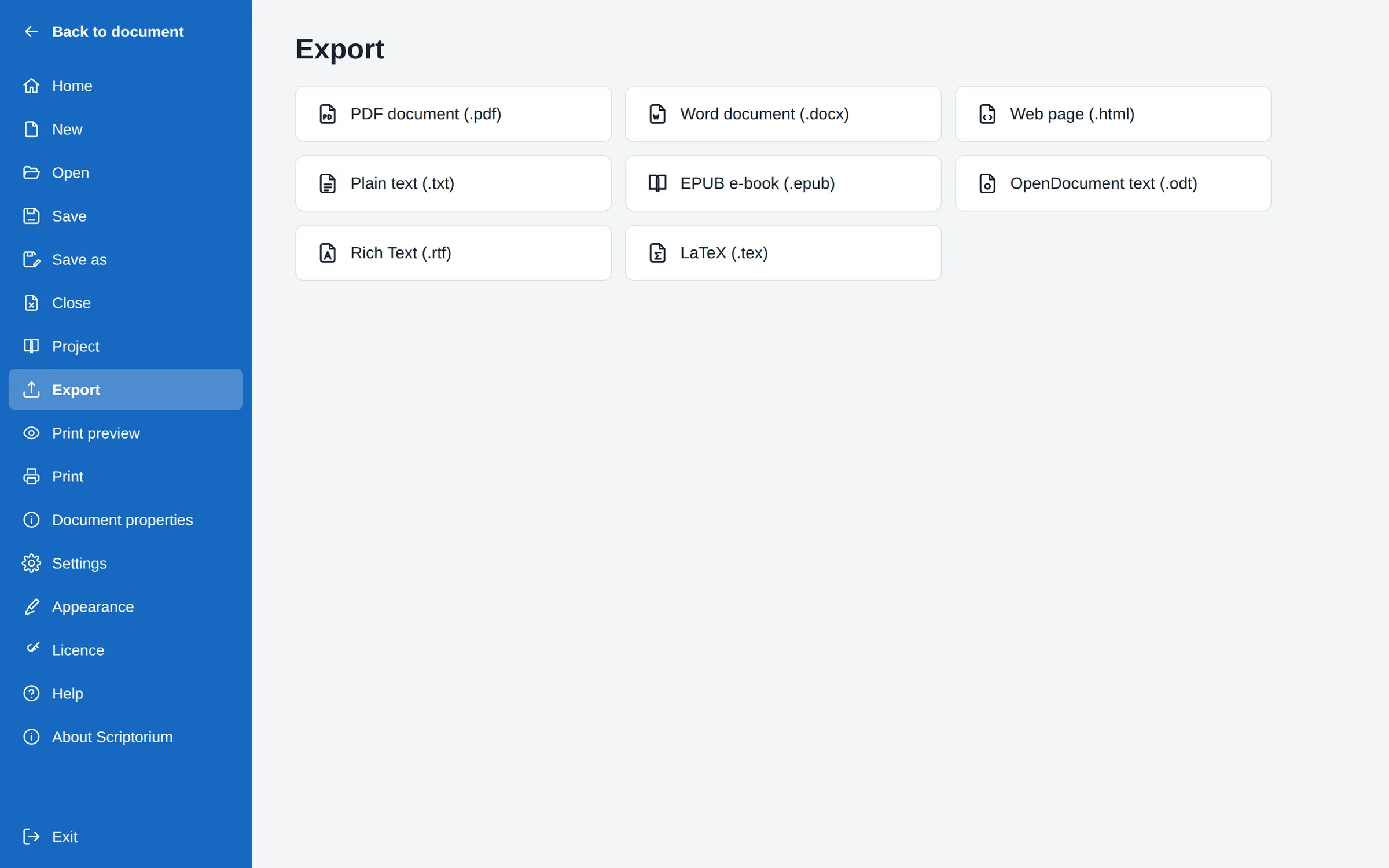
File ▸ Export has eight formats, and the Share tab has the same ones in its Export group:
| Format | Use it for |
|---|---|
| PDF document | Sending and printing: anything that must look the same everywhere |
| Word document | Someone who works in Word and needs to edit it |
| Web page | A website or an intranet |
| Plain text | Places that take text and nothing else |
| EPUB e-book | E-readers and reading apps on phones and tablets |
| OpenDocument text | LibreOffice and other OpenDocument programs |
| Rich Text | Older programs that read RTF |
| LaTeX | Journals and university work typeset with LaTeX |
What a PDF gets
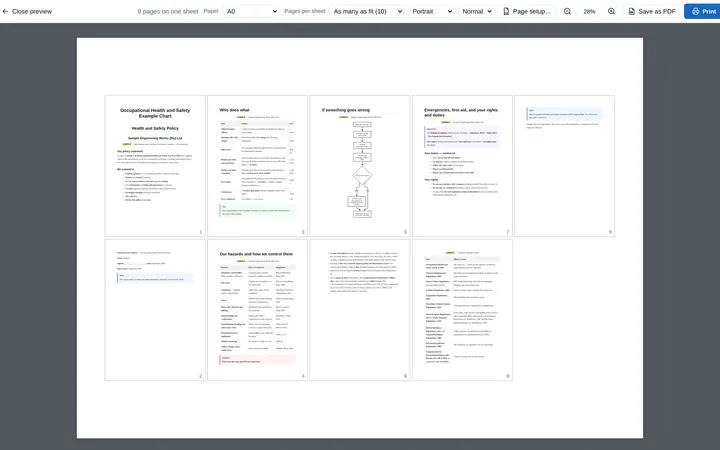
A PDF follows your page setup: the paper size, the margins, page numbers and a border round each page if you want one. Press Ctrl+P for the print preview, look through the pages, and press Save as PDF. On a computer, what you see in the preview is exactly what goes into the PDF, with the equations, diagrams, music and pictures drawn as they are on the page.
What a Word file gets
The Word export is a real .docx file, built with Word’s own styles: Normal, Title, Subtitle, Heading 1 to 6, Quote and Code, and Table Grid for the tables. The styles carry the look you chose in File ▸ Appearance, so the headings arrive in your fonts and colours, and anyone who changes a style in Word changes it everywhere it is used.
Page breaks stay page breaks, so a paper with each section on a new page keeps its pages. Lists keep their numbering, even a list that starts at 5. Tables keep their merged cells, column widths, alignment and borders; the heading row repeats at the top of every page, and no row is split across two pages. Links stay links, and pictures keep their size and style. A tip or warning box becomes a shaded paragraph, code keeps its colours, and diagrams, shapes, drawings and music staves go in as pictures.
A few things are worth knowing before you send a Word file:
- Equations go in as their TeX code, the text you typed in the Equation window, rather than as Word equations. For a document full of maths, send a PDF.
- The page is always A4 with margins of 2.54 cm (one inch), whatever your page setup says. If the reader needs US Letter, they can change the paper in Word.
- Footnotes stay as small raised numbers, with the notes listed at the end of the document, rather than as Word footnotes. There are no headers or page numbers.
- Comments you added with Insert ▸ Comment are left out of PDFs, e-books, OpenDocument and RTF files, but in a Word file or a web page they appear in the text. Take them out before you export to either.
- Song sheets go in as the text they are written in, with the chords in square brackets among the words. For a song sheet that looks like one, send a PDF.
OpenDocument and RTF files get real footnotes, and LaTeX gets real equations as well as real footnotes, so pick the format that suits the reader.
The round trip
You can open a Word document, work on it in Scriptorium and export it back to Word, and the text, headings, lists, tables, links, pictures and page breaks all make the journey. A few things change shape if a document goes round more than once: tip and warning boxes come back as a coloured title over ordinary paragraphs, equations as their TeX text, footnotes as links to a list of notes, and diagrams as pictures. Superscript and subscript are lost on the way back in.
The easy rule: keep the Markdown file as your own copy, and export a fresh Word file or PDF whenever somebody needs one. The Markdown is where the work lives; the exports are the copies you hand out.