Scriptorium
Print a wall chart or poster from a document, up to A0
Write the chart as a few short pages, then print them together on one big sheet: a health and safety board, a classroom poster or a project plan for the wall.
A wall chart is an awkward document. It has to be read from across a room, it is built from separate blocks (a policy here, a flowchart there, a table of who does what), and it prints on paper far bigger than an office printer takes. Most people make one in a design program, or give up and pin a row of A4 pages to the notice board. Scriptorium makes one from an ordinary document.
The idea: pages that become panels
You write the chart as a document of short pages, one page for each panel. When you print, Scriptorium sets those pages out side by side on one big sheet: two A4 pages side by side on an A2, say, or three rows of three on an A0.
- Start each panel with a heading.
- Keep each panel short enough to fit on one page.
- Put a page break between the panels, with Insert ▸ Page break.
Make the panels easy to read
From two metres away, people read headings, boxes, pictures and short lines, not paragraphs. Scriptorium has the building blocks:
- Callout boxes in eight kinds (Note, Tip, Important, Warning, Caution, Success, Question and Example), each with its own colour, and the fill and border yours to change;
- Columns (two to four) and Rows (two to six), on the Insert tab, to set blocks side by side or one above the other on a page;
- the Title style and headings, with type up to 72 on the size list;
- tables for who does what, and pictures;
- Shapes: 91 of them, in the same groups as Word’s (lines, rectangles, basic shapes, block arrows, equation shapes, flowchart, stars and banners, and callouts), and a drawing canvas;
- Diagrams drawn from a few lines of text: a process, a cycle, a hierarchy, a flowchart, a mind map, a timeline, a pie chart, a sequence or a Gantt chart. They are drawn on your computer, so they need no internet.
Set up the pages
Press Ctrl+P for the print preview, and press Page setup… there. Under Your pages, choose the size of each panel. A4 is a good start; every size from A0 to A5 is there, with Letter, Legal and Tabloid, or a custom size from 25 mm up to 5,080 mm a side.
Set the margins and, if you want them, page numbers. A Border round each page frames each panel: any colour, eight kinds of line from solid and dashed to double, nine thicknesses from ¼ to 6 points, and square, rounded or chamfered corners.
Choose the sheet
Under Printed sheet, choose Several pages on one sheet, then:
- Sheet size: A0 to A3, or any size you like.
- How many: As many as fit, at full size, or your own number of rows and columns, up to 40 of each, with the pages growing or shrinking to fill the sheet.
- Order: down, then across, or across, then down.
- Space between the pages, and Turn the sheet to swap its width and height.
- Look like one chart takes away the space, borders, margins and page numbers between the pages, so the panels run together as one.
A Header and a Footer put one line across the top and the foot of the sheet, in small, medium or large type. The header starts out as the document’s title. They belong to the big sheet, so they are there when several pages share one.
Print it, or take it to the printers
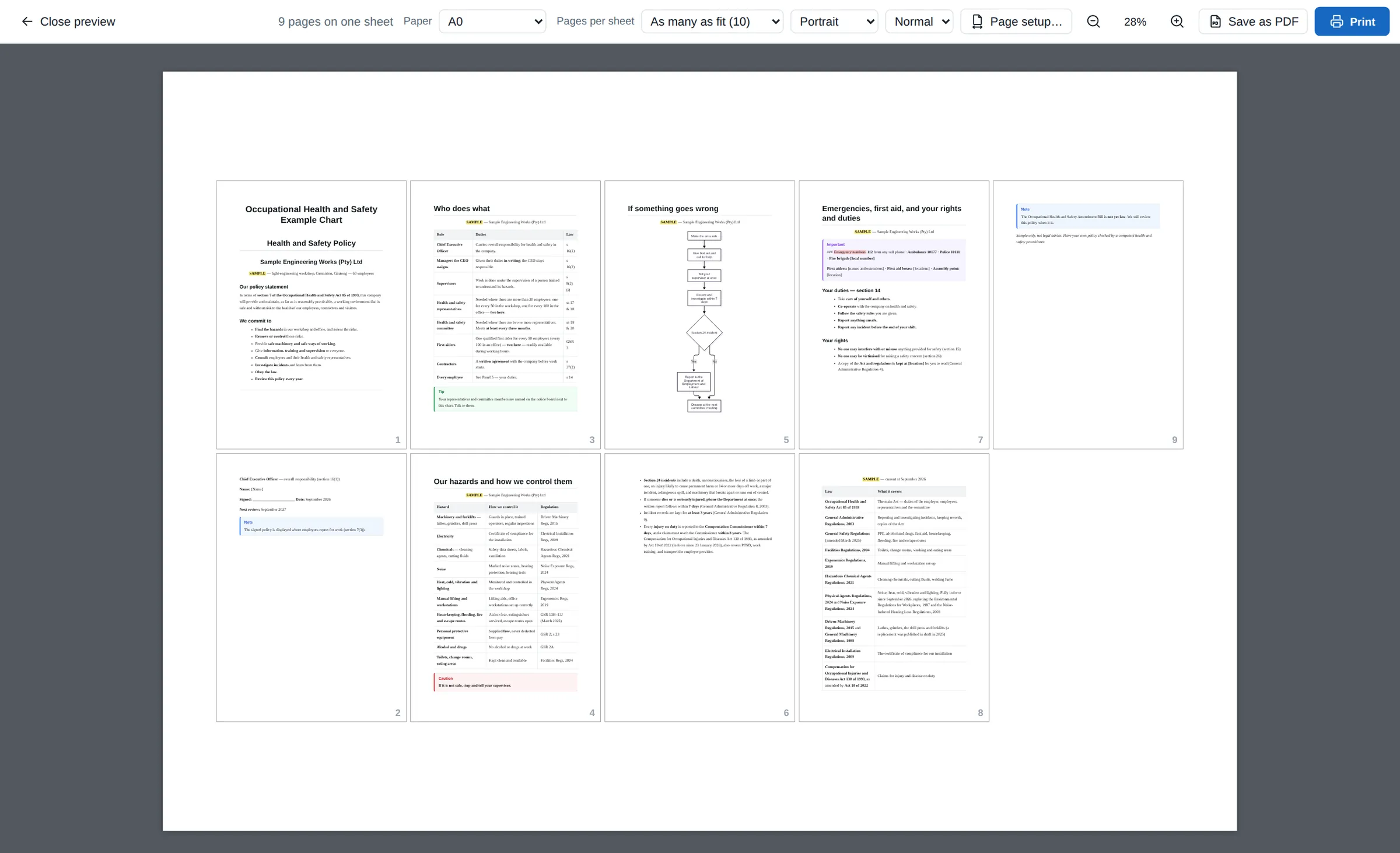
The print preview shows the whole sheet as it will come out, and for a sheet bigger than A3, Page setup says plainly: “A sheet this big needs a large-format printer or plotter. Save it as a PDF to have it printed anywhere.” Press Save as PDF, take the file to a print shop on a memory stick or send it by email, and they can print it at full size.
The sheet can be any size, so the same trick prints four small cards on one A4 sheet: make each page a custom 105 × 148 mm (A6), the sheet a custom 210 × 297 mm, and ask for two rows of two. The cards come out a little smaller than A6, to leave a clear edge round the sheet.
Try the sample
Our health and safety wall chart is a sample policy for an imaginary engineering works: the policy statement, who does what, the hazards and how they are controlled, a flowchart for when something goes wrong, and emergencies, first aid, and everyone’s rights and duties. It prints as nine pages on one A0 sheet, as in the picture at the top. Download it, open it in Scriptorium, press Ctrl+P, then Page setup…, choose Several pages on one sheet and A0, and press OK to see it laid out. (Page setup belongs to your computer, not to the document, so a chart you are sent opens on ordinary pages until you choose the sheet.)