Scriptorium
How to set an exam paper and its memo in one project
Scriptorium keeps a question paper and its memo together, typesets the maths properly, and prints both the way the school wants them. Here is how a Grade 10 mathematics paper comes together.
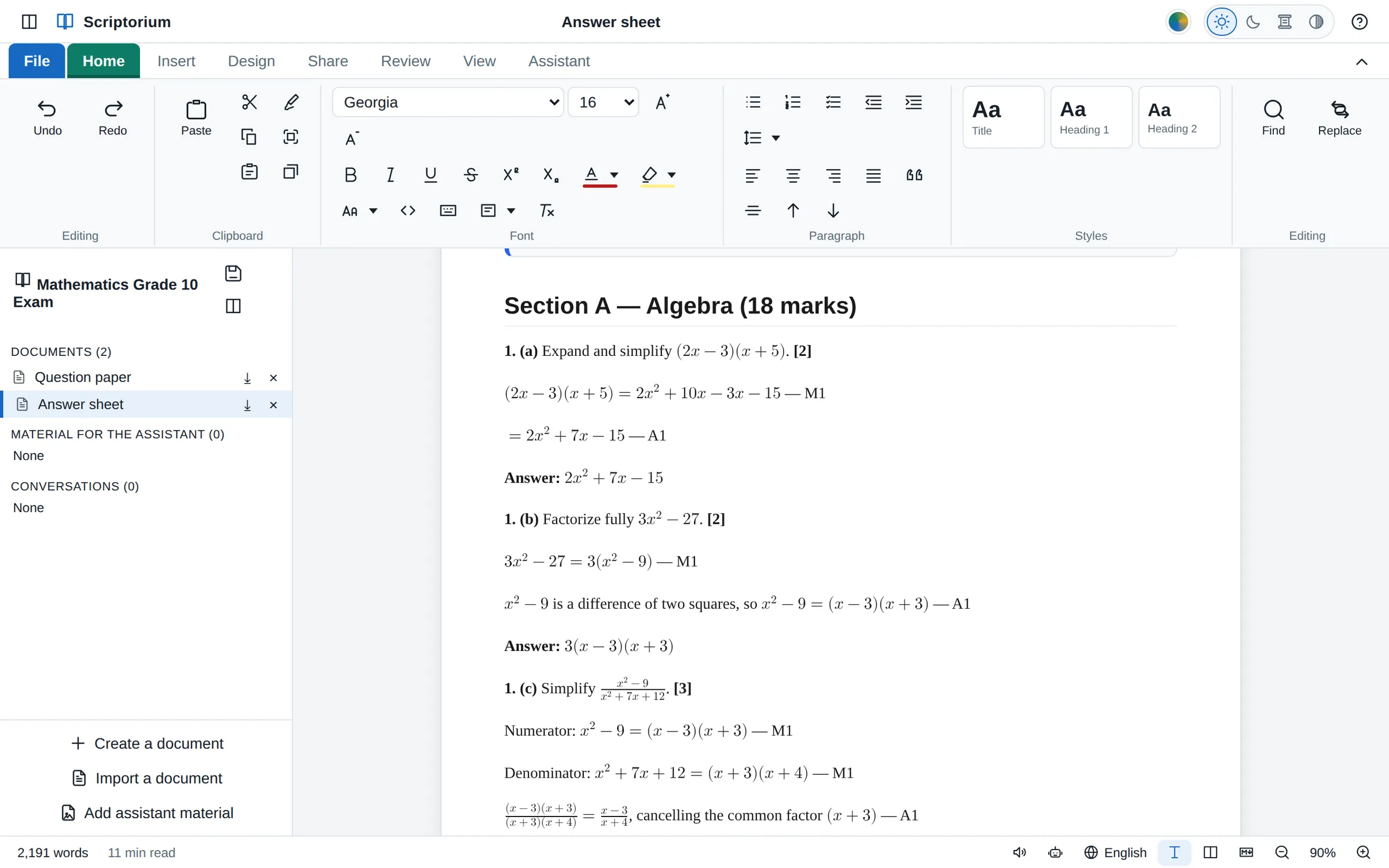
Setting an exam means writing two documents that must agree with each other: the question paper and the memo. Change a question and its answer has to change too; renumber a section and both need renumbering. Scriptorium keeps the two together in one project, so they are opened, saved and backed up as one file, and the paper and its memo are always a click apart.
Start the project
- Go to File ▸ Project ▸ New exam paper and give it a name, such as “Grade 10 Maths, Paper 1, June”.
- Scriptorium makes two documents: Question paper and Answer sheet. The answer sheet is your memo.
- Press Ctrl+S. Both are saved together, in one file whose name ends in .quire.
Click either one in the project pane to work on it. (Projects are part of the desktop version of Scriptorium, for Windows and Linux.)
Lay out the paper
A paper that is easy to write and easy to mark usually follows the same pattern, and it is the pattern Scriptorium’s assistant is given for exam papers:
- a small table at the top with the subject, the grade, the time and the total marks;
- a line for the learner’s name and class;
- the instructions in a note box (Insert ▸ Callout box);
- each section under a heading of its own;
- each question starting with its number in bold, and ending with its marks in bold brackets;
- answer lines, where learners write on the paper;
- in a long paper, a page break before each new section (Insert ▸ Page break).
Here is the start of such a paper in Markdown. You can type it, paste it in, or build it with the buttons:
| Subject | Mathematics | Grade | 10 |
| --- | --- | --- | --- |
| Time | 1 hour | Marks | 50 |

**Name:** ____________________ **Class:** __________

> [!NOTE]
> Answer all the questions. Show all your working.

## Section A: Algebra

**1.1** Solve for $x$: $2x + 3 = 11$ **(2)**

**Answer:** ______________________________Put a label such as Answer: in front of the line, and keep the run of underscores to about 30. Much longer, and it wraps onto a second line. A line of nothing but underscores becomes a dividing line across the page, not a line to write on.
Type the maths
Put the cursor where the formula belongs and press Alt+=, or choose Insert ▸ Equation. Type the formula in the Formula box, and it is drawn under How it will look as you type.
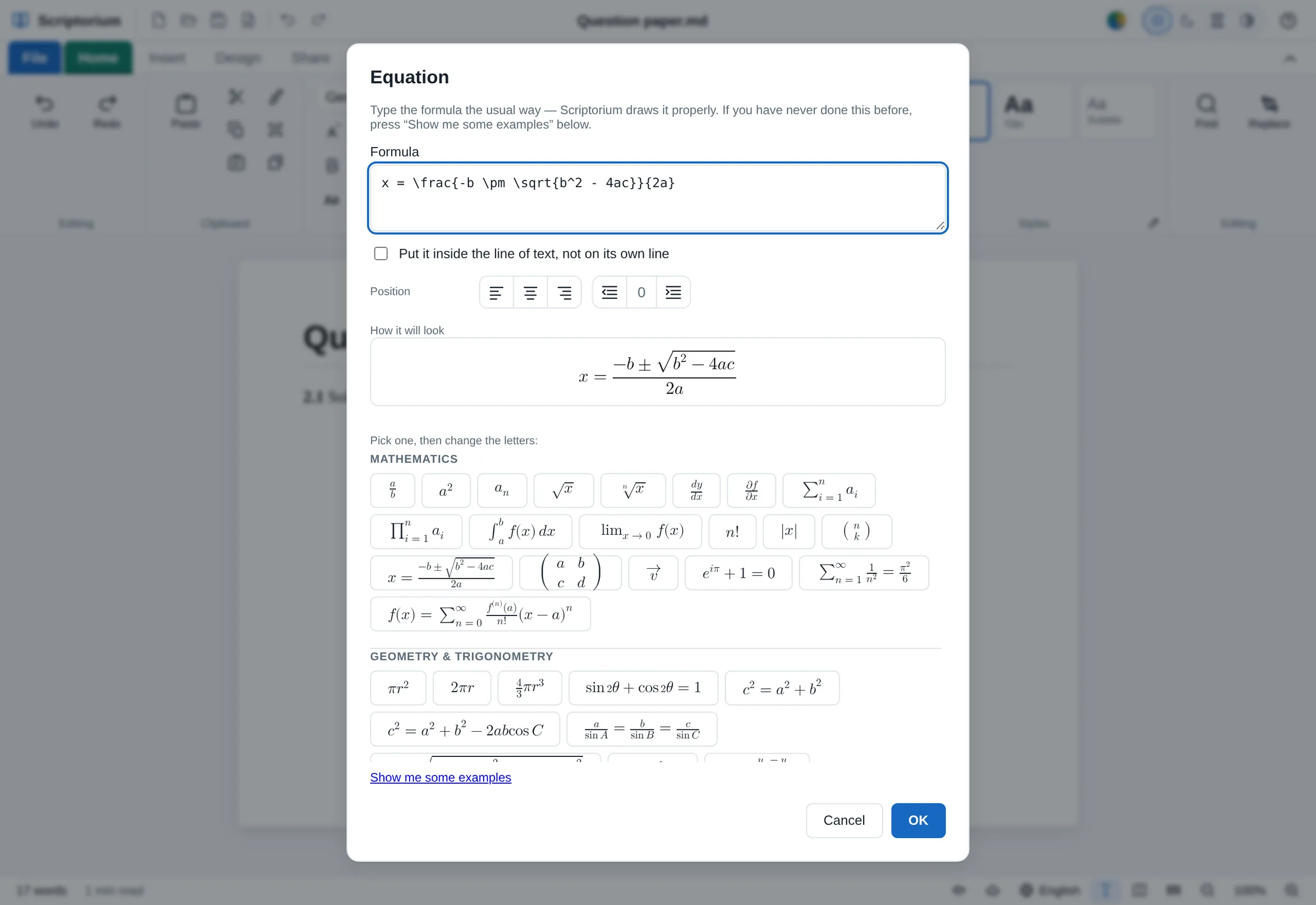
Formulas are typed the way mathematicians and LaTeX users type them. A few to start with:
| Type | To get |
|---|---|
\frac{3}{4} | a fraction: three over four |
x^2 and x_1 | x squared, and x with a small 1 below |
\sqrt{x} and \sqrt[3]{x} | a square root, and a cube root |
\pm \times \div \le \ge \ne | ± × ÷ ≤ ≥ ≠ |
\alpha \theta \pi | α θ π |
\sin x, \log x | sin x and log x, with sin and log upright |
\boxed{x = 4} | a final answer in a box |
If you have never typed a formula this way, press Show me some examples, or start from the gallery underneath: 110 formulas from mathematics, geometry and trigonometry, physics, chemistry, biology, statistics, electrical work, mechanics, fluids and finance. Click one, and it goes into the Formula box for you to change the letters.
A formula can sit inside a line of text, or on a line of its own. A formula on its own line can go on the left, in the middle or on the right with the Position buttons, and be indented like a paragraph, which is how most memos set out their working. To change a formula later, double-click it.
For working that runs over several lines, an aligned block lines up the equals signs:
\begin{aligned}
2x + 3 &= 11 \\
2x &= 8 \\
x &= 4
\end{aligned}
The maths is drawn by Scriptorium itself, so it needs no internet connection, and it prints and goes into PDFs exactly as you see it.
Write the memo
Open the Answer sheet and keep the same numbering as the paper. Show the working step by step, and put the marks beside each step as ordinary words, outside the formula: M1 for a method mark, A1 for an accuracy mark, and the question’s total in bold brackets at the end.
**1.1** $2x + 3 = 11$

$2x = 8$ M1

$x = 4$ A1 **(2)**
Tables, diagrams and shapes
Mark allocations, data for a statistics question and frequency tables go in ordinary tables. Cells can be merged across a row, column widths set as a percentage, and a long table split in two where you want the break, with Split table (Ctrl+Shift+Enter). For geometry, Insert ▸ Shapes has 91 shapes and a drawing canvas, and Insert ▸ Diagram draws flowcharts, timelines and pie charts from a few lines of text.
Print it
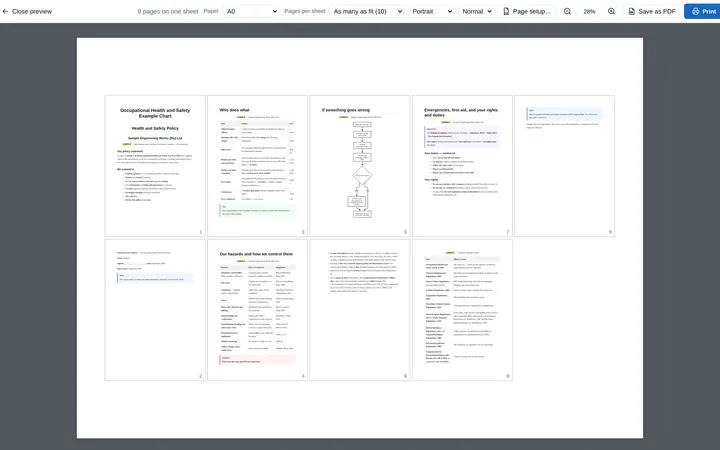
Press Ctrl+P to see every page before it prints. Page setup… in the print preview sets the paper (A4 for most schools), the margins, page numbers in the form “3” or “3 of 8”, and a border round each page if the school likes one. Then print, or press Save as PDF for the office or the photocopier.
The question paper and the memo are separate documents, so each is printed or exported on its own, and the memo only goes to the printer when you send it.
Let the assistant help
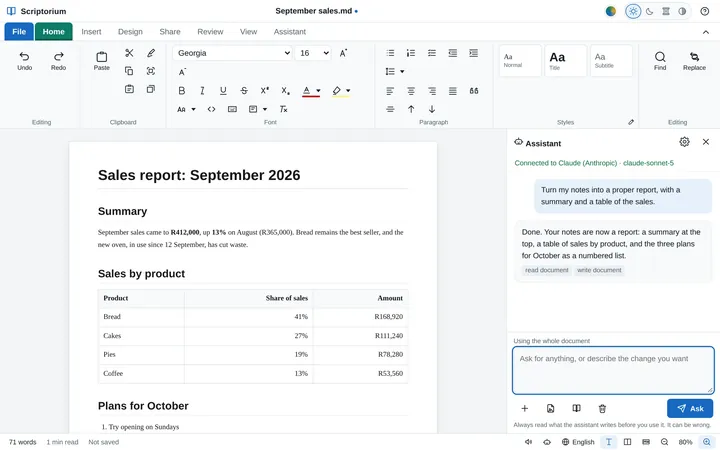
The assistant has Scriptorium’s guide to exam papers to hand, so when you ask it to “add five questions on factorising trinomials, with marks”, it can write them in the same style, with the maths typeset, and a memo for them with the same numbering. Read every question and answer before it goes in front of a class: an assistant can get a sum wrong as confidently as it gets one right. How the assistant works.
To hear a paper the way a learner would, Review ▸ Read aloud reads it out, and simple formulas are read in words.
Try the samples
Our Grade 10 mathematics exam is the one in the picture at the top. Download the question paper and the memo as PDFs to see the finished pages, or the project itself to open in Scriptorium and see how it is built. There is a Grade 11 Physical Sciences exam project too.