Scriptorium
Write a book in Markdown, one chapter at a time
A book is too big for one document. Scriptorium keeps the chapters, your notes and your conversations with the assistant in one project file, and puts the whole thing together when you want to read it through.
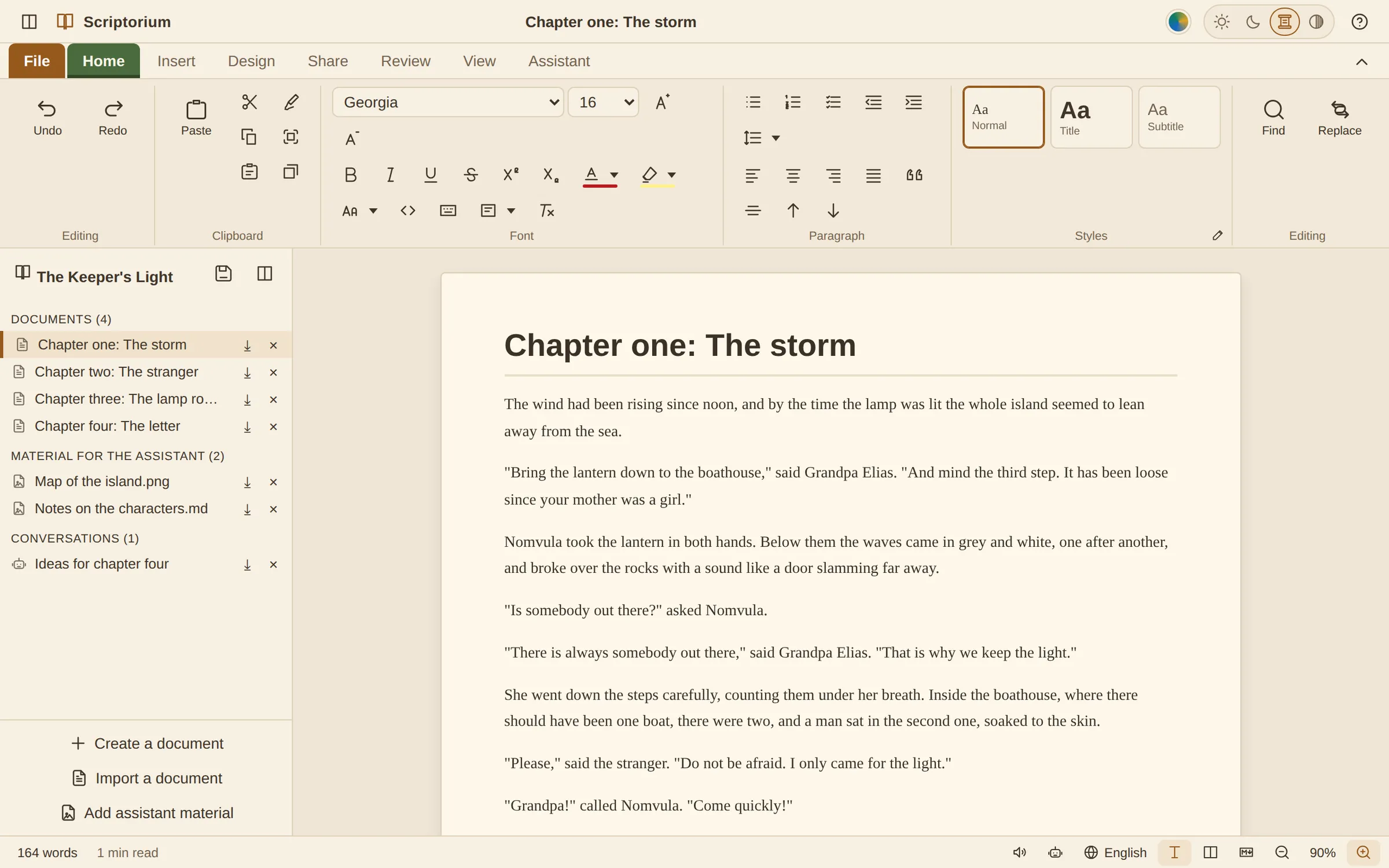
Long documents get unwieldy. Scrolling through three hundred pages to find one scene is slow, and the notes you keep about characters and places end up in another folder altogether. Programs made for novelists solve this by splitting a book into parts. Scriptorium does the same with a project: one file that holds every chapter, your notes, and the conversations you have had with the assistant about them.
Start a book
- Go to File ▸ Project ▸ New book.
- Give the book a name. Scriptorium opens the project with its first document, Chapter one, ready to write in.
- Press Ctrl+S and choose where to keep it. The whole book is saved as one file whose name ends in .quire.
Projects are part of the desktop version of Scriptorium, for Windows and Linux.
The project pane down the side of the window keeps three things apart:
- Documents: the chapters themselves.
- Material for the assistant: research, notes, a map, character sketches, pictures and PDFs, anything you would like the AI assistant to be able to read.
- Conversations: talks with the assistant that you chose to keep, with Keep this conversation in the project. Click one later and it is back in the Assistant panel, and the assistant remembers it too, so you can carry on where you left off.
Add the chapters
Use Create a document for each new chapter, or Import a document to bring in Markdown or plain-text files you have already written; Add assistant material brings in notes, pictures and PDFs. You can also drag files from your computer onto the pane: writing goes in with the documents, and pictures, PDFs and anything else go in with the material. (A chapter written in Word can come in too: open it with File ▸ Open, save it as Markdown, and import that.)
The parts have small buttons beside them: ✎ to rename a document, ⤓ to save a part on its own as a separate file, and × to take it out of the project. Taking a part out never touches the files you brought in, but a chapter written in the project goes with it once you save, so save it on its own with ⤓ first if you might want it back.
Every chapter is an ordinary document with all of Scriptorium’s tools: styles, pictures, tables, footnotes, comments and the rest. Start each chapter with a Heading 1 (Ctrl+1) and its scenes or sections with Heading 2 (Ctrl+2), and everything else falls into place.
Find your way around
- Navigation, on the View tab, lists the headings of the chapter you are in, so you can jump straight to a scene, with a box that narrows the list to the headings containing the words you type.
- The status bar at the foot of the window counts the words as you write, and says how many minutes the chapter takes to read.
- Word count and Readability on the Review tab give the full figures: words, characters, sentences and paragraphs, the reading time at 200 words a minute and the speaking time at 130, a reading-ease score and a reading grade.
Write without distractions
Focus mode, on the View tab, dims everything except the paragraph you are writing, and Full screen gives the whole screen to the page. The Sepia theme on the Design tab gives the page the warm tone of paper, which many writers find easier on the eyes over a long evening, and there are light, dark and high-contrast themes as well.
The Insert tab has the parts a book needs: a Cover page, a Table of contents made from your headings, a Page break to start something on a new page, and Footnote.
Read the whole thing
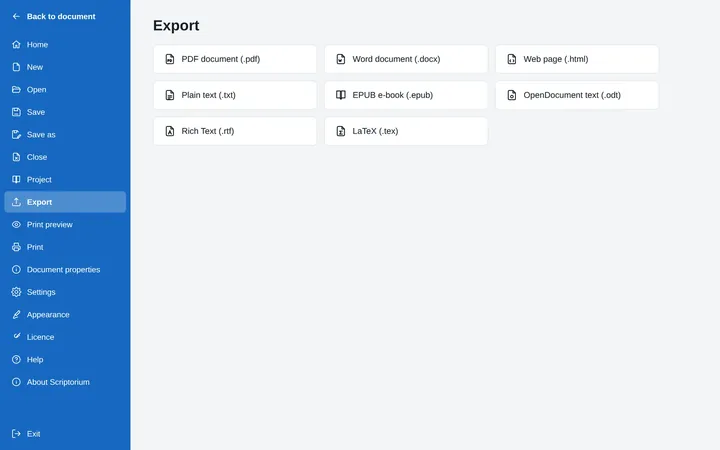
When you want to read the book from beginning to end, use File ▸ Project ▸ Read the whole thing. Scriptorium puts every chapter together, in order, as one document. Read it through, print it, or export it: as a PDF, each chapter starts on a new page, and as an EPUB e-book, each chapter that starts with a Heading 1 becomes a section of its own.
The book put together is a copy. Changes you make in it don’t go back into the chapters, so make your corrections in the chapters themselves, then put the book together again.
Bring in the assistant
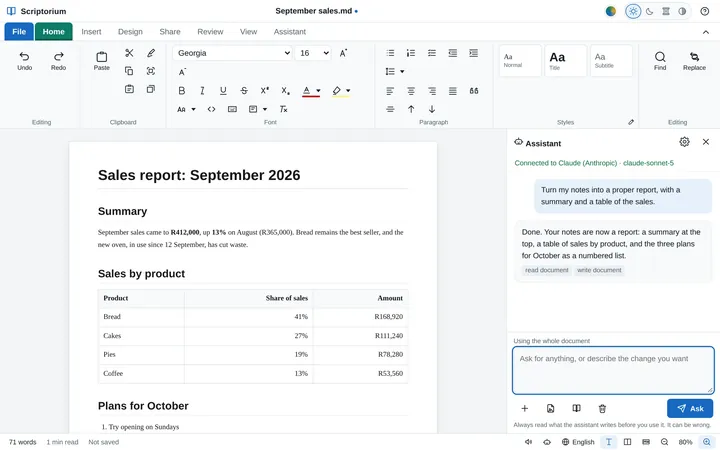
Click a piece of material in the project pane and it is handed to the assistant, just as if you had attached the file. Then ask your question with your notes in front of it: whether a character’s age in chapter nine matches her notes, what happened to the lighthouse keeper’s dog, or how the last chapter could end.
The one-click jobs on the Assistant tab help with a book too. Summarise it puts a short summary at the top of a chapter, Suggest an outline divides a long chapter with section headings, and Carry on writing adds a couple of paragraphs in the same voice, to get you past a blank moment. More about the assistant.
Hear it
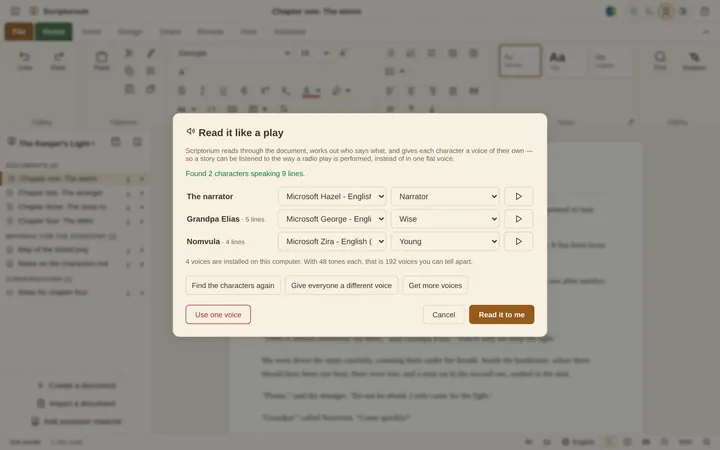
Hearing a chapter read aloud is one of the best ways to catch a clumsy sentence or a line of dialogue that doesn’t sound like the person saying it. Review ▸ Cast finds the characters who speak and gives each of them a voice of their own, with the narrator in another. How to read a story like a play.
One file, and never locked in
A .quire file is an ordinary ZIP archive with each chapter inside it as a Markdown file, and a small file that lists the parts and their order. So a book is one file to copy, back up or email, and if you ever want the chapters out without Scriptorium, any program that opens ZIP files can get at them (rename a copy to end in .zip if your computer insists). Even after the trial, Scriptorium still opens the project, shows every chapter and puts the whole book together for reading.