Scriptorium
Excel formulas in a Markdown document
Type a formula into a table cell, as you would in Excel, and the document does its own sums. Change a figure and every total follows, in a file that is still plain Markdown.
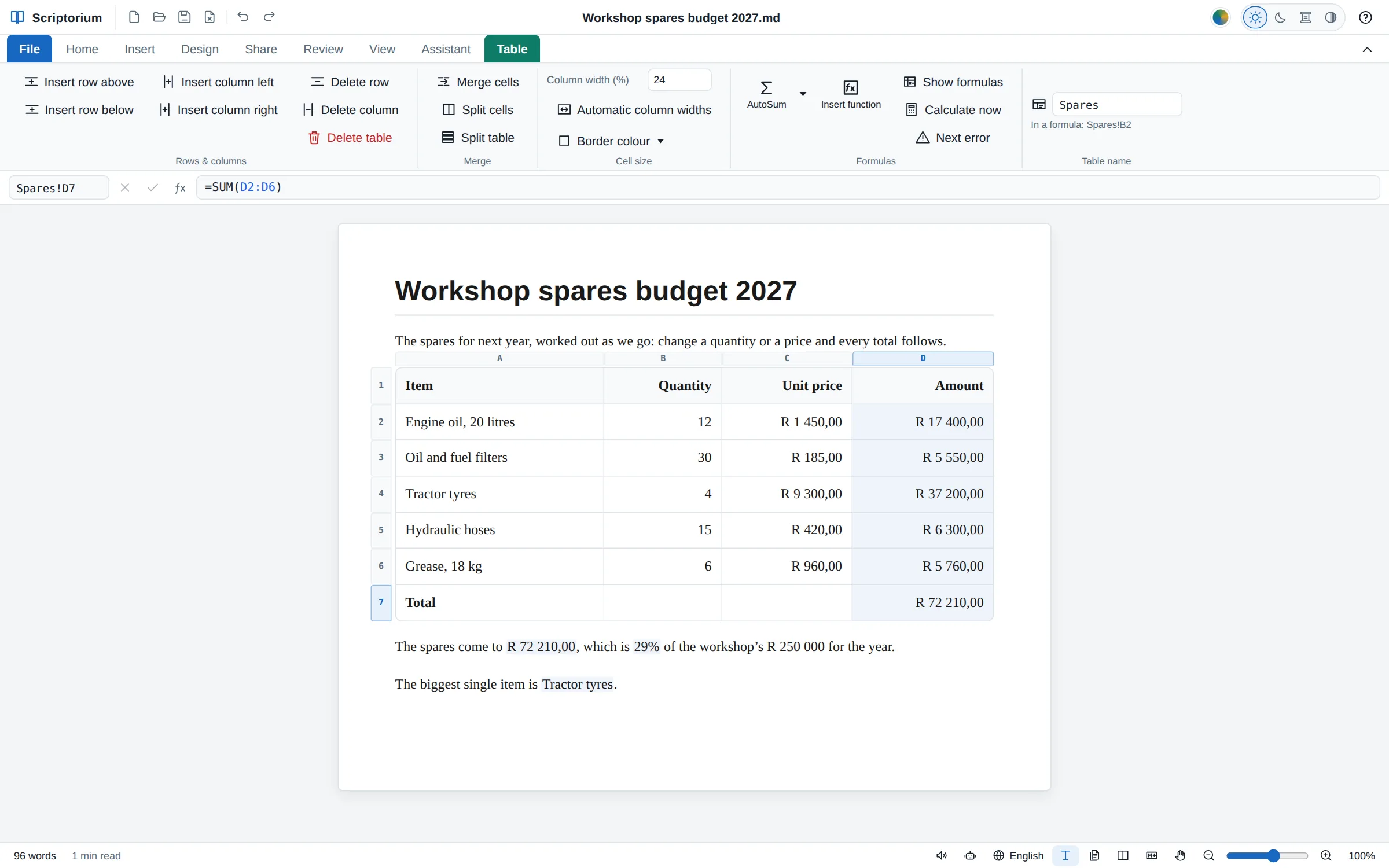
Most documents with numbers in them are really two files: the report, and the spreadsheet the numbers came from. Change a figure in one and you have to remember to change it in the other. In Scriptorium the table in the document does its own sums. Type a formula into a cell, as you would in Excel, and the cell shows the answer. Change a quantity or a price and every total that depends on it follows.
Your first formula
Make a table (Insert ▸ Table), fill in a few numbers, click in the cell where the total belongs and type an equals sign:
- Type = and then the calculation, such as
=B2*C2, or click the cells to put their names in. Each name is drawn in its own colour, and so is the cell it means. - Press Enter to finish and go down, Tab to go right, or Esc to leave the cell as it was.
- To change it later, double-click the cell or press F2.
Cells are named the way Excel names them. The columns are A, B, C from the left and the rows 1, 2, 3 from the top, and the heading row is row 1. B2 is one cell, B2:B9 is the cells from B2 down to B9, and a $ keeps part of a name from moving when the formula is copied: $B$2. F4 puts the $ signs in for you.
While you type a function’s name, a list of functions appears, and Tab takes one. A tip then shows what the function needs, with the part you are typing in bold.
The formula bar and the Table tab
When the cursor is in a table, a formula bar appears above the page, as in a spreadsheet. On the left is the Name box, which says where you are (B4, or Spares!D7 in a named table). Type an address there and press Enter to go to it. Beside it are ✗, ✓ and fx, and then the formula itself. Thin bands with the column letters and row numbers appear round the table, so you can read the cell names straight off.
The Table tab appears beside the others while the cursor is in a table. Its Formulas group has the buttons a spreadsheet user looks for:
- AutoSum (Alt+Shift+=) adds up the numbers above the cell, or to its left when there are none above. Its arrow offers an average, a count, the largest and the smallest instead.
- Insert function (Shift+F3) finds a function by its name or by what it does, with a box for each thing it needs and the answer underneath as you fill them in.
- Show formulas (Ctrl+`) shows every formula as it is written instead of its answer.
- Calculate now (F9) works everything out again. TODAY, NOW and RAND keep their value while you type, so random numbers do not jump about; opening the document, printing and exporting work them out afresh too.
- Next error takes you to each formula that could not be worked out.
Choose a few cells and the bar at the bottom of the window shows their sum, their average and how many there are.
A calculation in the middle of a sentence
A formula does not have to live in a table. Put one between {= and } anywhere in your writing, and the sentence shows the answer:
The spares come to {=Spares!D7}, which is {=TEXT(Spares!D7/250000,"0%")} of the year’s budget.Plain cell names mean the table just above the sentence. To reach a table further away, give it a name: click in it and type the name into Table name on the Table tab. Then Spares!D7 finds it wherever it is in the document, even after it moves.
The functions
Scriptorium has Excel’s functions for money, dates, text, statistics, lookups and logic, written with Excel’s names and Excel’s rules, so a formula you know from a spreadsheet works the same here: SUM, IF, XLOOKUP, VLOOKUP, SUMIFS, PMT, WORKDAY, TEXT and hundreds more. Insert function lists them all by group, and the help has a page with every one.
It also lets you write maths the way maths is written, and does maths that Excel cannot. The functions Excel doesn’t have are marked Beyond Excel in Insert function:
| You write | It works out |
|---|---|
=√2 and =5! | a square root and a factorial, written as maths writes them |
=πr² where r = 3 | the area of a circle of radius 3 |
=2^100 | all 31 digits, exactly |
=FRACTION(1/3 + 1/6) | exactly a half, as a fraction |
=SOLVE(x² − 5x + 6 = 0, x) | 2 and 3 |
=INTEGRAL(sin x, x, 0, π) | the area under sin x, 2 |
=SUMSEQ(1/n², n, 1, ∞) | the sum of an endless series |
Whole numbers of thousands of digits are worked out in full, fractions stay exact, and there are eigenvalues of matrices (EIGENVALUES({1,2;3,4})), complex numbers written as maths writes them (=(3 + 4i)(1 − 2i)), prime numbers, derivatives and limits besides.
Numbers, money and dates as you write them
Type numbers the way you always do, R 1 250,00 or $1,250.00, 15% or 2026-10-12: the formulas read them, and the answers come out looking the same. A sum of rands is in rands, a percentage stays a percentage, and a date plus 30 is a date 30 days later.
When something cannot be worked out, the cell shows one of Excel’s errors with a small red corner: #DIV/0! for dividing by zero, #VALUE! for words where a number is needed, #REF! for a cell that is not there any more. Point at the cell to read what went wrong, in plain words.
Put in or take out rows and columns, or move a table, and every formula that uses them follows, as in a spreadsheet. Undo puts everything back.
What gets saved, and what others see
The file keeps the formula, never just the answer, so nothing is lost when you change a figure next year. In the Markdown the total cell reads =SUM(D2:D6), which still makes sense to a person, or an AI, reading the file in another program.
Everything you print or export gets the answers: the printout, the PDF, Word and OpenDocument files, web pages and e-books. The Markdown file itself, and Copy Markdown, keep the formulas. Copy formula cells and paste them into other cells, and their cell names move with them; paste them into another program and they arrive as their answers. After a paste, Values only keeps the answers and drops the formulas.
For ready-made examples, the templates under File ▸ New come with their formulas in place: an invoice, a quotation, a budget, a mark sheet and more. Our guide to invoices and quotations that add themselves up walks through them.