Scriptorium Coder
Git in plain words: changes, branches and clashes in Scriptorium Coder
Git keeps every version of a project, but its commands are a language of their own. Scriptorium Coder puts the parts people use every day in one window, in plain words: what changed, every commit, a branch of your own, work put aside, tags, and clashes you settle with a click.
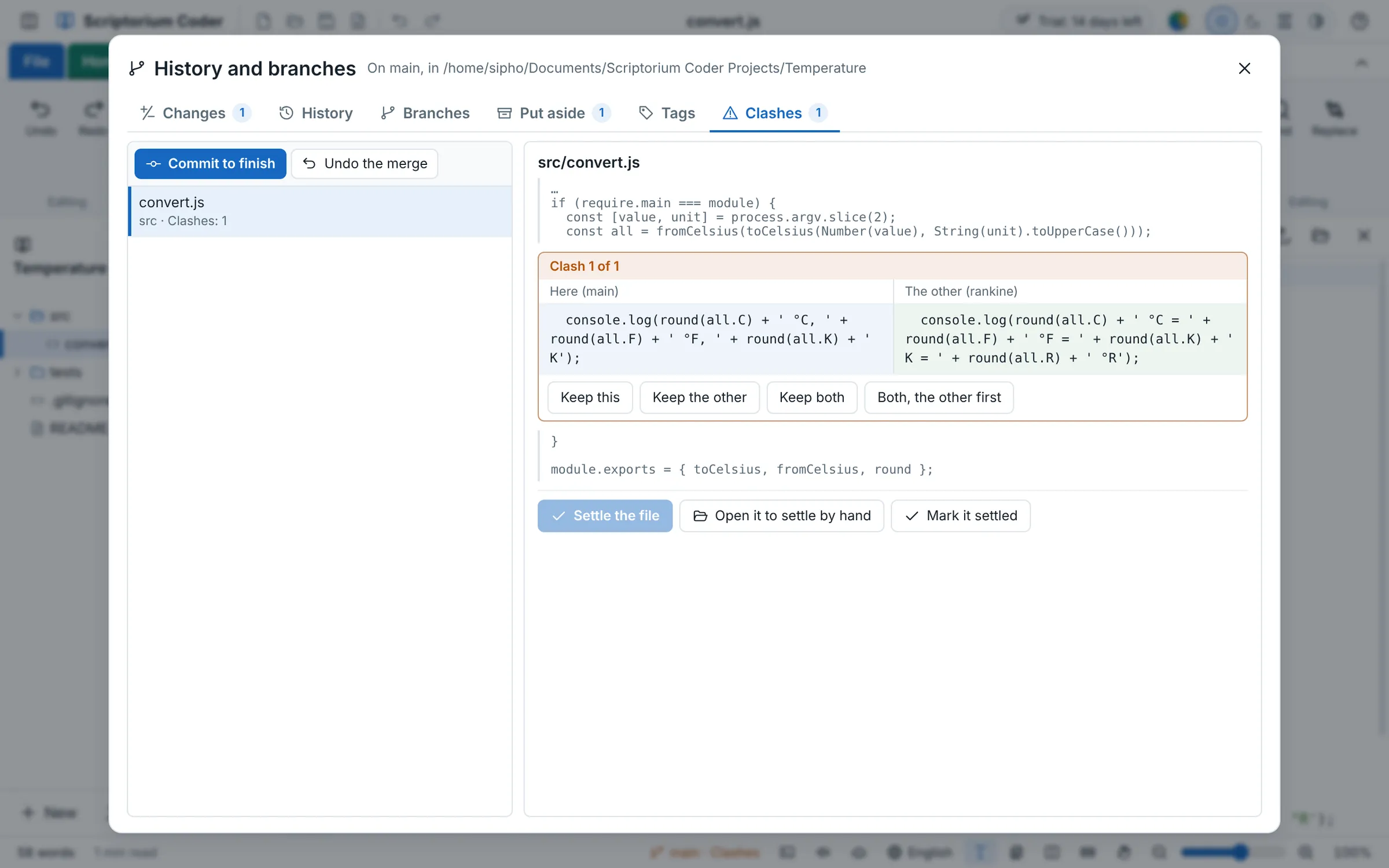
Everything in this guide happens in one place, History and branches. Open it with History on the Share tab, or by clicking the branch's name at the bottom of the window. Its six tabs are the six things Git does for you: Changes, History, Branches, Put aside, Tags and Clashes.
The pictures follow the small Temperature converter from Start a coding project through a few days of work. If you know Git already, this is what the words stand for:
| Git says | Scriptorium Coder says |
|---|---|
| the working tree, unstaged changes | Changes |
| log | History |
| checkout, switch | Switch to it |
| stash, stash pop, stash drop | Put aside, Bring them back, Throw them away |
| merge conflict | Clash |
| restore a file, checkout a file from a commit | Undo its changes, Bring this version back |
| add to .gitignore | Leave it out of Git |
Changes: what you have not committed yet
The Changes tab lists every file that is different from the last commit, with a number on the tab for how many there are. Choose one to see what changed in it, line by line: the lines added in green, the lines taken out in red, and a few lines on either side so you can see where you are.
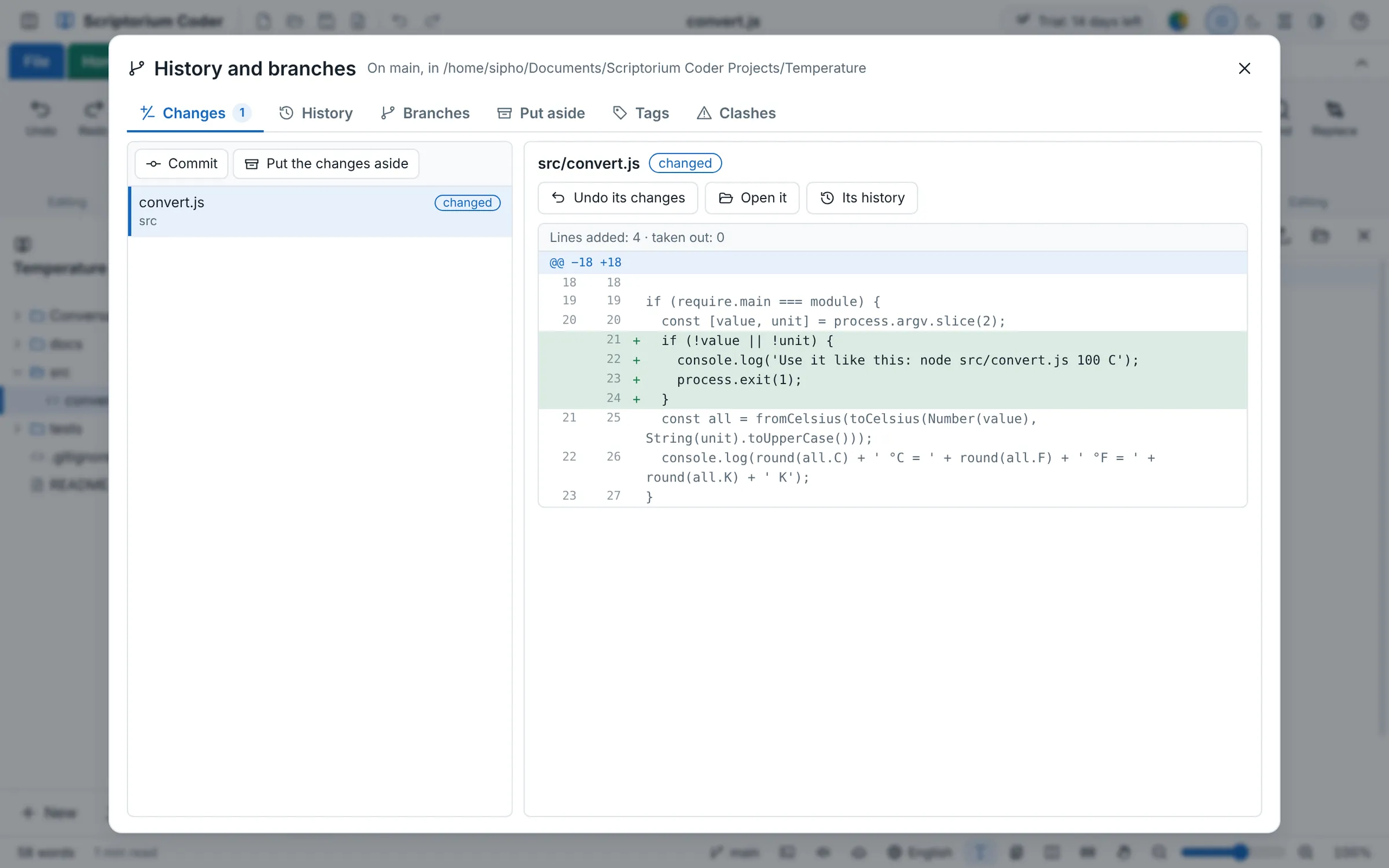
- Undo its changes puts the file back as the last commit has it. Scriptorium Coder asks first, because what you changed since cannot be brought back. A file that was never committed goes to your computer's bin, where it can be.
- For a new file, Leave it out of Git writes its name into
.gitignore, for files Git should never keep, such as a log or a folder of downloads. - Open it opens the file, and Its history shows only the commits that changed it.
- Commit and Put the changes aside are at the top of the list.
History: every commit, and what it changed
The History tab lists the commits, newest first, each with what it says, who made it, when, and the first seven letters of its number. A merge is marked as one. Choose a commit to see its whole message, its full number, every file it changed and every line.
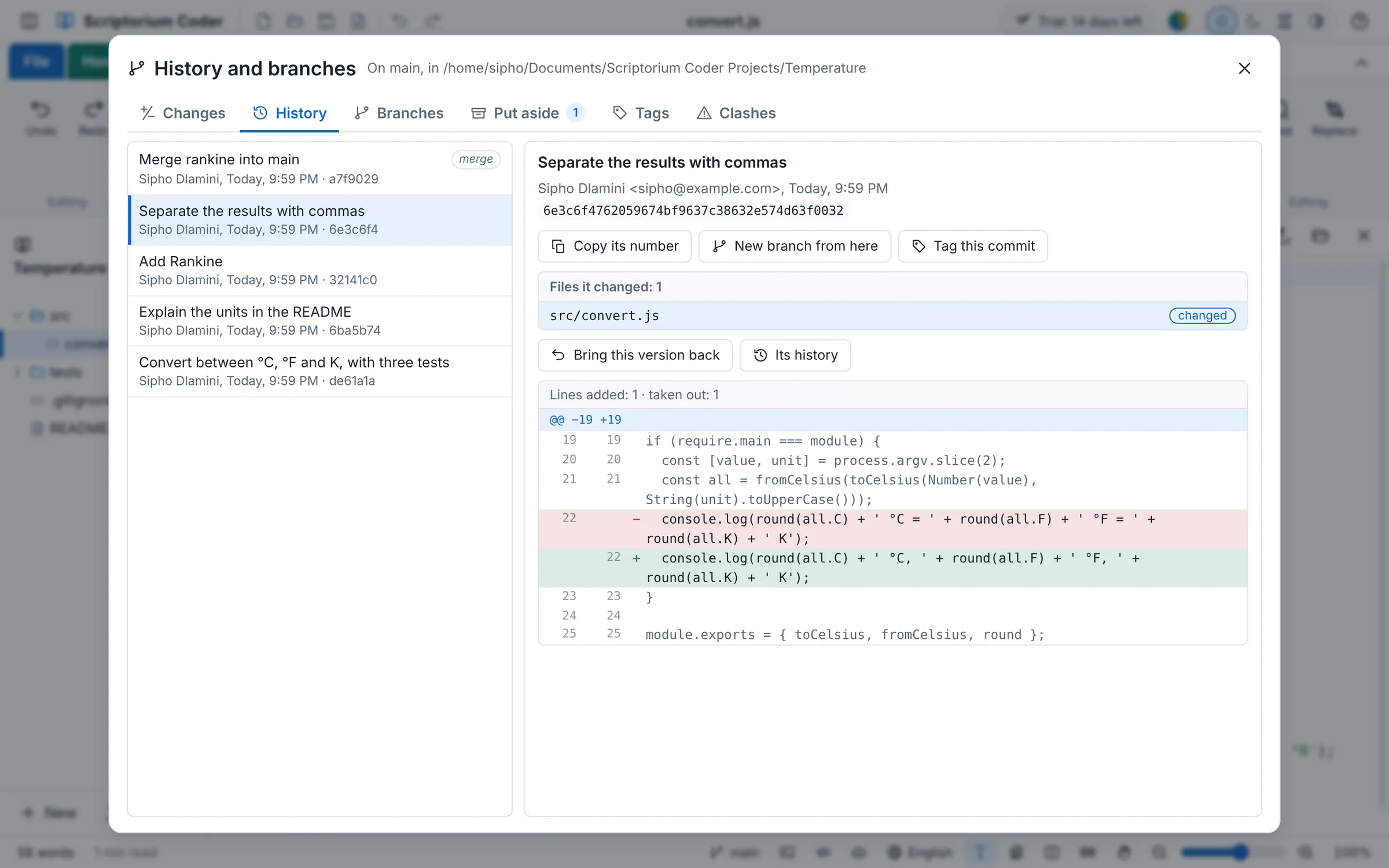
- Bring this version back puts a file back as that commit had it. It arrives as a change you can commit, or undo again, so nothing is lost by trying.
- New branch from here starts a branch at that commit, and Tag this commit gives it a name.
- Copy its number copies the commit's full number, for a bug report or a message to a colleague.
Put aside: changes kept to one side
Halfway through something, you need the files as they were: to fix a bug somebody has just found, or to try a colleague's branch. Put the changes aside keeps everything you changed since the last commit to one side, with a note to know it again, and puts the files back as the last commit has them.
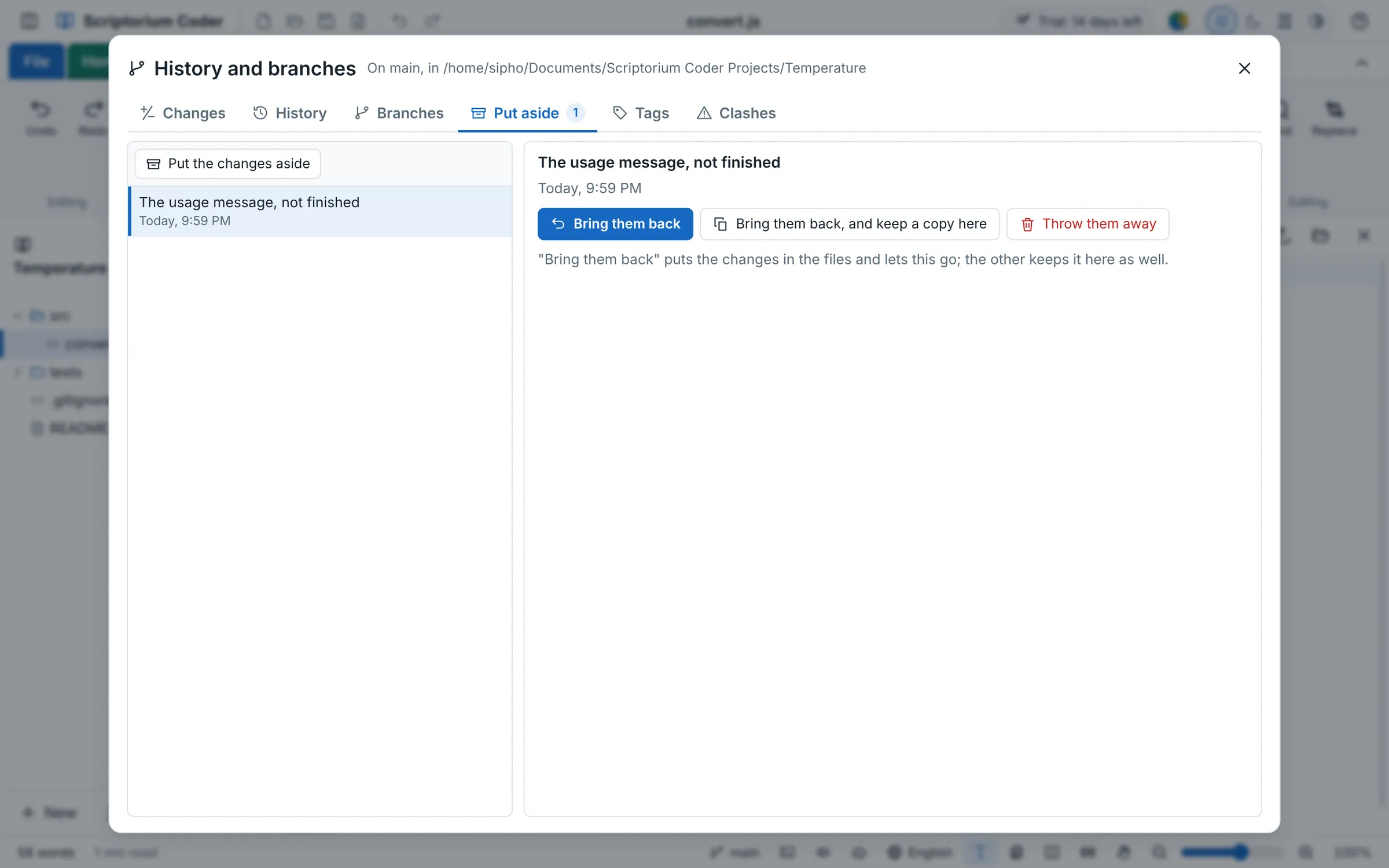
When you are ready, choose it and press Bring them back, on the same branch or another one. Bring them back, and keep a copy here brings them back and keeps them in the list as well. Throw them away deletes them, after asking, because they cannot be brought back after that.
Branches: a line of work of its own
A branch is a line of work of its own: what you commit on it stays off the others until you merge it. The Branches tab lists the branches on your computer, marking the one you are on, and the branches on the server under them.
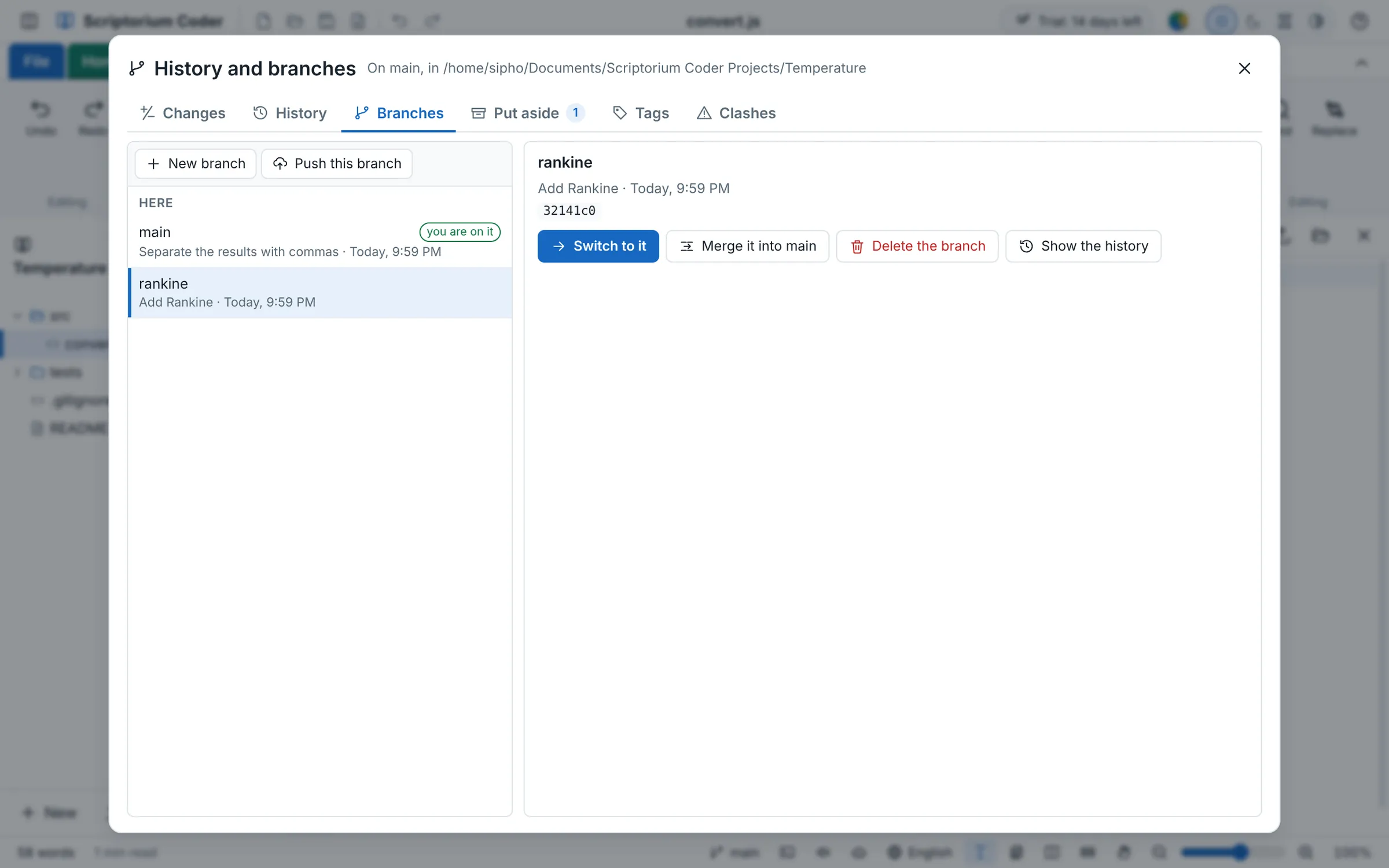
- New branch asks for its name, with Switch to it ticked, and makes it from the commit you are on.
- Switch to it moves you to the chosen branch, and the files in the folder change to match it. If you have changes not committed yet, Scriptorium Coder says so first: commit them, or put them aside, so that nothing of yours is lost.
- Merge it into main brings the branch's commits into the branch you are on.
- Delete the branch deletes it once it has been merged. If it has commits no other branch has, you are asked first, because those commits would be lost.
- Push this branch puts it on the server, and a branch that follows one on the server shows how many commits there are to push and to pull.
Clashes: when both sides changed the same lines
Most merges simply work: the commits of both branches join, and Git puts the changes together by itself. When both branches changed the same lines, Git keeps both versions, marked, and Scriptorium Coder lists the file under Clashes, as in the picture at the top. Here, main had separated the results with commas while rankine added a fourth unit to the same line.
Each clash shows the lines as they are here and as the other branch has them, side by side, with four buttons:
- Keep this: the lines as they are on your branch.
- Keep the other: the lines as the other branch has them.
- Keep both: yours, then the other's, to tidy afterwards.
- Both, the other first: the same, the other way round.
When every clash in a file is decided, press Settle the file. If neither side is quite right, Open it to settle by hand opens the file, where Git's marks show both versions; take the marks out, keep what you want, and press Mark it settled. When every file is settled, press Commit to finish. And if the merge was a mistake, Undo the merge puts every file back as it was before it.
The same can happen when you pull and somebody else changed the lines you changed. The files are listed under Clashes in the same way, and the Git box can also Undo the pull, or take the server's version of the files that clash with Use the server's version.
Tags: a name for a commit
A tag is a name for one commit, to find it again: v1.0, or the draft sent to the client. On the Tags tab, New tag asks for its name and, if you want one, a note, and puts it on the commit you are on (Tag this commit, in History, puts it on any other). Push the tags puts them on the server. Deleting a tag takes away only the name: the commit stays, and a tag already pushed stays on the server.
Which Git, and the server
All of this works with the Git on your computer, if you have one, and with the Git that comes with Scriptorium Coder if you do not: in the Git box on the Share tab, Which Git on Automatic chooses for you. Sign in to GitHub, GitLab or your own server there once, with an access token that is kept encrypted on your computer and sent only to that server. Then Pull brings in what others have pushed, and Push sends your commits; if the server has commits you have not got yet, Scriptorium Coder tells you to pull first.
And everything stays ordinary Git: the history you make here is the history GitHub shows, and a colleague who prefers the command line can work on the same repository.