Scriptorium
Make a newspaper or a newsletter, with words on the pictures
Stories in columns under a headline across them, a photo with its caption printed on it, a pull quote and a table of results: a front page, with a button for every part of it.
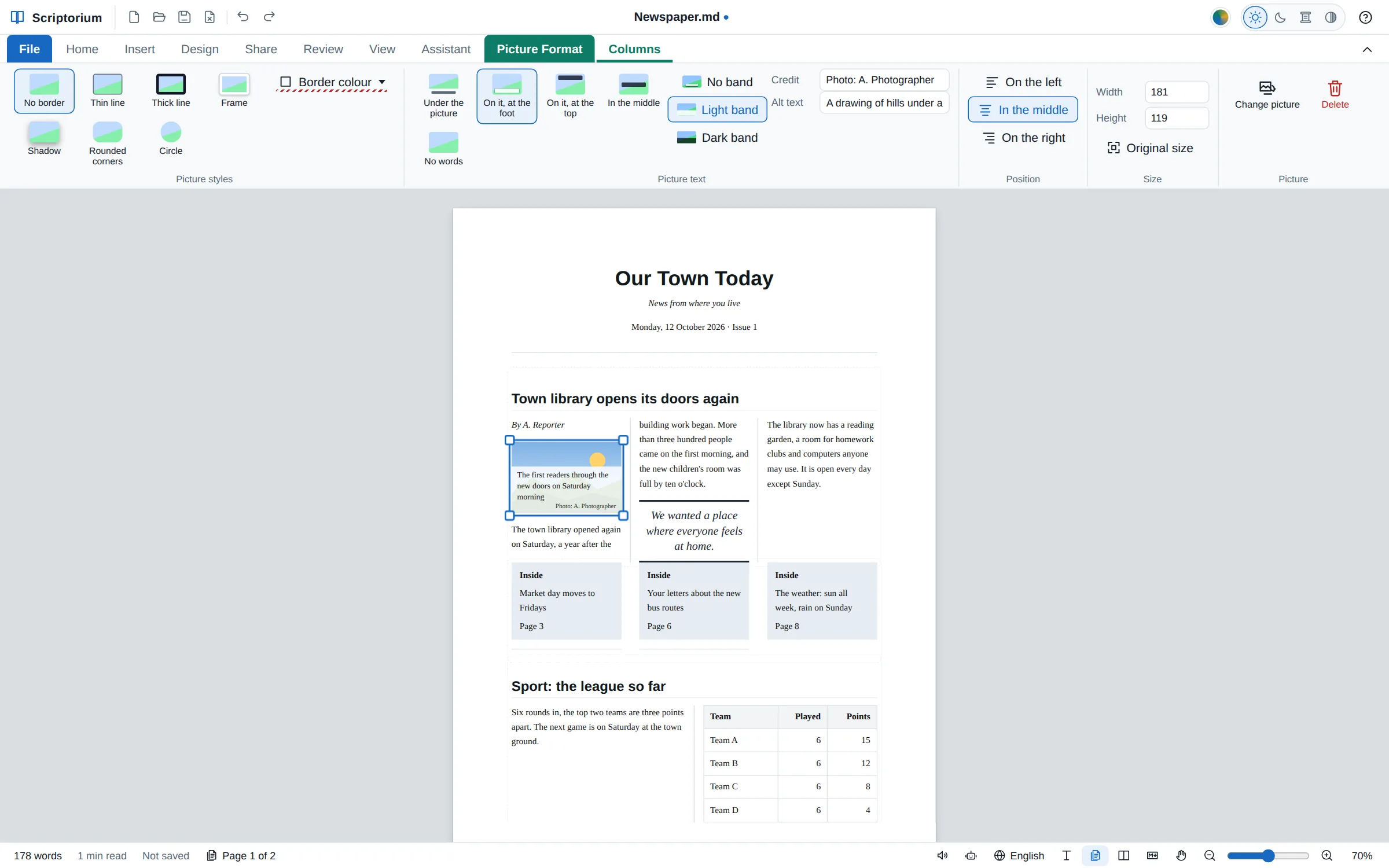
A newspaper page is the hardest layout most people ever try: stories running down three or four columns, a headline across the top of each story, photographs inside the columns with their captions printed on them, a pull quote, boxes pointing to the pages inside, and a table of results. In most word processors it means text boxes that slide about. In Scriptorium the columns are part of the document, and everything you put in them has a button.
The quickest start: the Newspaper template
Go to File ▸ New and choose Newspaper under Writing. You get a front page to type over:
- the paper’s name with its motto underneath, and today’s date with the issue number;
- a lead story in three columns with a line between them, under a headline across all three, with a byline;
- a picture in the first column with its caption laid over its foot and a photo credit;
- a pull quote in the middle column;
- three teasers in shaded boxes, each pointing to a page inside;
- a sport story in two columns with a league table.
It is written in your language, with the date the way your country writes it.
Columns, from the Insert tab
Insert ▸ Columns sets two, three or four columns, with a Line between them if you like. Under Layouts for a newspaper are four ready-made stories, each with words to type over: A story with a headline, A story with a picture, A story with a table and Teasers in boxes.
The Columns tab
While the cursor is in columns, a Columns tab appears beside the others, with a picture on every button:
- 2, 3 or 4 columns, and Line between.
- Headline across: a headline over all the columns, at the top of the story.
- Table and Picture: put in the column the cursor is in, a table as wide as the column, a picture no wider than it.
- Pull quote: a sentence from the story, large, between two lines.
- Teaser box: a shaded box for a short item, such as a story on another page.
- Next column: what follows starts at the top of the next column.
- Carry on below leaves the columns, to write across the page again; Remove columns puts the words back across the page.
A table or a picture in a column stays whole. When it does not fit at the foot of a column, it moves on to the top of the next one, rather than being cut in two. Insert ▸ Table and Insert ▸ Picture put them in the column the cursor is in, too, and so does the assistant.
Words on pictures
Newspapers print a photo’s caption on the photo itself. Click a picture to choose it, and the Picture Format tab has a Picture text group:
- Under the picture: the ordinary caption, in small italics.
- On it, at the foot: laid over the bottom of the picture on a band.
- On it, at the top: across the top, like a headline printed on a photo.
- In the middle: in the middle of the picture.
- No words: the words are kept with the picture, but not shown.
No band, Light band and Dark band choose what is behind the words, so they can be read on a bright sky or a dark street.
Credits, alt text and a new picture
- Credit adds a line in smaller type after the caption, such as Photo: Ann Lee.
- Alt text says what the picture shows, for people who cannot see it. Web pages and Word files use it. It is kept apart from the caption, so write both: the caption tells the story, the alt text describes the picture.
- Change picture puts another picture in this one’s place. Its size, place, look and words stay.
The words on a picture show on the page, in the print preview, on paper, in the PDF and in web pages (in a browser that can’t lay one thing over another, they sit under the picture). E-books, Word, OpenDocument and RTF files put them under the picture instead, because those can’t lay words over a picture in the line. Word and OpenDocument files keep the alt text as the picture’s description; an RTF file has no place for it.
What it looks like in Markdown
You never have to type any of this, but if you are curious, or an AI writes your newsletter for you, it is plain text:
{cols:3 line}
## Town library opens its doors again
{picture:text=foot band=light credit="Photo: A. Photographer"}

The town library opened again on Saturday, a year after the building work began.
> [!PULLQUOTE]
> We wanted a place where everyone feels at home.
{/cols}Let the assistant lay it out
The assistant knows how newspapers are made, so you can ask in plain words: “Make a front page for our club newsletter with three columns, a photo with its caption on it and the results in a table.” It writes the columns, the headline, the picture settings and the table into the page, and you type over its words with your own.
Newspapers are about the page, so work in View ▸ Pages, which shows the front page on its sheet of paper as it will print. Our guide to seeing your document as it will print has more.