Scriptorium
See your document as it will print, page by page
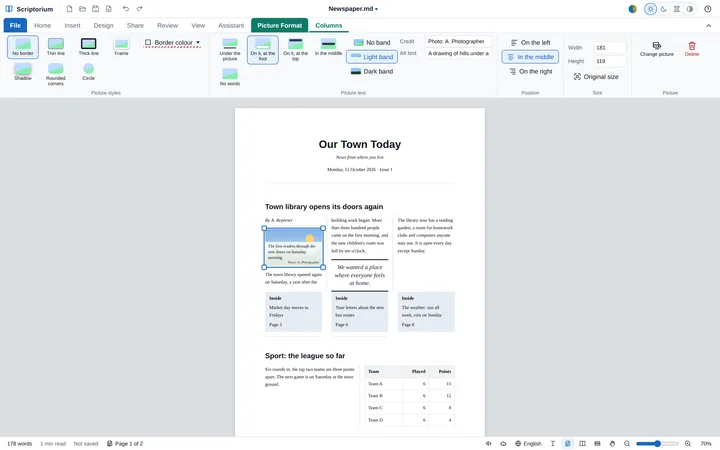
View ▸ Pages lays your writing out on sheets of the paper you chose, with the margins round it and every page ending exactly where the printed page will end.
A long document written on one endless sheet can surprise you when it prints: a heading alone at the foot of a page, a table cut in two, a last page with a single line on it. Word users avoid this in Print Layout, where the document sits on sheets of paper as they write. Scriptorium has the same now: View ▸ Pages shows your writing on pages of the paper you chose, ending exactly where the printed pages end.
Switch it on
- Open the View tab and press Pages, beside Rich text. Or click the pages button at the bottom right of the window.
- Your document is laid out on sheets of paper, one under the other, with the margins round the writing and the page numbers at the foot, if you chose them.
- Write as usual. Typing, selecting, undo, Find, spelling and the assistant all work on the pages just as they do on the long sheet.
The long sheet is still there as Rich text, for writing without breaks. Switch between the two whenever you like; nothing in the document changes, only the way you see it.
Choose the paper on the Design tab
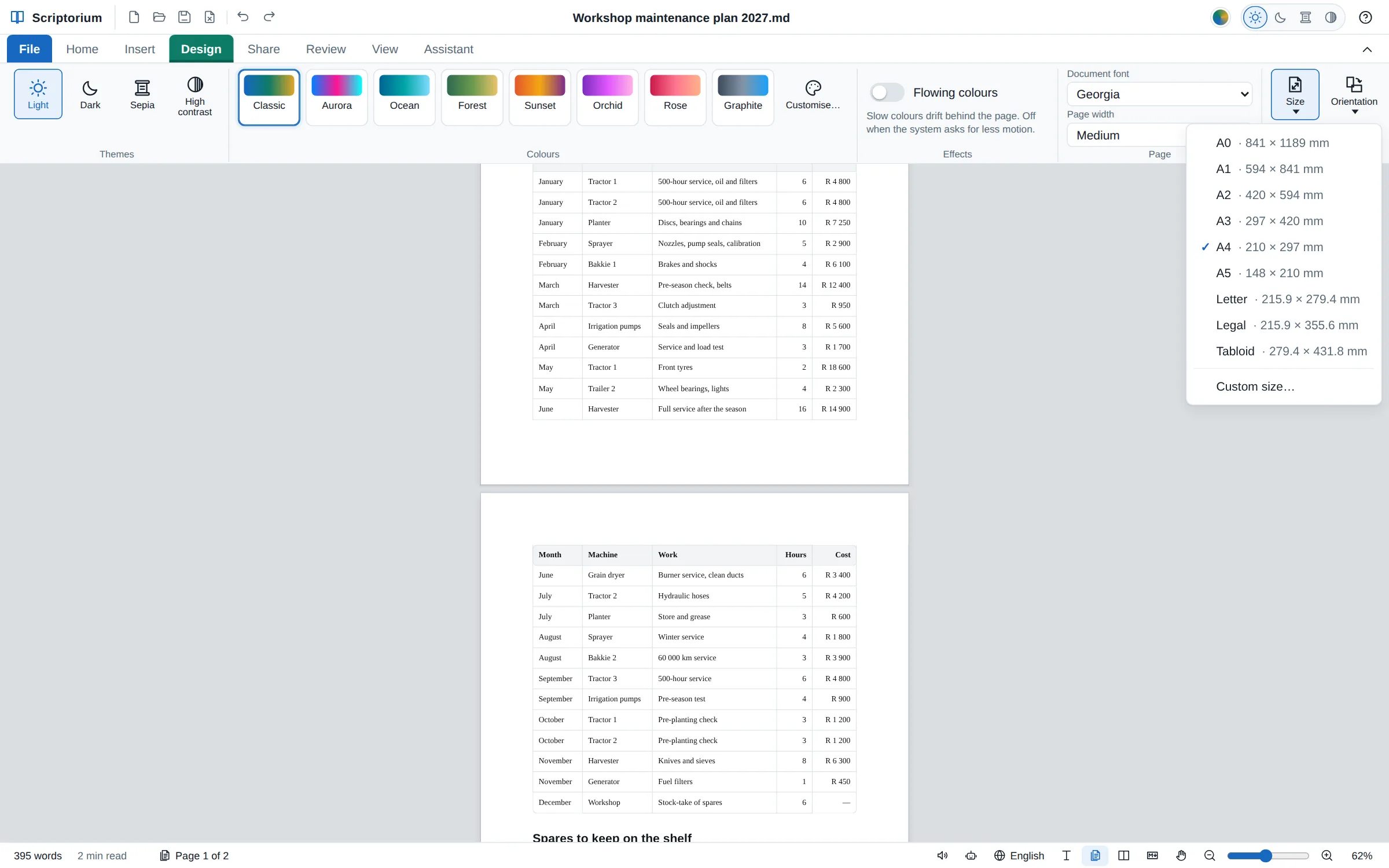
The Design tab has a Size, an Orientation and a Margins button, as in Word:
- Size: A0 to A5, Letter, Legal and Tabloid, each with its size beside its name, or Custom size… for a size of your own.
- Orientation: upright (portrait) or on its side (landscape).
- Margins: normal, narrow, wide or none.
These are the same settings as Page setup in the print preview, so a change in one is a change in all of them: the pages, the print preview, the printout and the PDF.
Where the pages end
The pages end where the print preview ends them, line for line, because the same part of Scriptorium works them out. That means the page follows the printer’s rules:
- A table that runs on to the next page shows its heading row again at the top.
- A heading never sits alone at the foot of a page: it moves on with the paragraph under it.
- A list or a long paragraph carries on over the page. A code block, a quotation or a table that fits on one page moves to the next page whole; one longer than a page carries on.
- A page break (Insert ▸ Page break) starts a new page.
The letters on the pages are the size they will be on paper, whatever the zoom, so the lines break where they will break on paper too. A border round each page, chosen in Page setup, shows as it will print.
Find your way round a long document
The status bar says which page the cursor is on, for example Page 3 of 7. Click it to go straight to another page. To see a whole page at once, click the percentage at the bottom right and choose Fit page; hold Ctrl and turn the mouse wheel to zoom in on a detail. The pages keep a zoom of their own, apart from the long sheet’s.
Dark mode, comments and the rest
The paper is white in every theme, as it will be when it prints, so in dark mode you see white pages on a dark desk. Comments do not print, so on the pages they stand beside the page as notes rather than between the lines.
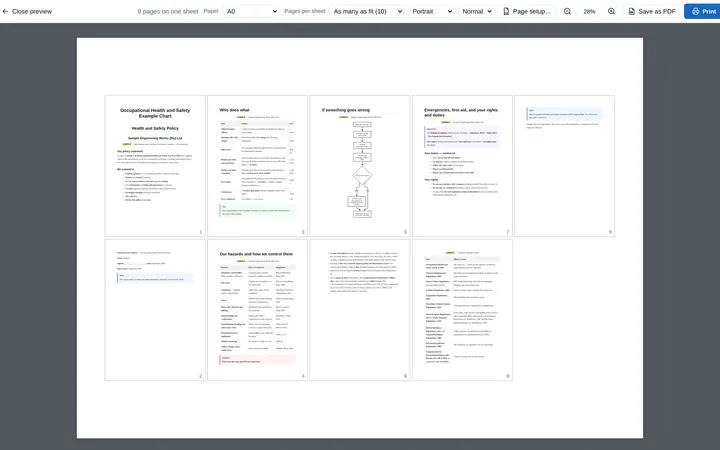
When Page setup prints several pages on one big sheet, or puts a border round each page, the pages are set at 12 points, as the sheets are, and the Pages view follows. For a wall chart or a poster, see how to print a wall chart on any paper.
When to use which
Use the pages when the look on paper matters: a report going to a client, a CV, a newsletter, an exam paper. Use the long sheet when you are getting words down and do not want page ends in the way. Either way, the file is the same Markdown, and the print preview (Ctrl+P) is one keystroke away.