Scriptorium
Wrap words round a picture, a chart or a table, as in Word
Put a picture beside the words, with the lines running round it; above and below them; or behind and in front of them, moved with the mouse to exactly where you want it. Pictures, charts, diagrams, bar codes, tables and Word Art all have the same seven Layout options.
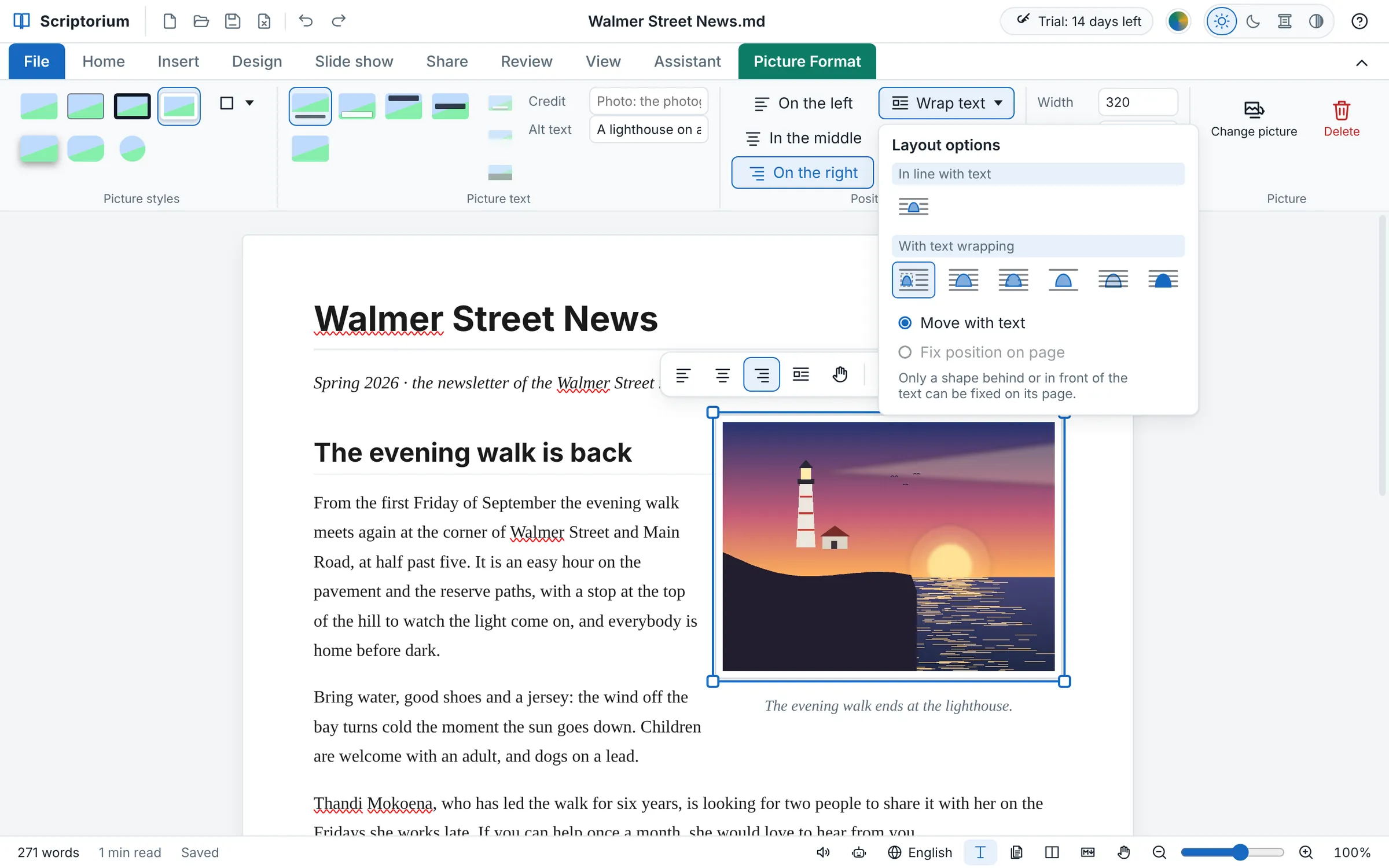
A picture dropped into a document usually sits on a line of its own, with the words stopping above it and starting again below. That is fine for a report, but a newsletter, a flyer or a school notice looks better with the picture beside the words, the way magazines do it. In Word that is called wrapping text. Scriptorium has the same Layout options, with the same names, and they work on the page, in the Pages view, on paper, in the PDF and in the web page alike.
Choose how the words go round it
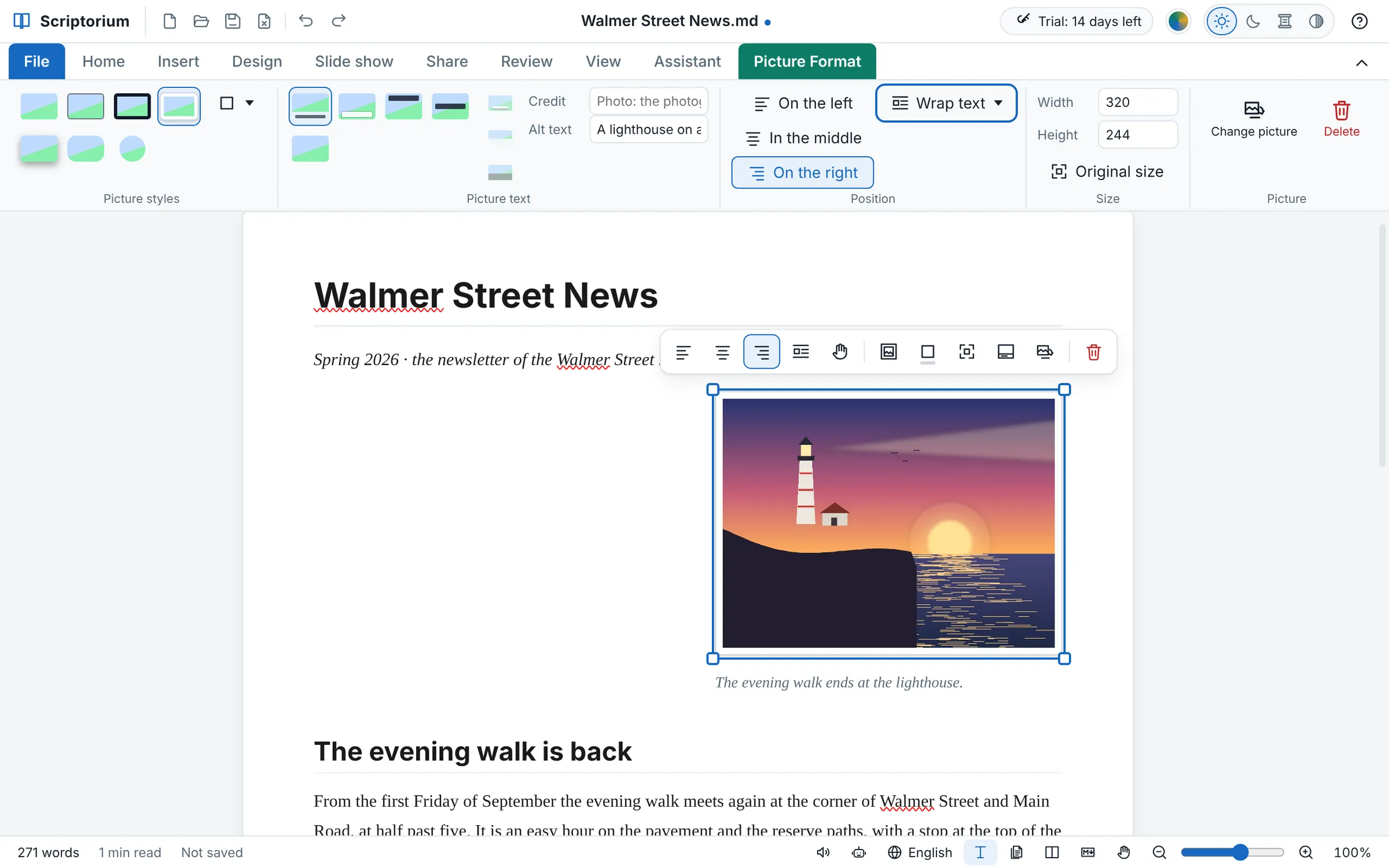
Click the picture to choose it. A small toolbar appears over it, and the Picture Format tab appears on the ribbon. The Layout options are in two places: the button with the wrapped lines on the small toolbar, and Wrap text on Picture Format.
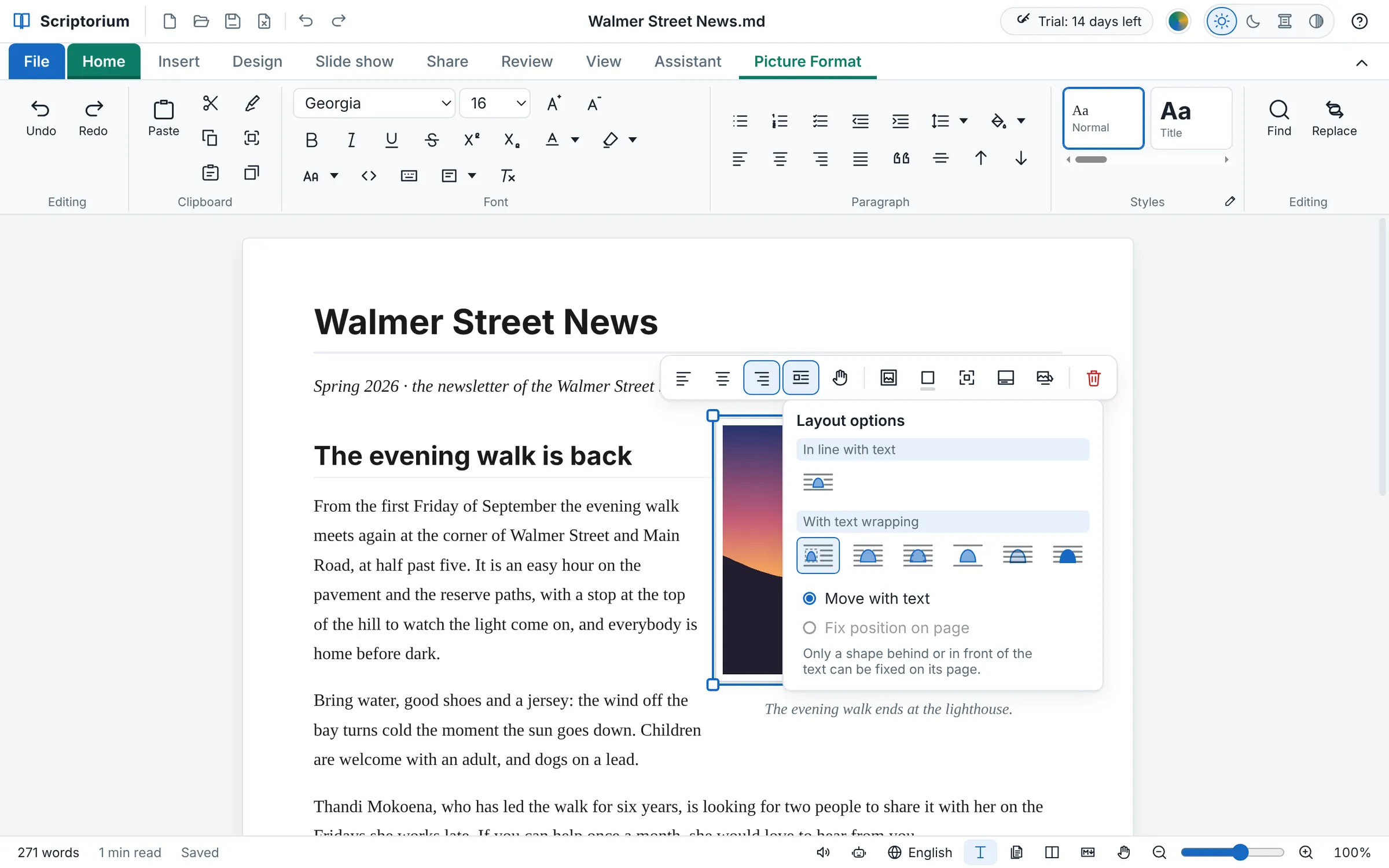
| Layout option | What it does |
|---|---|
| In line with text | The picture is part of the writing, on a line of its own, as it always was. |
| Square | The words run down the side of the picture, square to its edges. |
| Tight and Through | For a shape or Word Art, the words follow its outline. A picture is a rectangle, so for a picture they run round its box, like Square. |
| Top and bottom | The words stop above the picture and carry on below it, with nothing beside it. |
| Behind text | The words are written over the picture: for a pale background, a watermark or a faint logo. |
| In front of text | The picture covers the words: for a stamp, a sticker or a label laid over the page. |
Left, middle or right
The first three buttons on the small toolbar, also on Picture Format as On the left, In the middle and On the right, choose the side the picture keeps to. With Square, a picture on the right has the words on its left, as in the newsletter above, and a picture on the left has them on its right. A picture leaves the line from the side it stood on, and keeps the size it had.
Move it, and size it
Once a picture is out of the line, drag it anywhere you want it, or drag the hand on its small toolbar. The arrow keys nudge it a little at a time, and with Shift, ten times as far. Its corners still make it bigger or smaller, and the words make room as it grows. Width and Height on Picture Format set an exact size.
Move with text, or fix it on the page
Under the seven options are Move with text and Fix position on page. A picture that moves with the text stays with the paragraph it belongs to: add a paragraph above it, and it moves down with its own. A picture fixed on its page stays exactly where you put it on that page, whatever happens to the words: a logo in a corner, or a bar code at the foot of a delivery note.
Only a picture behind or in front of the words can be fixed on its page. A picture that the words run round has to go with them, or they would run round an empty space.
Charts, diagrams, bar codes, tables and Word Art too
Everything that is drawn in a document has the same Layout options, on a small toolbar of its own when it is chosen, with a hand to drag it:
- Charts, graphs, diagrams and bar codes. A chart or diagram out of the line can also be dragged by itself or nudged with the arrow keys, and changing it in its box keeps its place.
- Tables: click in the table, and its small toolbar appears.
- Shapes and Word Art, where Tight and Through run the words round the letters themselves.
- A drawing canvas, chosen by clicking its empty space.
In the Markdown
A Scriptorium document is a plain Markdown file, and the layout is written in it in words you can read. A picture keeps it in its own line, with the rest of its settings:
{picture:frame wrap=square side=right w=320 h=240}
A picture moved out of its place has at=12,30 too, and one fixed on its page pin. A table has the same words in its {table:...} line, and a chart, graph or bar code has lines of its own in its block, such as wrap: square and side: right. Another Markdown program shows that line as words above the picture, and the picture in the line, so nothing is lost.
On paper, in the PDF and on the web
The page you write on, the Pages view, the printed pages, the PDF and the web page all place a picture in the same way, so what you see while you write is what prints. Word, OpenDocument and RTF files keep pictures in the line of text for now, so a document sent as a Word file is tidy, with each picture on a line of its own.
Scriptorium Coder has the same Layout options, so the pictures and charts in a project's report and README can sit beside the words as well.