Scriptorium
Zoom and pan like a drawing program
Hold Ctrl and turn the wheel: the page grows around the pointer, as in a CAD program. Drag with the wheel pressed to slide it. Every window that shows a page works the same way.
People who draw on computers zoom without thinking about it: a turn of the wheel to look closer at one corner, a drag to slide the drawing across, a double-click to see the whole thing again. Word processors have mostly been clumsy at it, with a zoom box in a corner and a page that jumps about. Scriptorium zooms and moves like a drawing program, in every window that shows a page: the page you write on, Side by side, Reading view and the print preview.
Zoom with the wheel
- Hold Ctrl and turn the mouse wheel. The page grows or shrinks around the pointer, so whatever is under it stays exactly there, as in a CAD program.
- On a trackpad or a touch screen, pinch with two fingers.
- Double-click the wheel (the middle button) to fit the page’s width to the window again. In the print preview it fits the whole page.
If you are used to drawing programs, where the wheel zooms by itself, tick The mouse wheel zooms in File ▸ Settings. The wheel then zooms on its own, and Ctrl with the wheel scrolls.
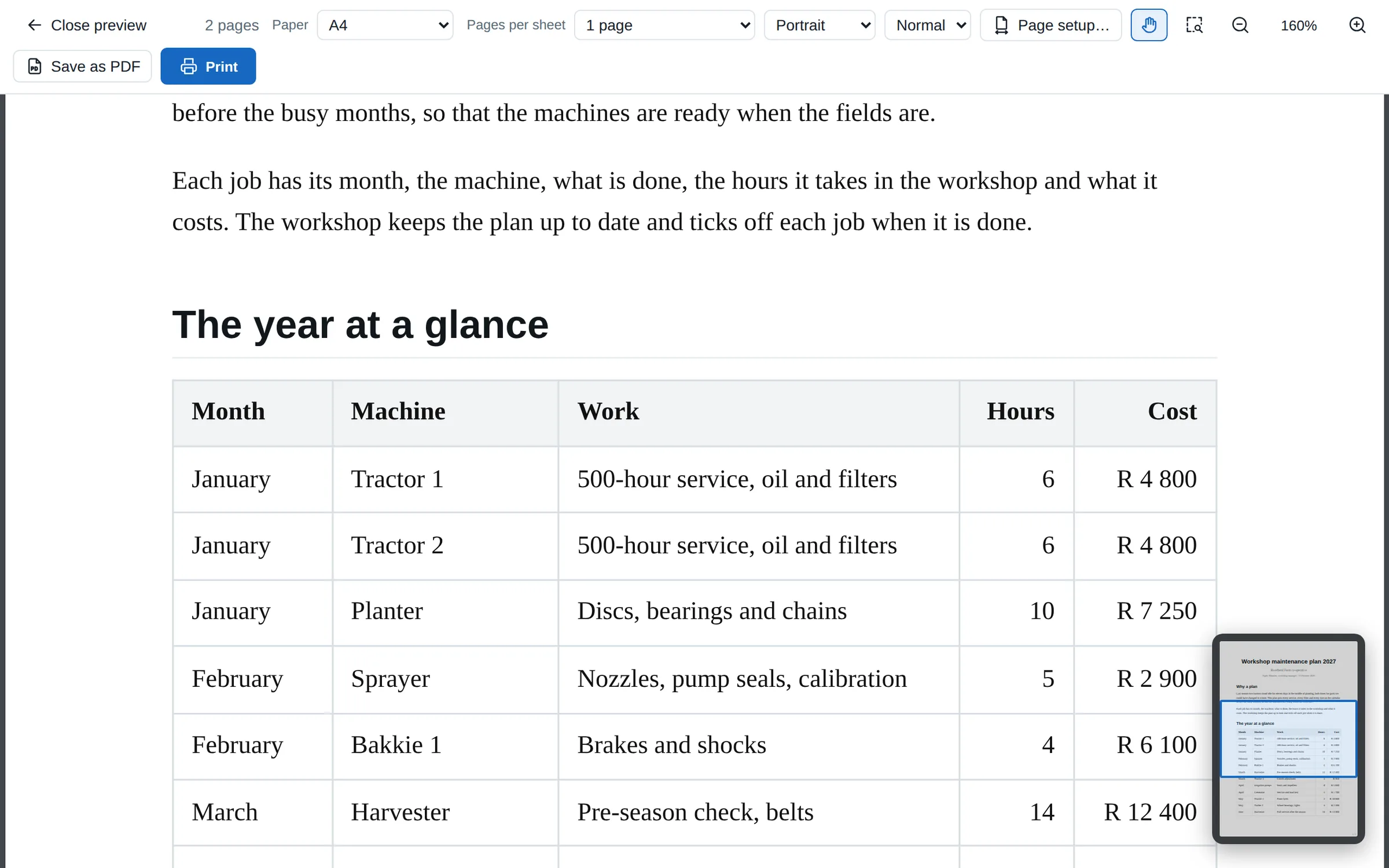
The page you write on zooms from 10% to 500%, and the print preview from 5% to 1600%, sharp at every size, because the page is drawn again at the new size rather than stretched.
Move the page with the hand
- Drag with the wheel pressed to slide the page, anywhere, even on the page you are typing on.
- In the print preview and Reading view the pointer is a hand, as in a PDF reader: drag the page to move it. Flick it and it glides on, slowing down. In Reading view a drag that starts on the words selects them instead, so you can still copy.
- Hold Space for the hand anywhere you are not typing.
- On the page you are writing, press Hand on the View tab, or the hand at the bottom right. Press it again, or Esc, to type again.
The zoom controls
At the bottom right are the zoom buttons, a slider and the percentage. Click the percentage for Fit width, the usual sizes, a size of your own and the Zoom box. The View tab has the same buttons.
- Zoom box: drag a box round what you want to see, and it fills the window.
- The Navigator: zoomed in on the print preview, a small picture of the whole page sits in the corner, with a box for the part you can see. Drag the box to move around the page.
- Back and forward: Alt+← goes back to the zoom and the place you were before, and Alt+→ forward again.
The keys
| Keys | What they do |
|---|---|
| Ctrl+= and Ctrl+- | Zoom in and out |
| Ctrl+Alt+0 | 100% |
| Ctrl+0, Ctrl+1, Ctrl+2 | Fit page (in Reading view, fit width), actual size and fit width, in the print preview and Reading view |
| H and Z | The hand and the zoom box, in the print preview and Reading view |
| Alt+← and Alt+→ | Back to the zoom and place before, and forward again |
On the page you write on, Ctrl+0 stays Normal text and Ctrl+1 to Ctrl+6 stay the headings, as Word users expect.
The page is a sheet of paper
Zooming in Scriptorium magnifies the page, like looking closer at a sheet of paper. It does not make the letters bigger and wrap the lines again, as some programs do. So the lines break in the same places at every zoom, a table keeps its shape, and zooming never changes what prints. Everything you drag still follows the pointer at any zoom, such as the handles for resizing a picture, or a pen on a drawing canvas.
The Markdown code is text rather than a page, so there Ctrl with the wheel makes the letters bigger or smaller instead.
The page you write on, the Pages view, Side by side and Reading view each keep a zoom of their own, and Scriptorium remembers them for next time. The print preview always opens with the whole page in view, ready for you to zoom in on whatever you want to check.