Scriptorium 3.49

What’s new in Scriptorium

Since 4 October Scriptorium has learnt to calculate like Excel and do algebra, to lay your writing out on real pages, to make newspapers, to leave out the table lines you don’t want, to print colours behind the writing, to send its tables to Excel and bring them back, and to fill a table from one formula, as Excel 365 does. Here is every new feature, with a picture where there is something to see.

All of it is in Scriptorium 3.49. The 14-day trial has everything switched on, and a licence gets every new version free.

Formulas and maths

A spreadsheet in every table.

Tables work out their own totals with Excel’s formulas, fill themselves from one formula, keep Excel’s number formats and names, go to Excel and back, a sentence can calculate, and maths is written the way a textbook writes it.

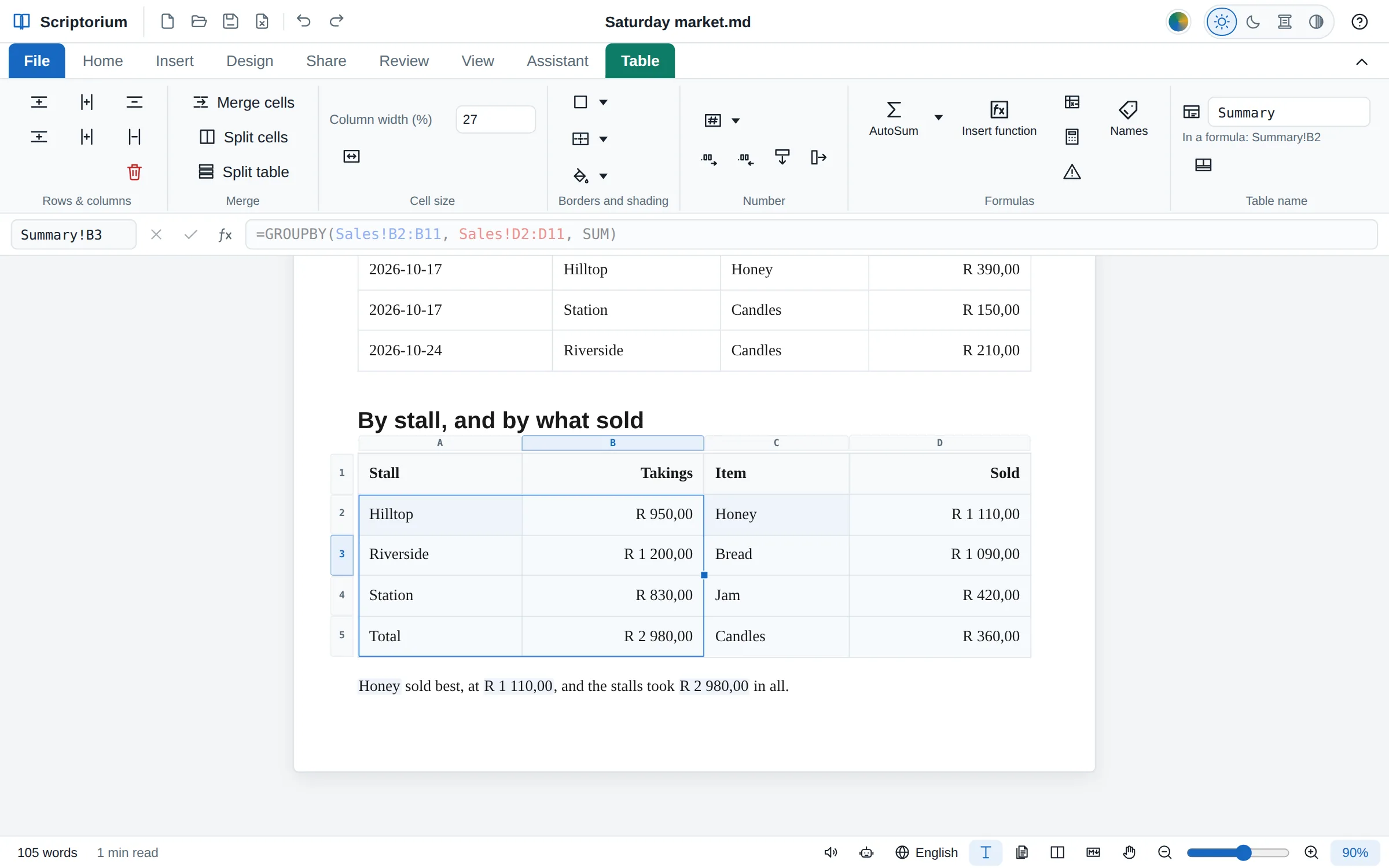
A market’s sales list and, under it, a summary table filled by two GROUPBY formulas: takings by stall with a Total row, and items by what they sold. The cursor is in Riverside’s takings, a thin blue line marks the block, and the formula bar shows the formula greyed
New in 3.49Any cell ▸ =SORT, =FILTER, =GROUPBY…

Answers that spill into the cells around them

As in Excel 365, a formula whose answer is a block of values fills the empty cells to its right and below it: the rows in order, the rows that meet a condition, each value once, or a whole table added up by its groups, with totals.

  • FILTER, SORT, SORTBY, UNIQUE, SEQUENCE, TAKE, DROP, VSTACK, HSTACK, TEXTSPLIT and more
  • A thin blue line shows the block; if a cell is in its way, #SPILL! names it
  • =SUM(B2#) adds the whole block, however big it grows
  • Each value keeps its look: dates as dates, rands as rands
Spilling, step by step →

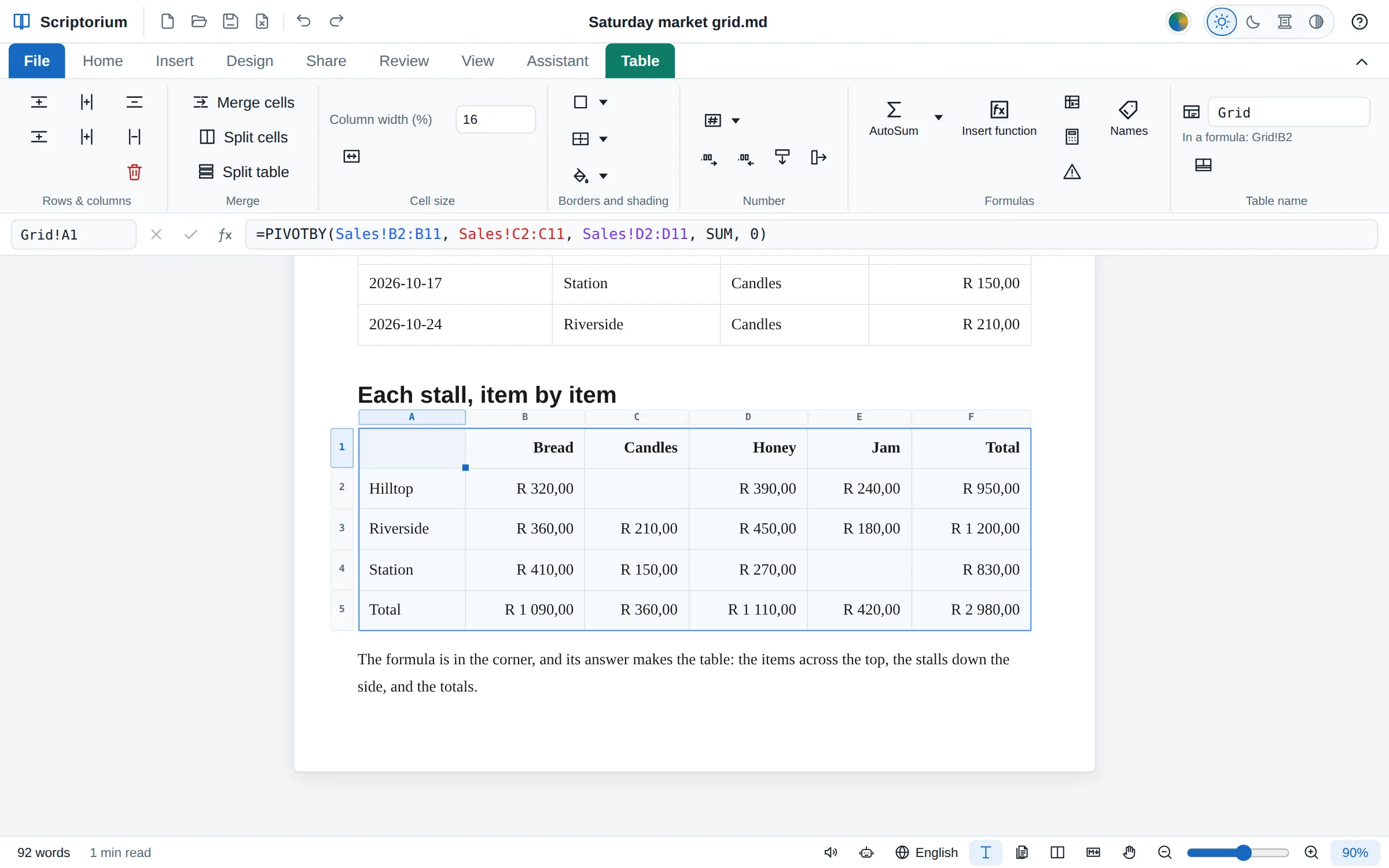
A PIVOTBY formula in the corner of a table makes the whole table: the items across the top, the stalls down the side, every sum in rands, and totals along the foot and the right
New in 3.49Any cell ▸ =GROUPBY, =PIVOTBY

A summary table from one formula

GROUPBY adds a list up by the values of a column, and PIVOTBY by two at once, down and across, with totals and subtotals. Put the formula in the corner of an empty table and its answer makes the table.

  • By SUM, AVERAGE, COUNT, MAX or any function, or a LAMBDA of your own
  • Sorted by name or by the answers, the biggest first; filtered; with or without totals
  • Pairs with no rows stay empty, as in Excel
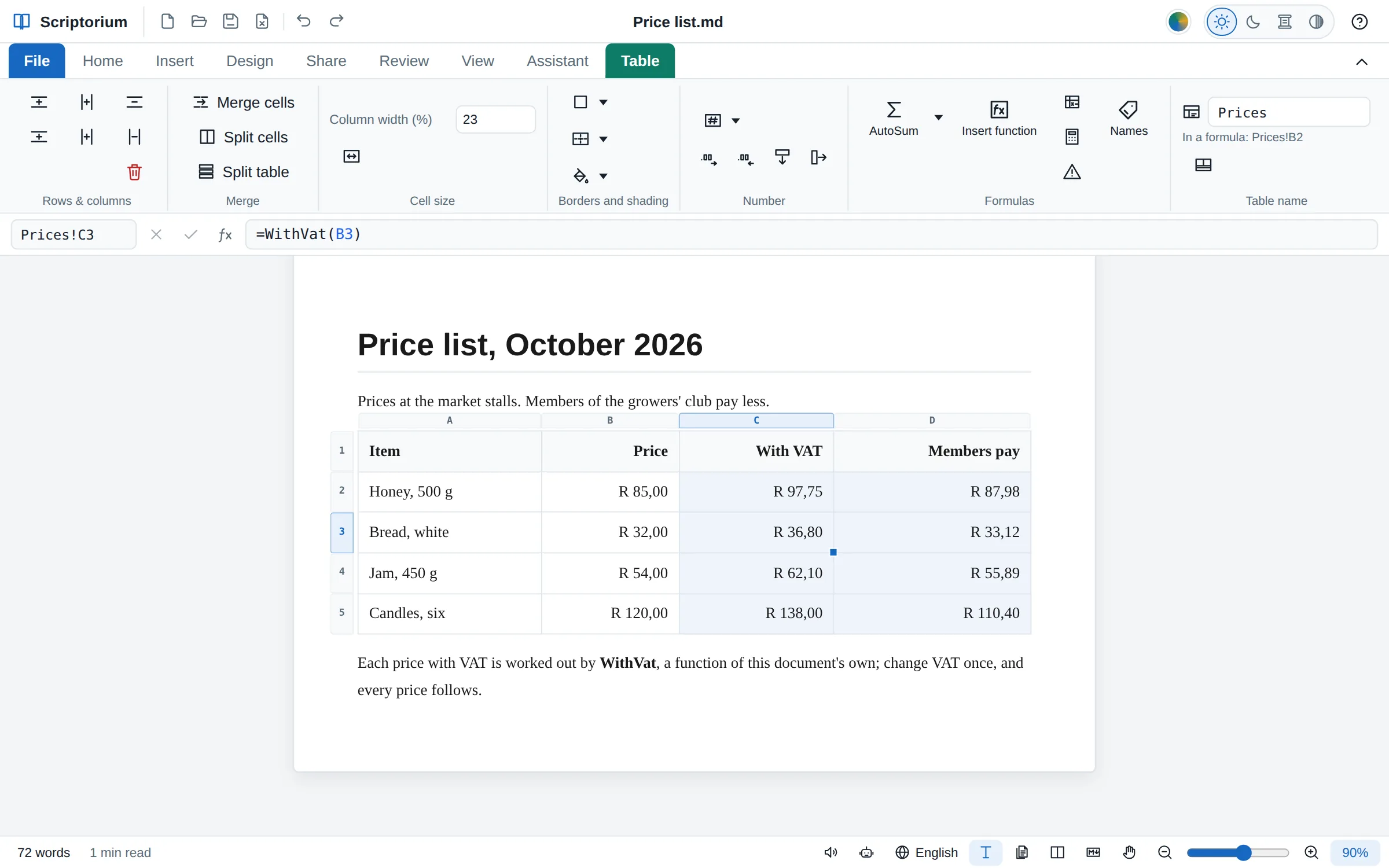
A price list whose With VAT column is worked out by =WithVat(B3), a LAMBDA named in the document, shown in the formula bar, and whose Members pay column by another, every price in rands
New in 3.49Table ▸ Names ▸ =LAMBDA(…)

LAMBDA: functions of your own

Write a calculation once, with places for its values, and name it in Names: WithVat: =LAMBDA(price, ROUND(price*(1+VAT), 2)). Then =WithVat(B2) works in every table of the document.

  • MAP, REDUCE, SCAN, BYROW, BYCOL and MAKEARRAY hand each value, row or column to a LAMBDA
  • ISOMITTED lets a LAMBDA take values that may be left out
  • LINEST, LOGEST, TREND, GROWTH, FREQUENCY and MODE.MULT give their blocks too, checked against LibreOffice Calc
  • Excel workbooks keep the blocks, which Excel 365 spills again, and the LAMBDAs as names
An invoice table with the Number format menu open on the Table tab, Currency ticked, and the formula bar showing =[@Qty]*[@[Unit price]] for Order!D3
New in 3.48Table ▸ Number ▸ Totals row

Number formats, columns by name, and fill

A cell keeps its own number format, as in Excel: currency in your country’s money, accounting, percentages, fractions, dates, or any of Excel’s codes. A formula can name a column by its heading, and the corner of the cells fills a series down or across.

  • Number format, with More decimals and Fewer decimals, and More number formats… for a code of your own
  • =[@Qty]*[@Price] in each row, Order[Amount] from anywhere, and a Totals row the column stops above
  • Fill down (Ctrl+D) and Fill right, or drag the corner: formulas move along, 5 and 10 go on 15, 20, Week 1 counts on
  • In the Markdown the format follows the formula: =SUM(B2:B9) {fmt:#,##0.00}

Formats, names and Excel workbooks →

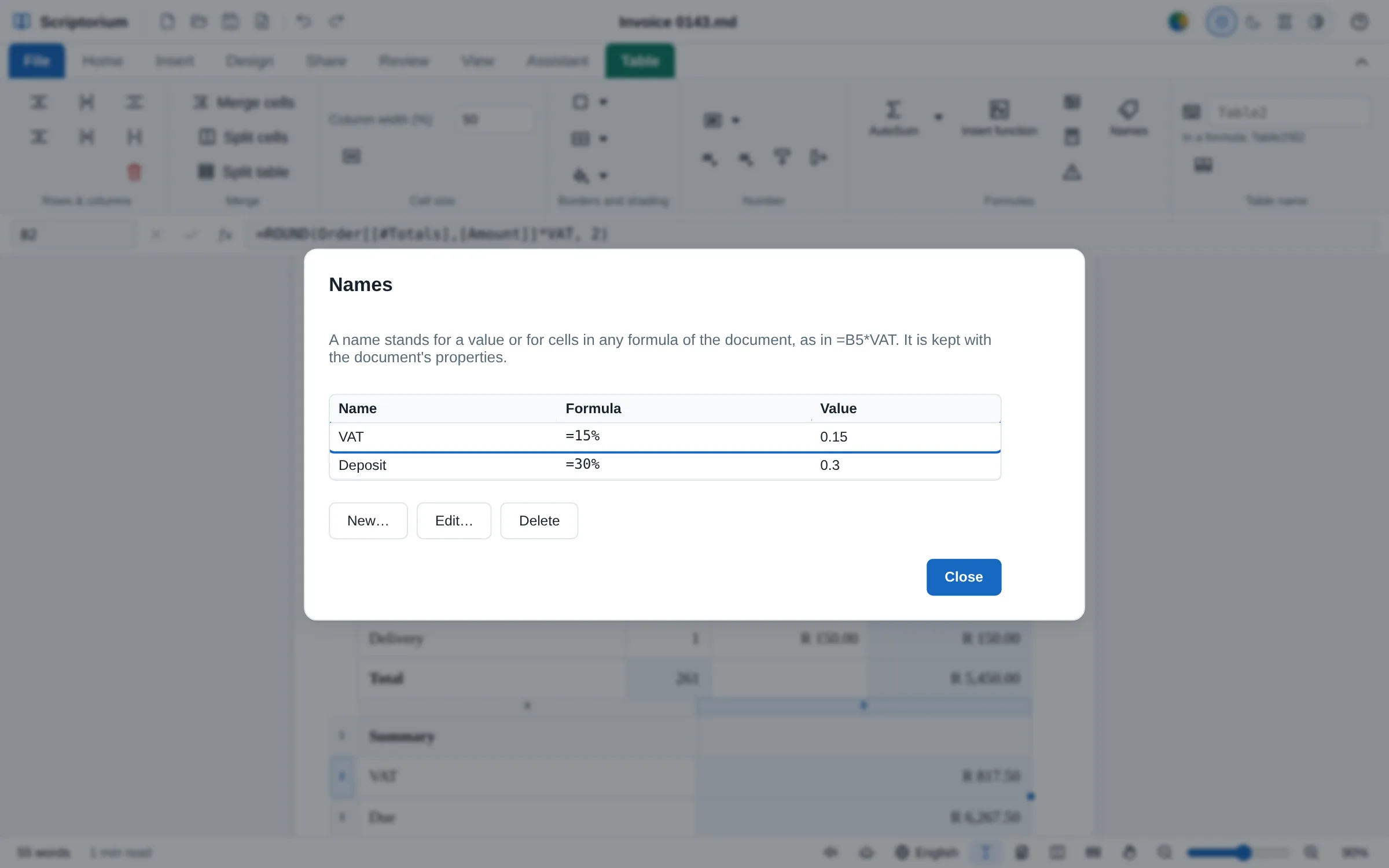
The Names box over an invoice: VAT is =15% and Deposit is =30%, each with its value, and buttons for New, Edit and Delete
New in 3.48Table ▸ Names

Names, and Excel workbooks out and in

Name a value or some cells once, such as VAT for 15%, and use the name in any formula of the document: when the rate changes you change it in one place. And File ▸ Export ▸ Excel workbook makes a workbook of your tables, each a sheet, with its formulas still working.

  • A name renamed is renamed in every formula that uses it
  • Formulas go to Excel in Excel’s own spelling, √x as SQRT(x); the few Excel has no function for go as their answers
  • An Excel file you open comes in as tables with its formulas, number formats, totals rows and names
  • Checked in LibreOffice Calc, which works the formulas out to the same answers

Names and workbooks, step by step →

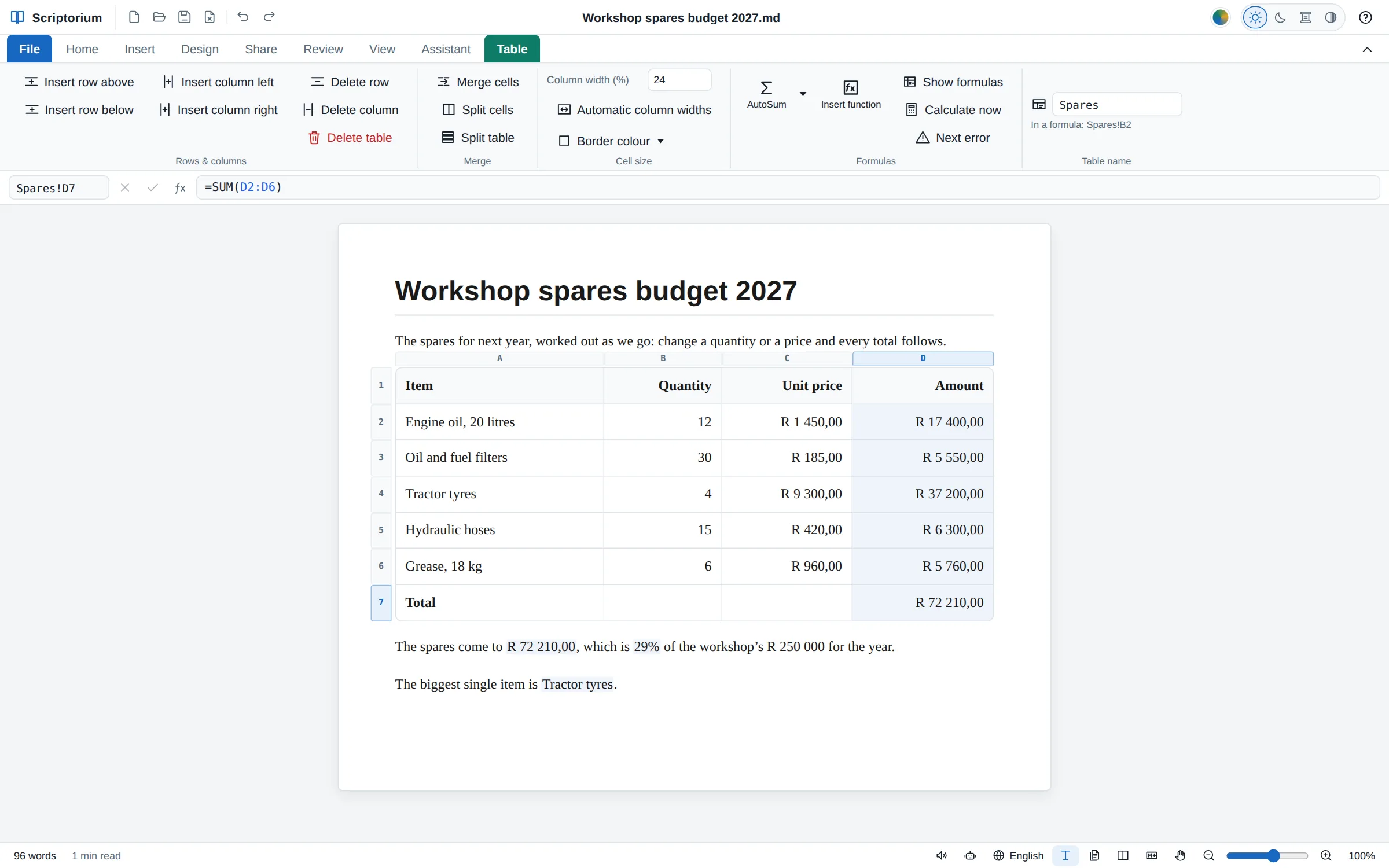
A spares budget: the formula bar above the page shows =SUM(D2:D6) for the total, with column letters and row numbers round the table and the Table tab’s AutoSum, Insert function, Show formulas and Calculate now; under the table, sentences show the total and its share of the budget.
Since 3.44The Table tab and the formula bar

Tables that add themselves up

Type =SUM(D2:D6) in a cell and the cell shows the total. Change a figure and every total that uses it follows. The Markdown keeps the formula, so the file still reads sensibly in any other program, and print, PDF, Word and every other export get the answers.

  • A formula bar with a Name box, and AutoSum, Insert function and Show formulas on the Table tab
  • Excel’s addresses and errors: B2:B9, $B$2, Budget!B4, #DIV/0!
  • A calculation in the middle of a sentence: {=Budget!B4}
  • Copy and paste moves the addresses as Excel does, and rows put in or taken out are followed

Excel formulas in a Markdown document →

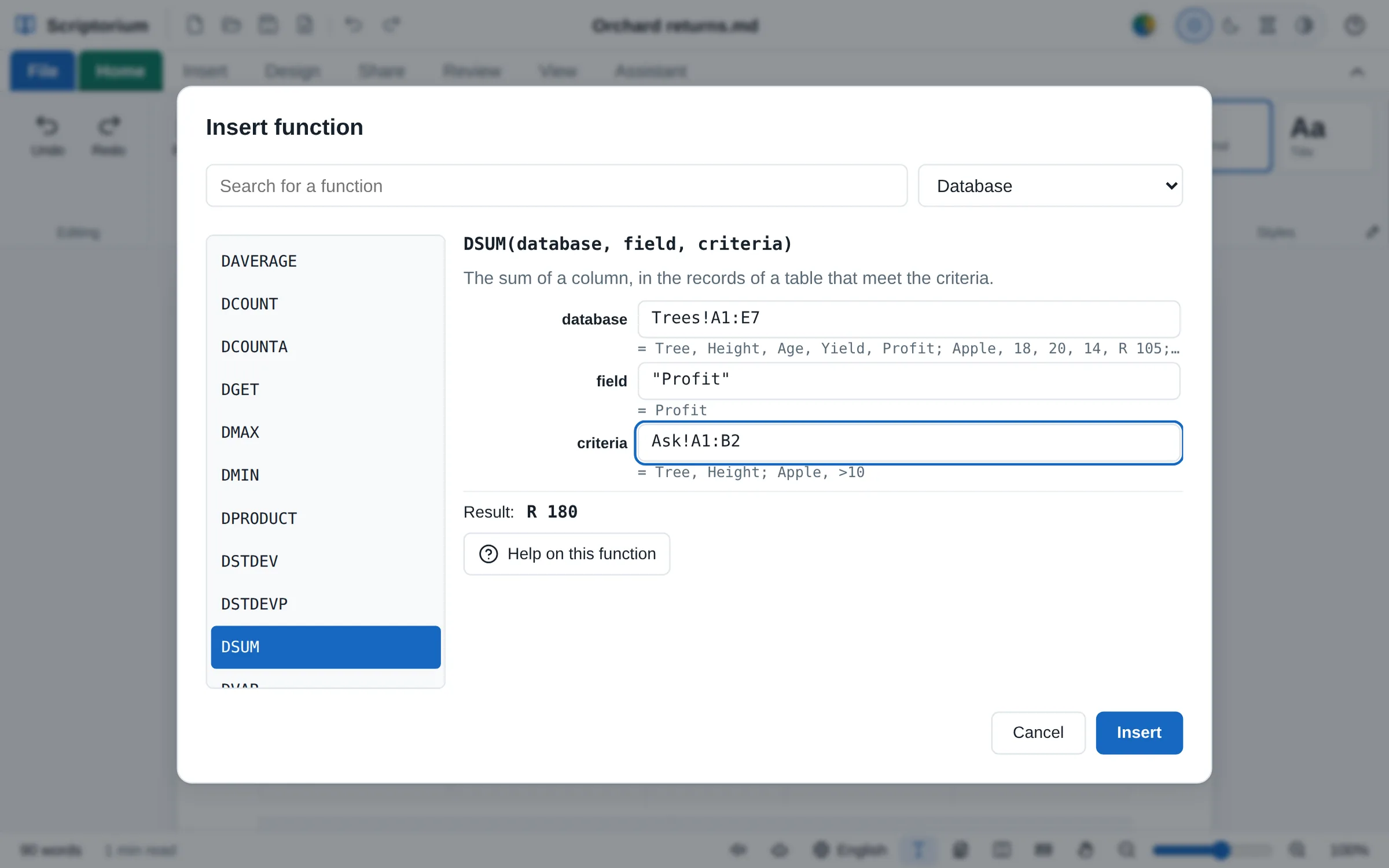
The Insert function box over an orchard report, with the Database group chosen and DSUM selected: database Trees!A1:E7, field "Profit" and criteria Ask!A1:B2, each worked out under its box, and the result, R 180.
More in 3.47Insert function

423 of Excel’s functions

With Excel’s own names in every language, so a formula means the same everywhere and goes to Excel unchanged: maths, statistics, text, dates, lookups such as XLOOKUP, money and engineering, and since 3.47 the distributions and tests, bonds and securities, the database functions and CONVERT.

  • Insert function finds one by its name, by what it does or by group, and shows the answer as you fill it in
  • Excel’s older names too, such as NORMDIST and TTEST
  • The 88 functions new in 3.47 (110 with their older names) were checked against LibreOffice Calc, and Excel’s own examples, in 2,312 cases

Statistics, bonds and databases →

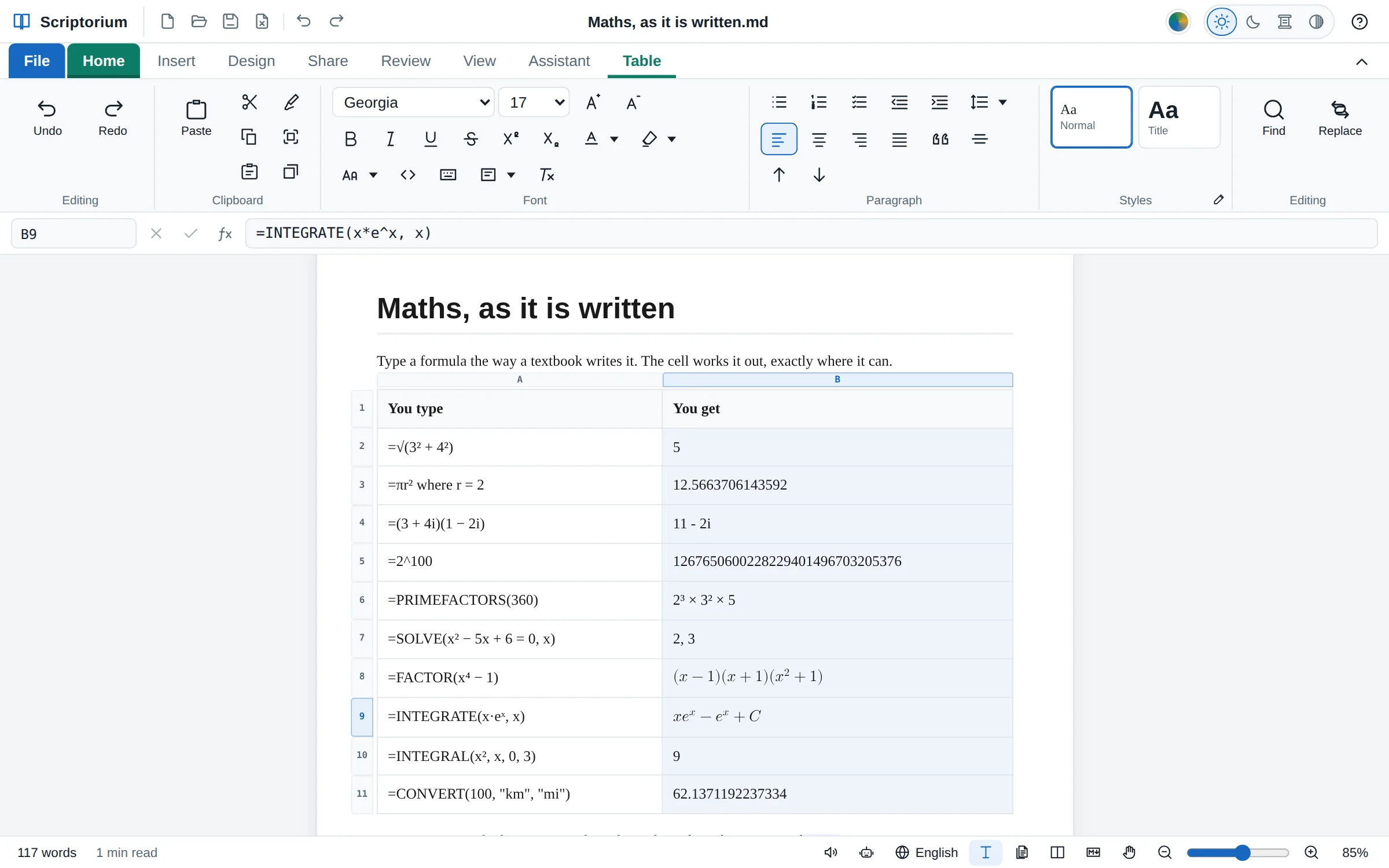
A table headed You type and You get: =√(3² + 4²) gives 5, =πr² where r = 2 gives 12.566…, =(3 + 4i)(1 − 2i) gives 11 − 2i, =2^100 gives all 31 digits, =PRIMEFACTORS(360) gives 2³ × 3² × 5, SOLVE gives 2, 3, FACTOR and INTEGRATE give answers set as maths, INTEGRAL gives 9 and CONVERT gives 100 km in miles; the formula bar shows =INTEGRATE(x*e^x, x).
Since 3.44Any table cell, any sentence

Maths, as it is written

Type =√(3² + 4²) and get 5. Powers, roots, π, degrees and factorials are understood, the multiplication sign can be left out where maths leaves it out, and where gives letters their values: =πr² where r = 2.

  • Whole numbers of any size in full, and exact fractions: 0.1 + 0.2 is 0.3
  • Complex numbers: (3 + 4i)(1 − 2i) is 11 − 2i
  • SOLVE, DERIV, INTEGRAL and LIMIT; matrices; primes and factors

Formulas and maths, step by step →

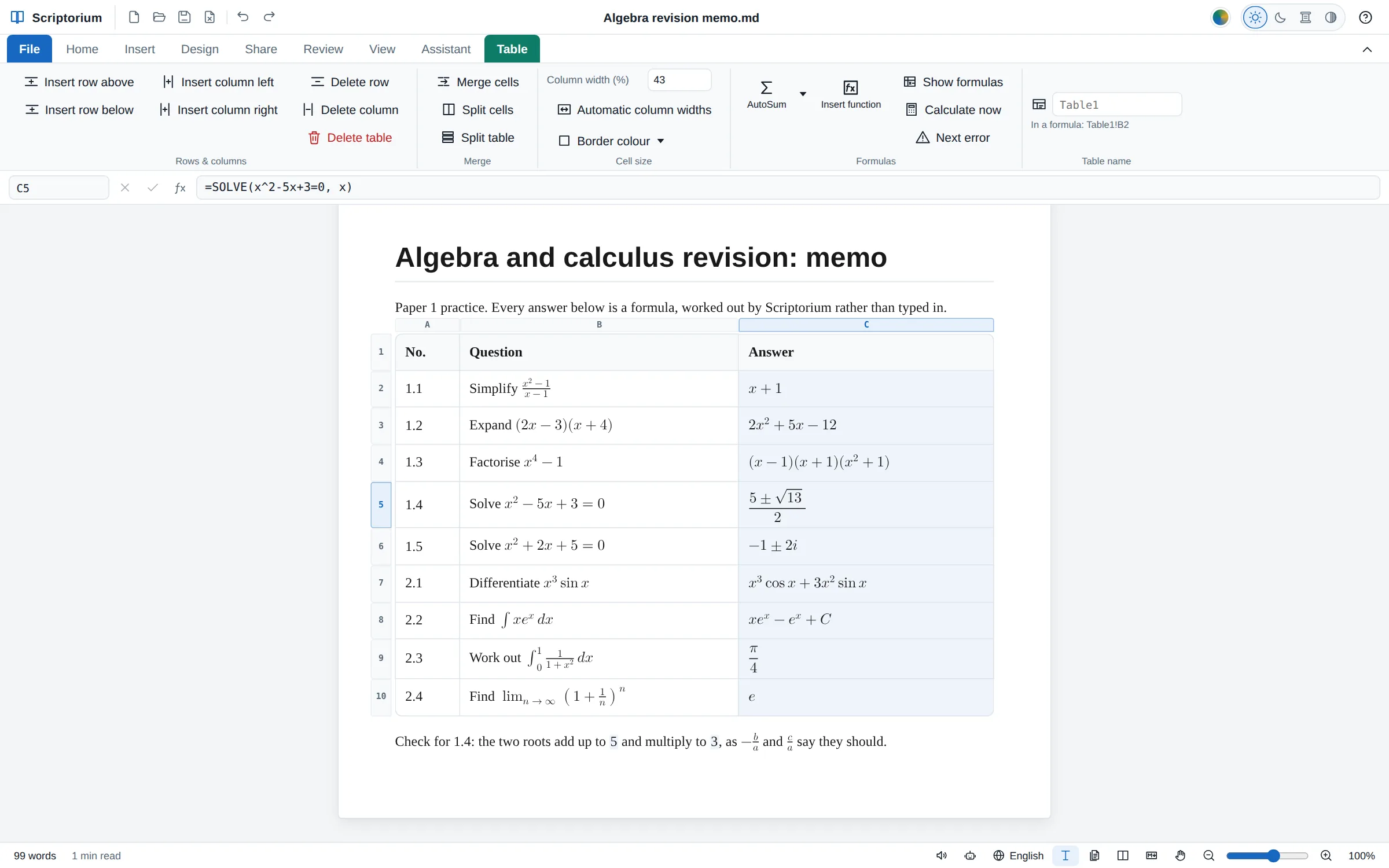
A revision memo in Scriptorium: a table of algebra and calculus questions whose answers are formulas set as maths, such as (5 ± √13)/2, (x − 1)(x + 1)(x² + 1) and xeˣ − eˣ + C, with the formula bar above the page showing =SOLVE(x^2-5x+3=0, x) for the answer under the cursor.
Since 3.46Insert function ▸ Algebra with letters

Algebra with letters

A letter with no value stays a letter, and the answer is a formula set as maths: =FACTOR(x⁴ − 1) is (x − 1)(x + 1)(x² + 1), and =SOLVE(x² − 5x + 3 = 0, x) is (5 ± √13)/2 rather than two decimals.

  • SIMPLIFY, EXPAND, FACTOR, DIFF, INTEGRATE, SOLVE and LIMIT
  • Every integral differentiated back and every root put back in before it is shown
  • Set as maths on the page, in print, PDFs and web pages; on one line in Word

Algebra with letters, with examples →

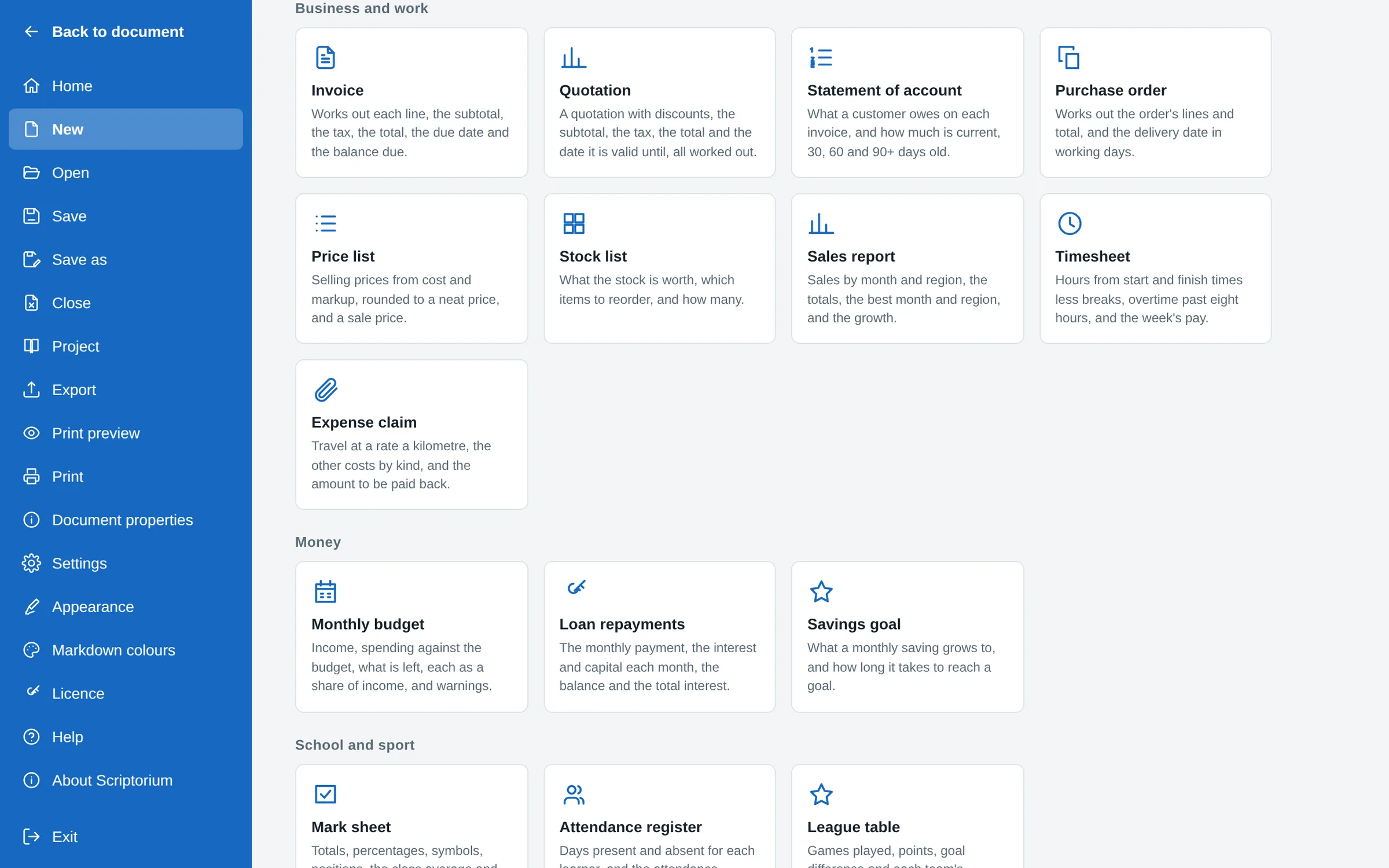
File, New: the templates in groups, with Business and work showing Invoice, Quotation, Statement of account, Purchase order, Price list, Stock list, Sales report, Timesheet and Expense claim, then Money with Monthly budget, Loan repayments and Savings goal, each with a line saying what it works out.
Since 3.44File ▸ New

Templates that calculate

29 templates in six groups, and eighteen of them work things out: an invoice with its VAT, due date and balance, a quotation with discounts, budgets, timesheets, loan repayments, mark sheets, league tables, and a recipe whose amounts follow the servings.

  • Money and dates written the way your country writes them
  • In South Africa the VAT starts at 15%; elsewhere the tax cell waits for your rate

Invoices and quotations that add themselves up →

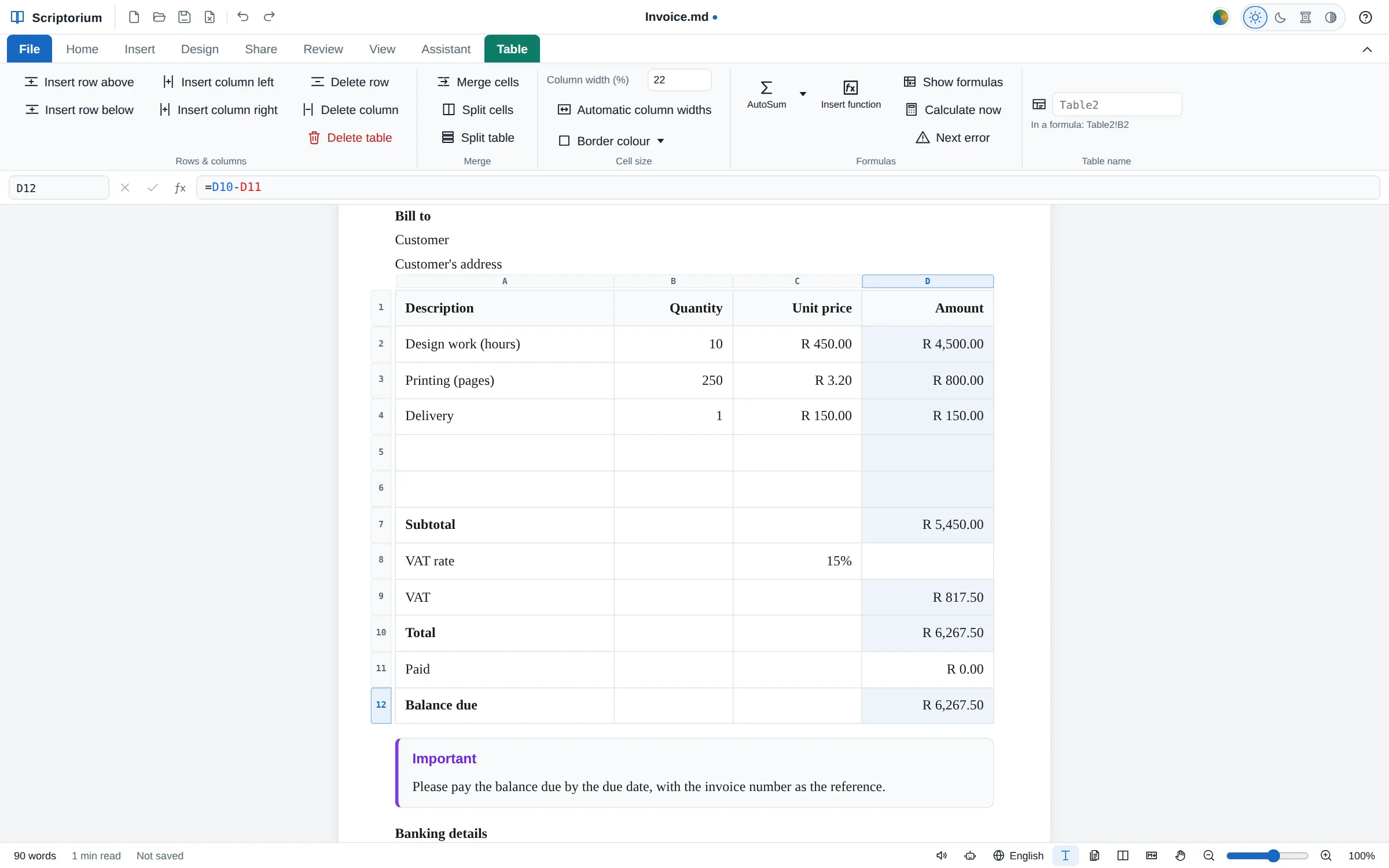
The invoice template in Scriptorium: the lines with quantities, unit prices and amounts in rand, then the subtotal, a VAT rate of 15%, the VAT, the total, paid and the balance due, with the formula bar showing =D10-D11 for the balance due and the Table tab above.
Since 3.44The Invoice template

An invoice that does its own sums

Type the quantities and prices, and every line, the subtotal, the VAT, the total and the balance due follow. The invoice and the quotation are on the Home page, ready to type over.

  • Dates that count: the due date follows the payment terms
  • Print it, make a PDF of it or send it as a Word file, with the answers in place

How to fill one in →

Pages and printing

See it as it will print.

Write on pages of the paper you choose, in a colour that prints, make a newspaper with a button for every part, send long tables to paper the way they should go, and print the Markdown itself.

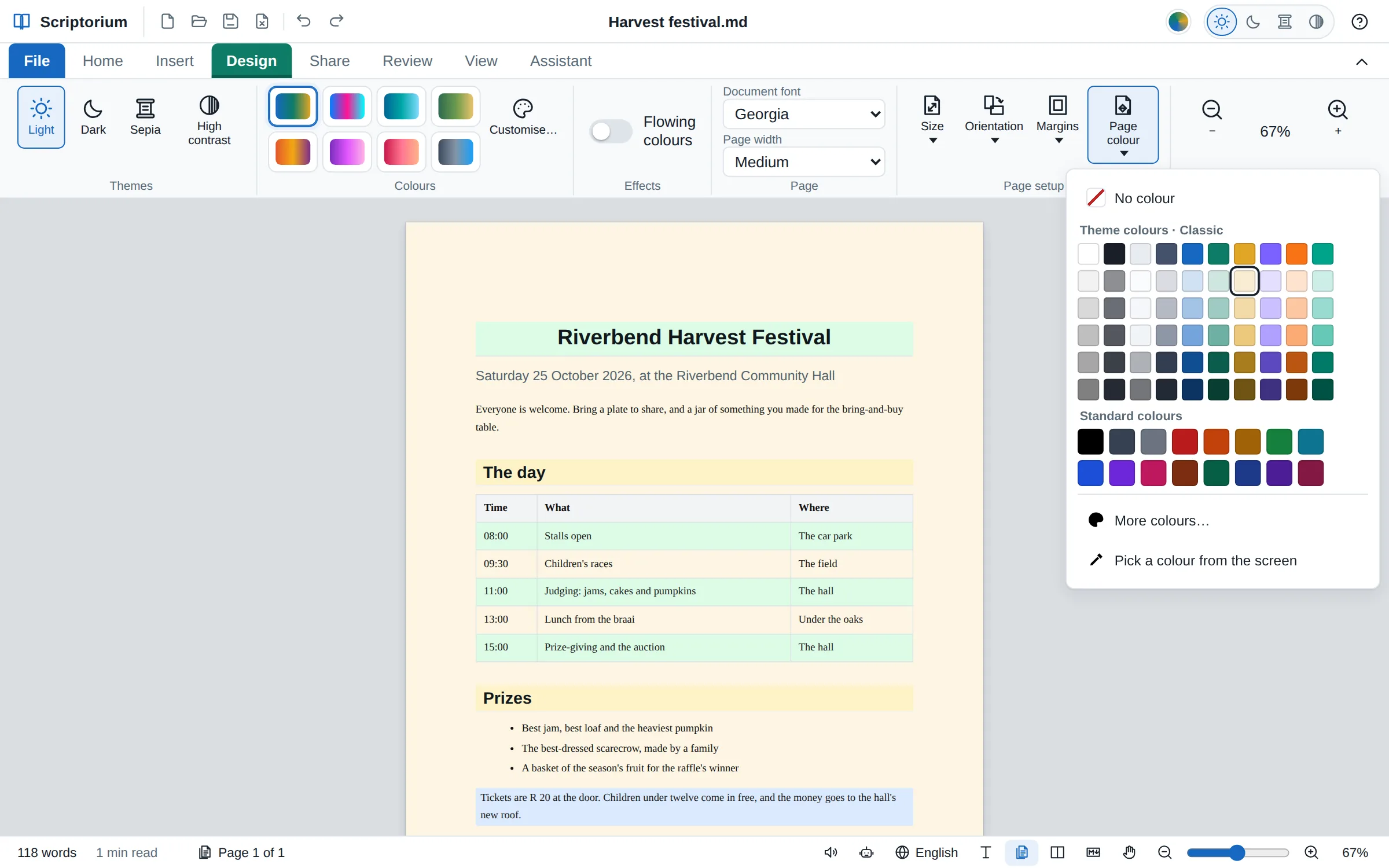
A harvest festival notice in the Pages view on cream paper, its title on a green band, its headings on amber and every other row of its table green, with the Page colour menu open on the Design tab
New in 3.48Design ▸ Page setup ▸ Page colour

Colours behind the writing, which print

A colour behind every page, edge to edge, margins and all, or behind a heading, a paragraph or the cells of a table. It comes out of the printer and goes into the PDF, as on the screen.

  • Page colour on the Design tab, Shading on Home and on the Table tab
  • On a dark page the words turn light, and code and pale boxes keep dark words
  • In Word (printed there too), OpenDocument, RTF, LaTeX, web pages and e-books, and read back from Word
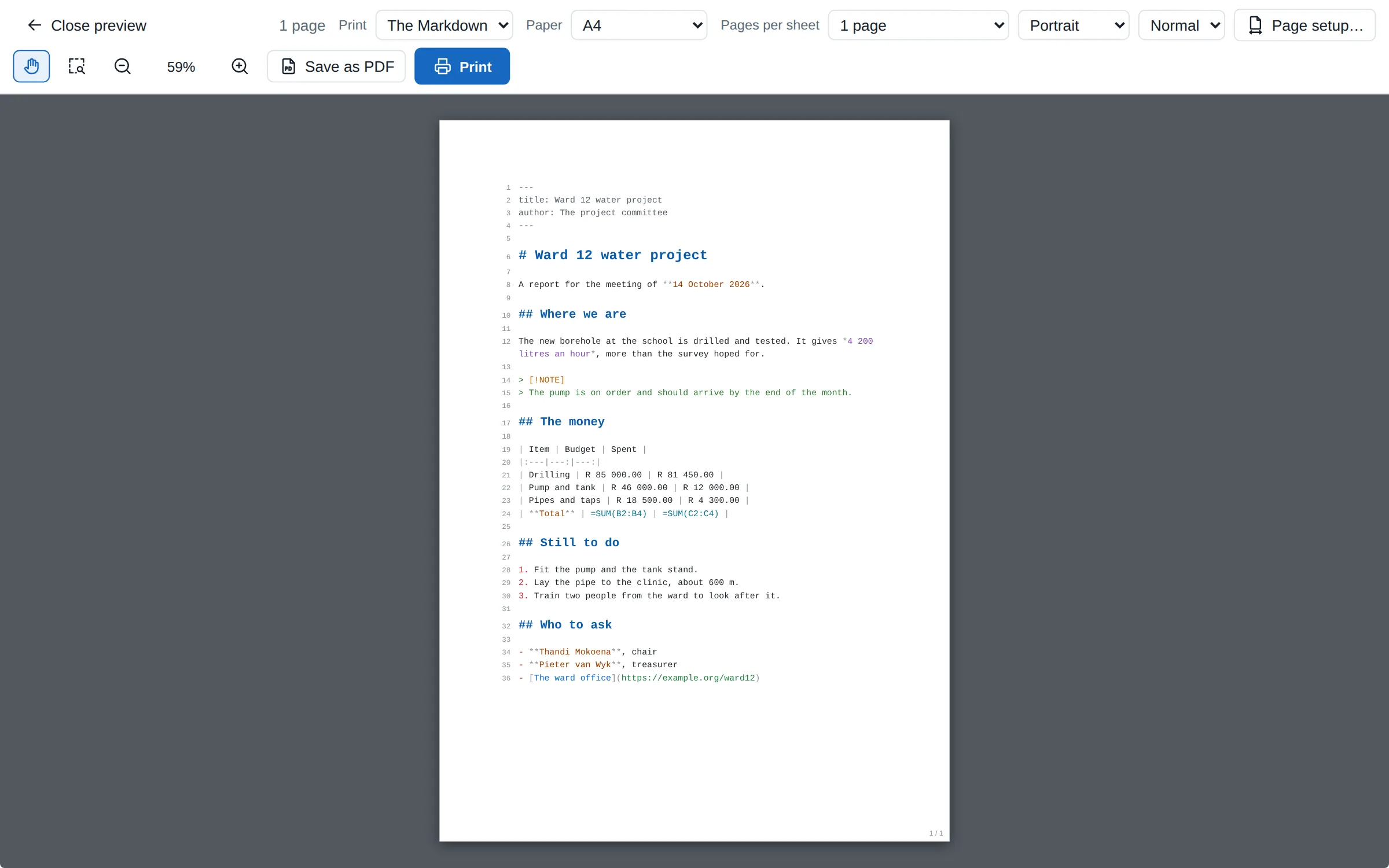
The print preview showing a report’s Markdown on an A4 page, every line numbered and in colour, with Print: The Markdown chosen in the bar
New in 3.48The Markdown view ▸ Print

Print the Markdown itself

From the Markdown view, Print, the print preview and Save as PDF give the Markdown line by line, in its colours, its headings in their sizes and its lines numbered, on the paper and margins of Page setup.

  • The print preview’s Print list chooses The document or The Markdown
  • No line cut in two at the foot of a page, and a picture kept in the file as a short mark
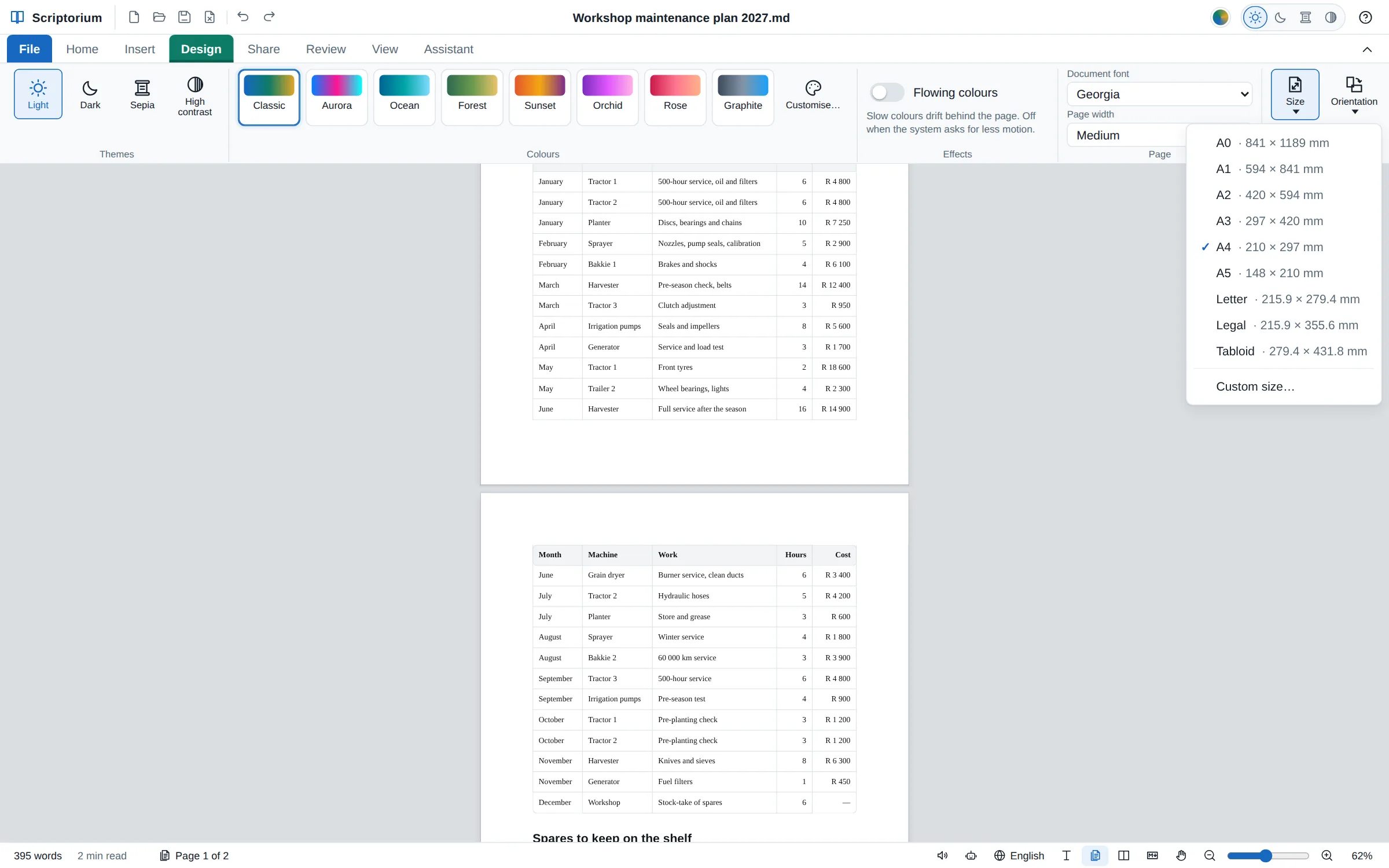
A maintenance plan in the Pages view: the foot of page one and the top of page two on a grey desk, a long table carrying on with its heading row repeated, and the Design tab’s Size menu open with A0 to A5, Letter, Legal and Tabloid, each with its size.
Since 3.45View ▸ Pages

Your writing on real pages

Sheets of the paper you chose, A0 to A5, Letter, Legal, Tabloid or a size of your own, one under the other, with the margins round the writing and every page ending exactly where the printed page ends. Type, select, undo and find on them as on the long sheet.

  • Size, Orientation and Margins on the Design tab
  • A table that runs on shows its heading row again; a heading moves on with what it heads
  • Page 3 of 7 in the status bar: click it to go to another page

See your document as it will print →

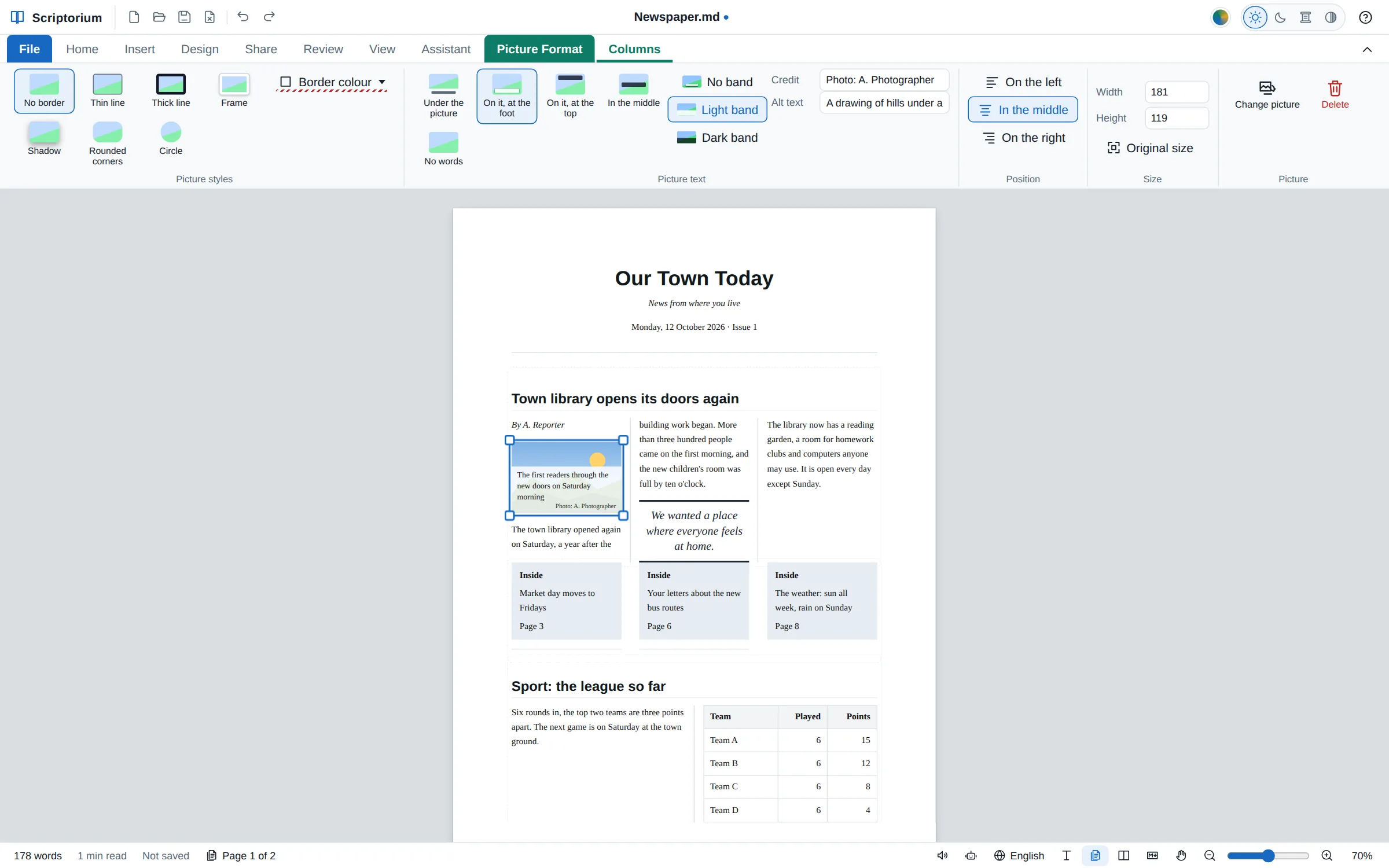
The Newspaper template in the Pages view: Our Town Today across the top, a story in three columns with a line between them, a picture with its caption laid over its foot and a photo credit, a pull quote, three teasers in shaded boxes and a sport story with a league table, with the picture chosen and the Picture Format tab showing the Picture text group.
Since 3.45The Columns tab

Newspapers and newsletters

Two, three or four columns, a line between them, a headline across them, a table or a picture in a column, pull quotes and teaser boxes, each a button with its own picture. Words go on the pictures, with a credit and alt text.

  • Insert ▸ Columns ▸ Layouts for a newspaper, and a Newspaper template to type over
  • The print preview, paper and the PDF lay the words on the picture
  • The assistant knows how to make one

Make a newspaper or a newsletter →

Since 3.42

Long tables on paper

A table longer than a page starts where it stands and runs on to the next, with its heading row at the top of each page and no row cut in half: in the print preview, on paper, in the PDF and in Word.

Since 3.42

Split table

Table ▸ Split table (Ctrl+Shift+Enter), as in Word: the rows from the cursor down become a table of their own, with the same heading row.

Since 3.42

Equations where you put them

An equation on a line of its own goes left, centre or right, and can be indented, with the paragraph buttons or in the Equation window. Word files and PDFs keep its place.

Tables

Only the lines you want, and the corners too.

Order forms, signature blocks and price lists look the way you mean them to, on the page and on paper.

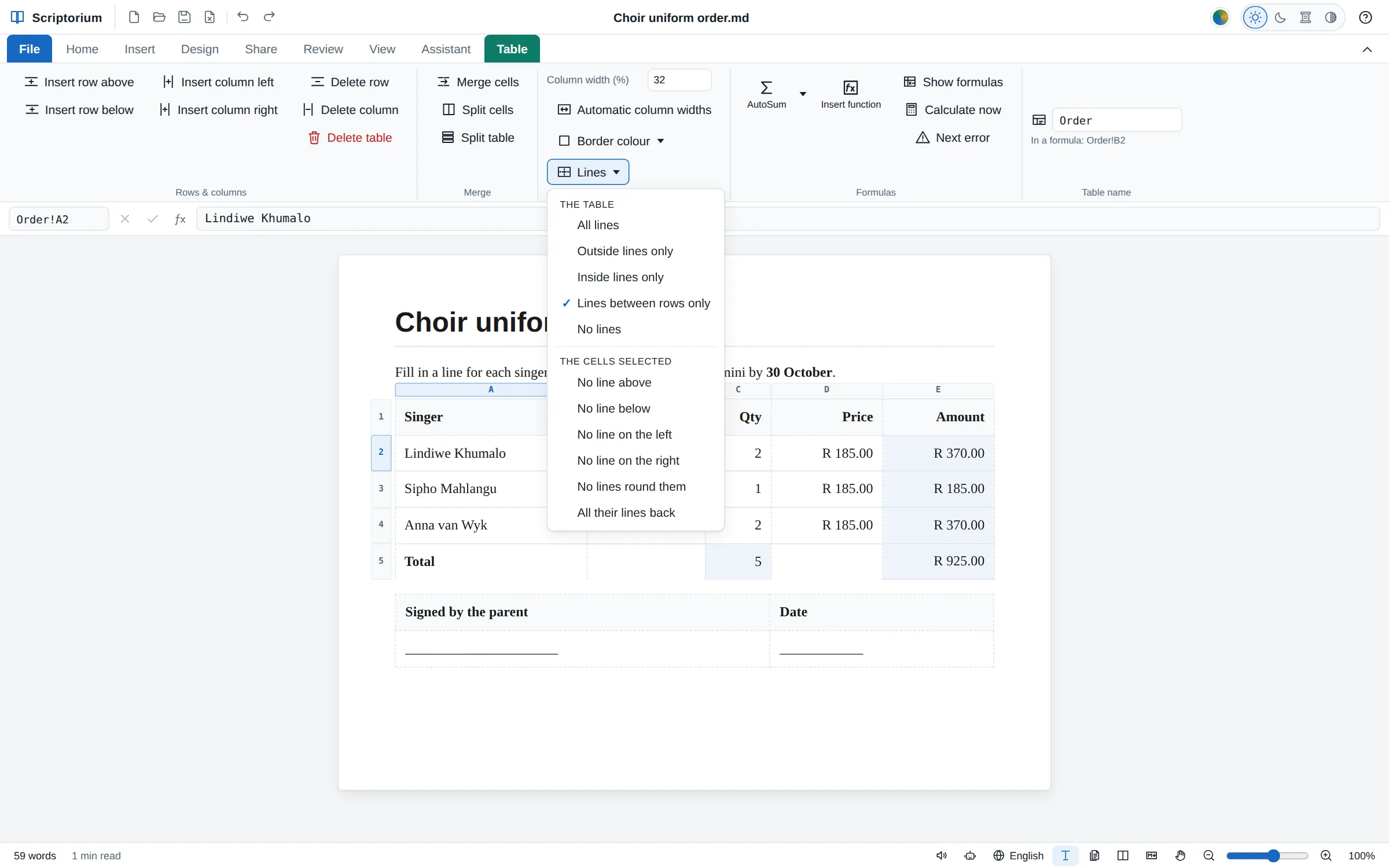
A choir uniform order form with the Table tab’s Lines menu open. Lines between rows only is ticked for the table, and the menu offers No line above, No line below, No line on the left, No line on the right and No lines round them for the cells selected. The lines left out show faint and dashed, and the signature table at the foot has none.
Since 3.47Table ▸ Lines

Only the lines you want

All lines, outside lines only, inside lines only, lines between rows only, or none; and for the cells you select, no line above, below, on the left or on the right. A line left out shows faint and dashed while you type, so you can still find the cells; on paper it is simply gone.

  • Left out of PDFs, web pages and e-books, and of Word, OpenDocument and RTF files
  • A Word table with lines left out keeps them left out when you open it

Tables without borders, step by step →

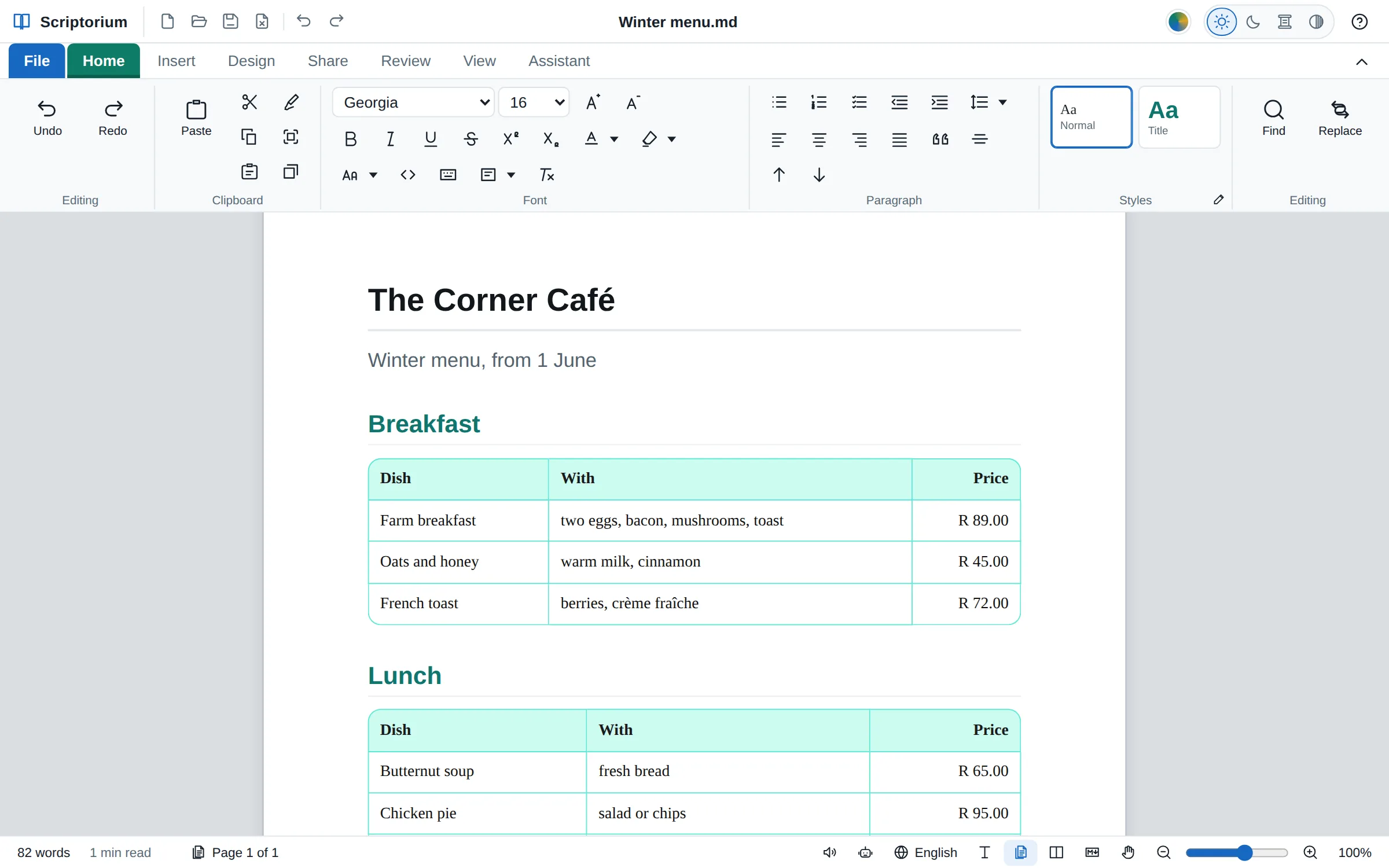
A café’s winter menu in the Pages view: the title, Winter menu, from 1 June, and tables for breakfast and lunch with rounded corners, teal lines and a pale teal heading row, under teal headings.
Since 3.45File ▸ Appearance ▸ Tables

Rounded or chamfered corners

Give every table square, rounded or cut-off corners, small, medium, large or a size of your own, with the heading row’s fill cut to the corner: on the page, in the print preview, on paper, and in PDFs, web pages and e-books.

  • Every line stays single, at every zoom
  • Word, OpenDocument and RTF keep square corners, as those programs draw tables
Writing and the Markdown

Start quickly, paste cleanly, see the Markdown.

A Home page to begin from, AI answers that arrive tidy, and a Markdown view that shows the shape of the document in colour, numbers its lines and folds them away.

Since 3.42File ▸ Home

A Home page to start on

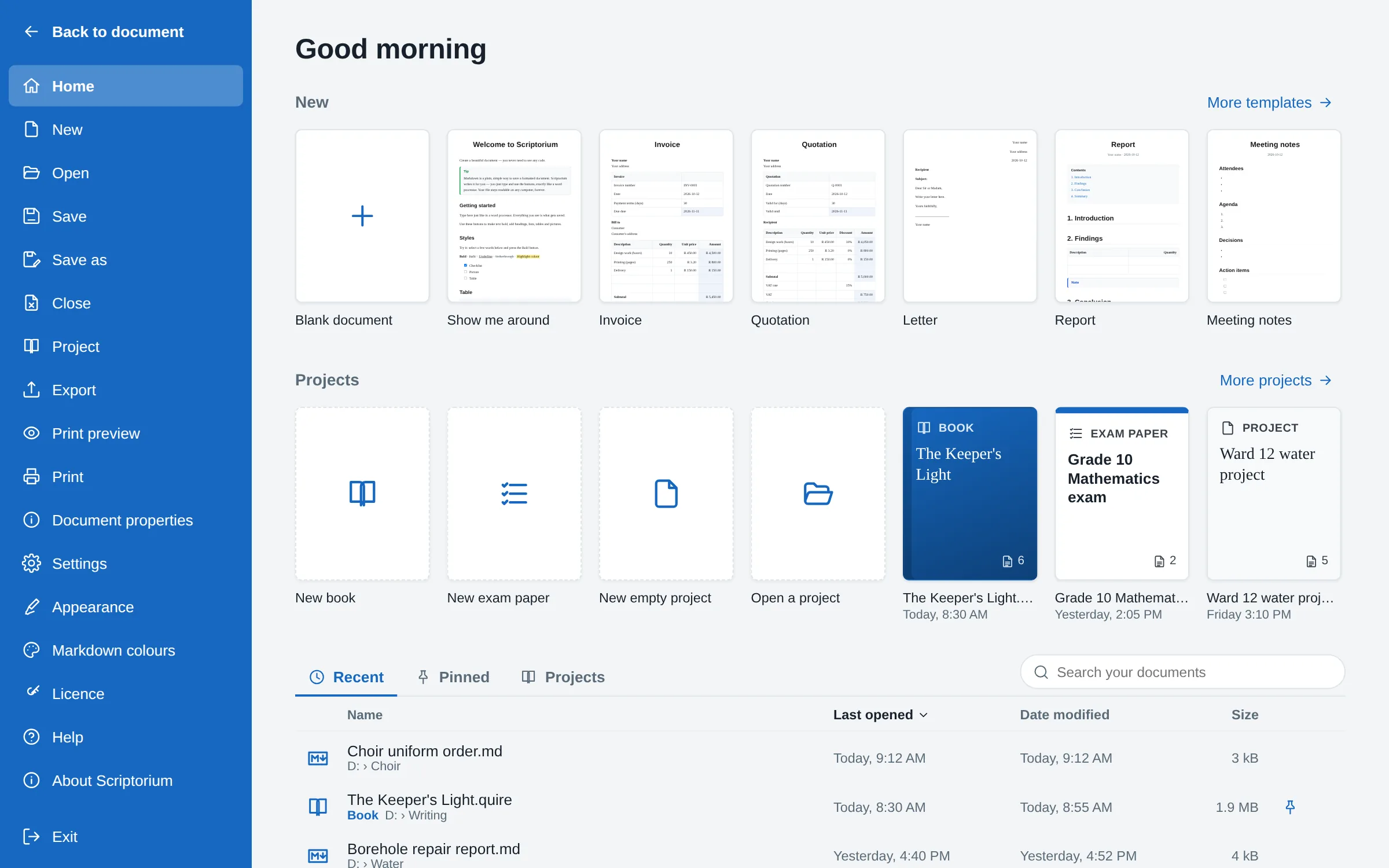
Scriptorium opens on a Home page, as Word does: a blank page, templates drawn as small pictures of their pages, your projects as covers, and the documents you opened lately, with when you opened and changed them.

  • Pin a document to keep it on the list, and search by name or folder
  • Work left unsaved last time is offered back, not opened by itself
  • Projects as covers since 3.43: a book with its chapters, an exam paper with its memo, each one file, with New book, New exam paper and New empty project beside them (Windows and Linux)

Write a book in Markdown →

Scriptorium’s Home page: Good morning, a row of ways to start with a blank document and templates drawn as small pages, a Projects row with New book, New exam paper, New empty project, Open a project and three projects drawn as covers, and the recent documents with when each was opened and changed, and its size.
Home: templates, projects as covers, and the documents opened lately.
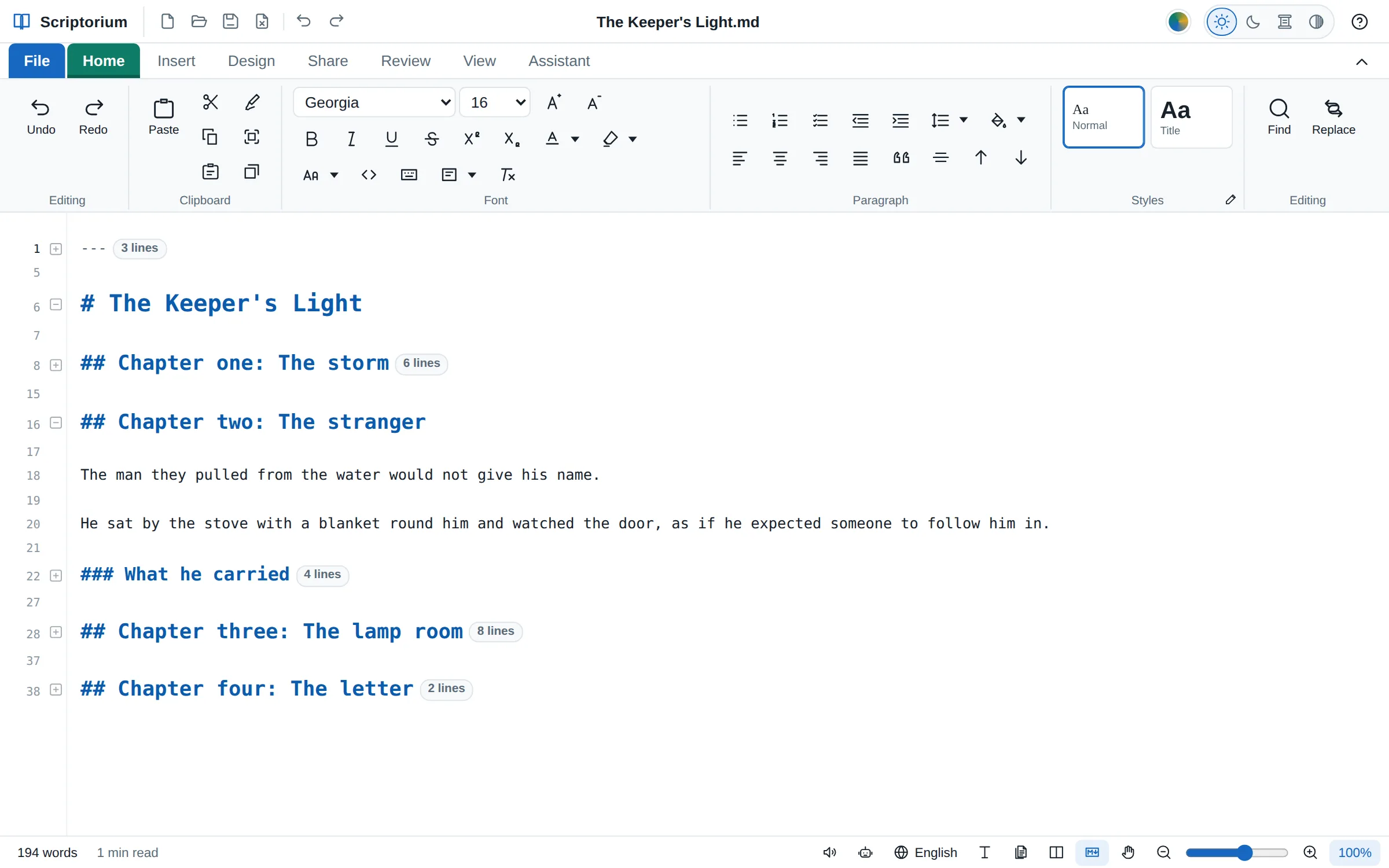
The Markdown of a book in the Markdown view with its lines numbered: chapter two open, the other chapters folded away to one line each with a mark saying how many lines they hold
New in 3.48The Markdown view

Line numbers, and folding away

Every line of the Markdown has its number, and a minus beside a heading, a table, a list, a code block or the document’s details folds it to one line, with a mark saying how many lines it holds.

  • Collapse all in View ▸ Markdown colours turns the Markdown into an outline, Expand all opens it
  • Only in the Markdown view and the Markdown side of Side by side; the page never shows them
  • Folding only changes the screen: every line is saved, printed and exported
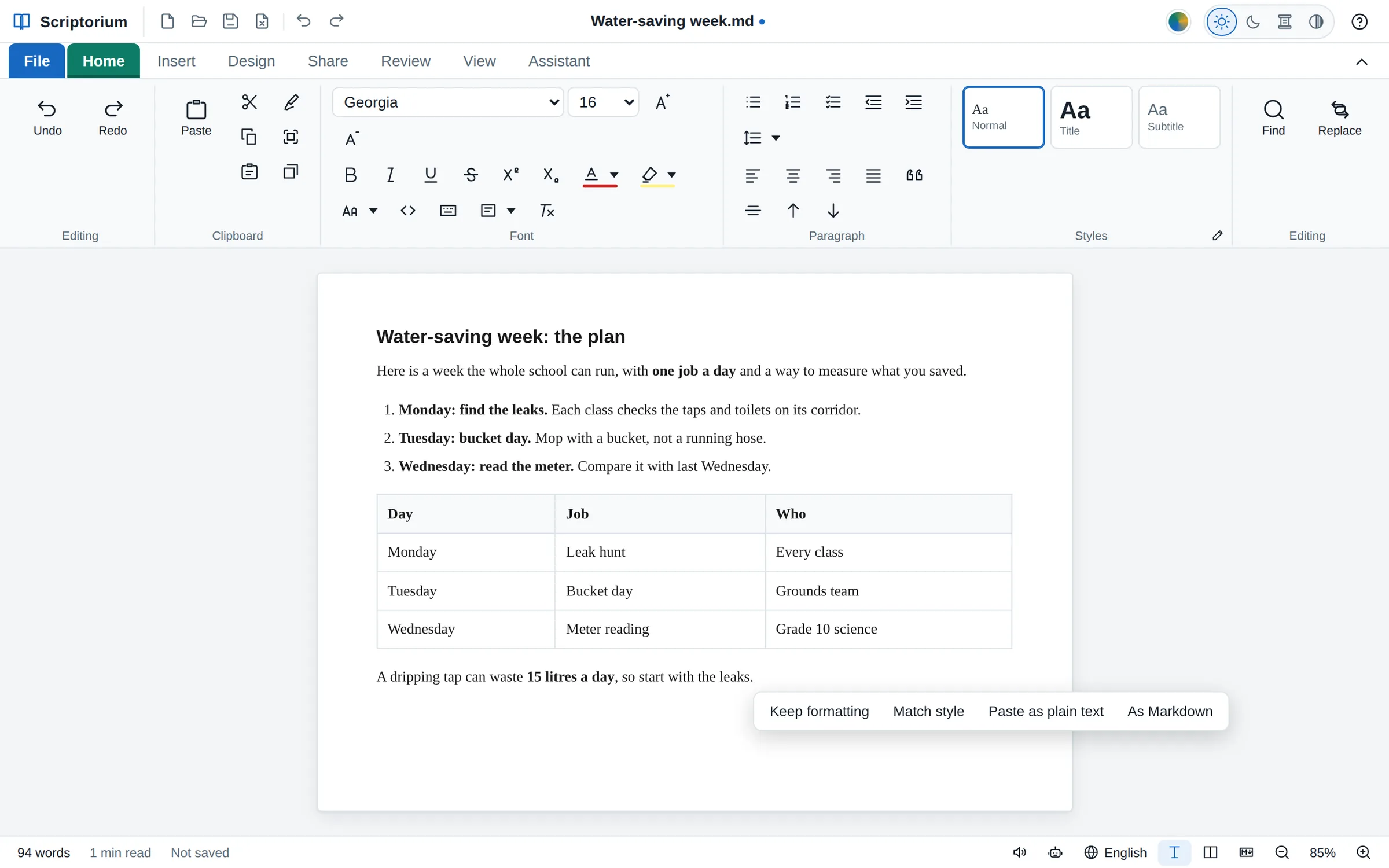
A plan for a water-saving week pasted from an AI chat: a heading, a numbered list with bold words and a table of days, jobs and who does them, with the choices after a paste beside it: Keep formatting, Match style, Paste as plain text and As Markdown.
Since 3.42Paste

AI answers, pasted clean

Paste from ChatGPT, Copilot, Claude, Gemini, Perplexity, DeepSeek or Grok and the chat window’s colours, Copy buttons, site icons and citation marks stay behind. Code stays code, formulas become equations you can change, and lists keep their numbers.

  • As Markdown, a choice after a paste, draws the answer from its Markdown
  • Tested with clipboards modelled on what each of the seven writes

How to paste an AI answer into a proper document →

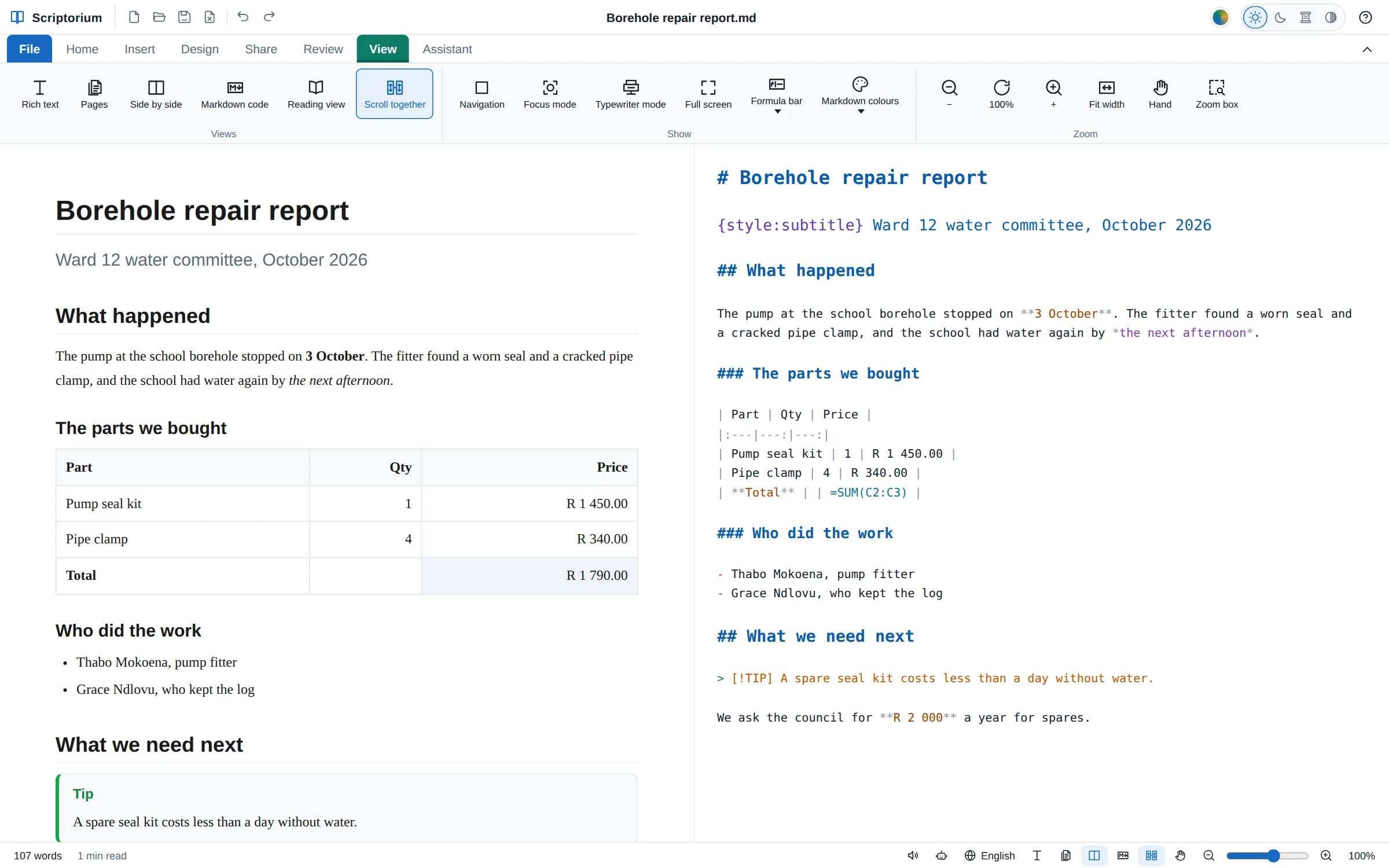
A borehole repair report side by side: the page on the left, and its Markdown on the right, where the # title is the biggest line, the ## headings are smaller and the ### headings smaller again, in colour, above the table, the list and the tip.
Since 3.47View ▸ Markdown code

Headings in their sizes, in the Markdown too

The Markdown view draws a # heading biggest, then ##, ### and the rest, as the page does, so the shape of a document shows in its code as well. The file itself stays plain text.

  • Side by side, the page and its Markdown stay level as you scroll, bigger headings and all
  • Headings in their sizes, in View ▸ Markdown colours, turns it off
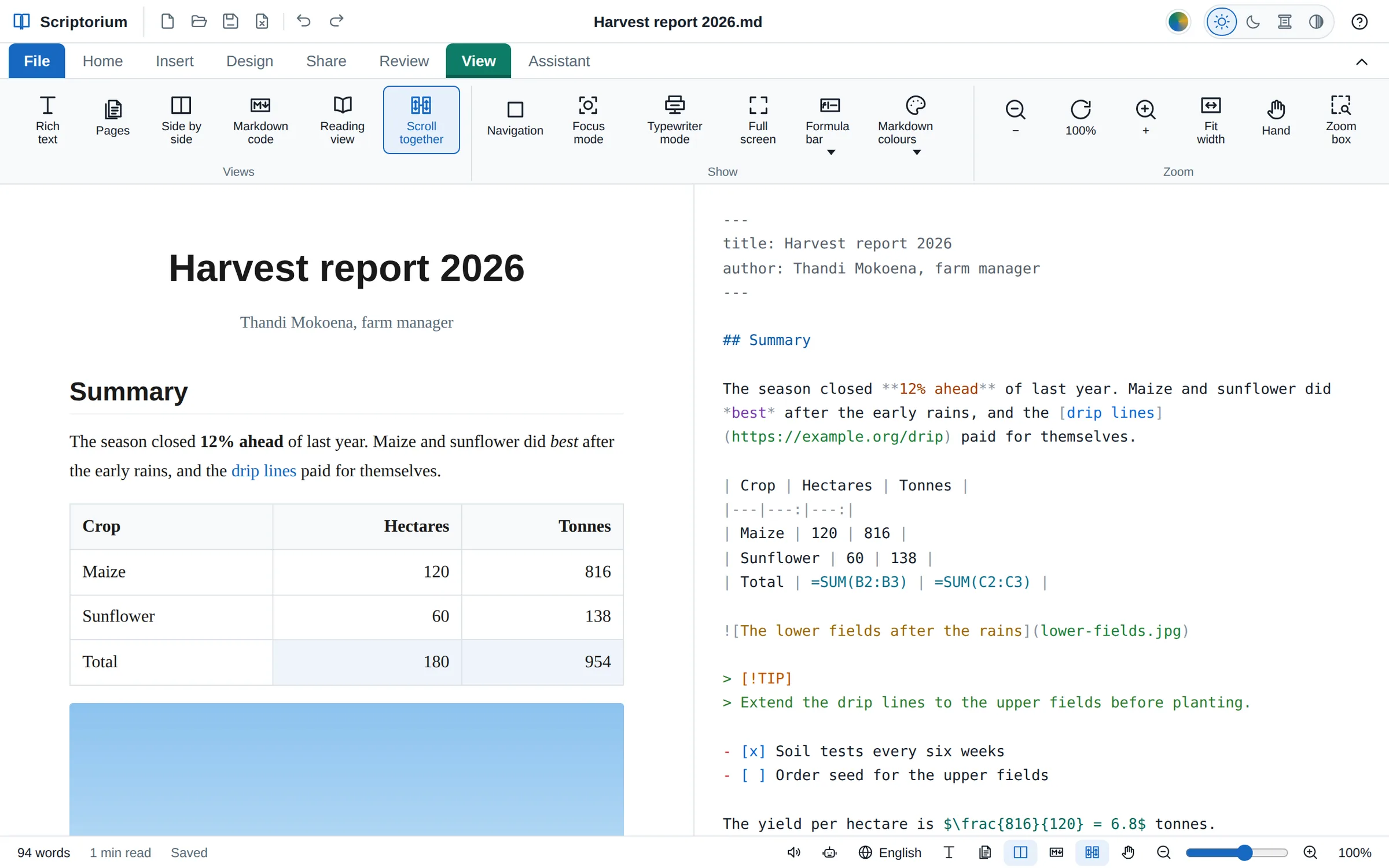
Side by side with the Markdown in colour: on the right, the front matter in grey, the heading in blue, bold words in orange, italic in purple, a link in blue, table lines, formulas in teal, picture text in orange, a callout in green and tick boxes in blue; on the left, the same report as a page.
Since 3.45View ▸ Markdown colours

The Markdown in colour

Headings, bold, links, code, tables, formulas and Scriptorium’s own commands each have a colour in the Markdown view: 32 kinds, four sets of colours, or colours of your own. The code in a code block is coloured as a programmer’s editor colours it.

  • Only the screen changes; the file is the same Markdown
  • Scroll together keeps the Markdown and the page level, side by side (since 3.44)
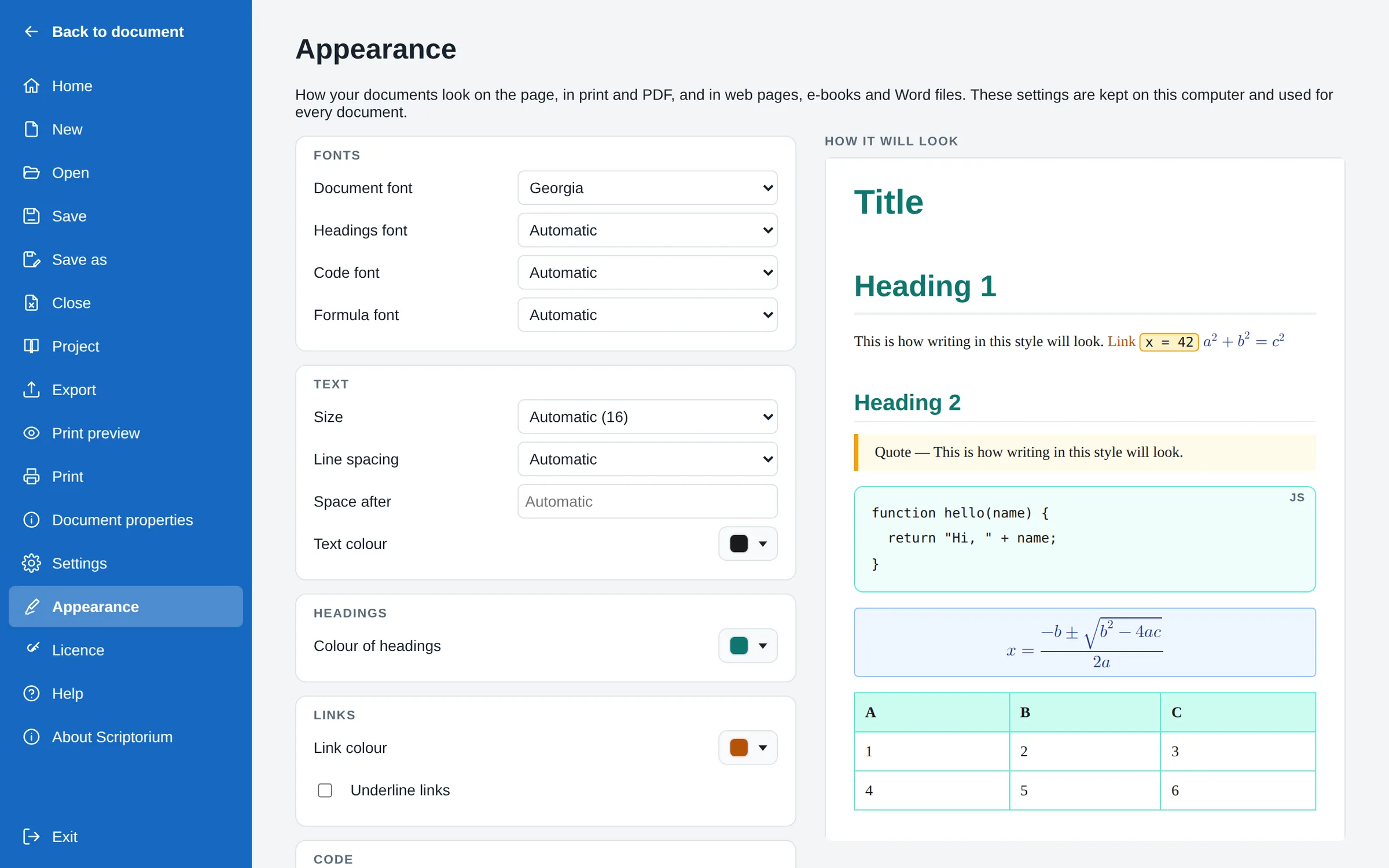
File, Appearance: settings for the fonts, the text, the colour of headings and links on the left, and on the right a preview with teal headings, an orange link, code with an amber border, an equation in a blue box, a code block with a teal border and a table with rounded corners and a teal heading row.
Since 3.42File ▸ Appearance

Your documents, your look

One page for how documents look, with a preview beside it: the fonts for writing, headings, code and formulas, the size and spacing of the text, and the colours of headings, links, code, quotations, formulas and tables.

  • Used everywhere: on the page, in print and PDF, in web pages, e-books and Word files
  • Reset the appearance puts it all back
Since 3.42

Six buttons at the top

New, Open, Save, Close, Undo and Redo beside the document’s name, whatever tab is open, and File ▸ Close (Ctrl+W), which leaves Scriptorium open on a blank page.

Since 3.42

Code you can see

Code in a line has a thin border as well as its fill, so it shows on a white page, and the Code style, code blocks and quotations take a fill and a border of your choosing.

Since 3.46

A ribbon that fits its window

At 1280 pixels and less every group keeps its size: rows of small buttons wrap, big buttons put their names on two lines, and whatever still doesn’t fit scrolls sideways.

Zoom

Zoom and pan like a drawing program.

For people who know CAD or Acrobat: the wheel, the hand and a zoom box, on the page, in Pages, Side by side and Reading view, and in the print preview.

Since 3.43The status bar and the View tab

The wheel, the hand and a zoom box

Ctrl and the wheel zoom about the pointer, or the wheel alone if you prefer, as in CAD. Drag with the wheel pressed to slide the page, double-click the wheel to fit it again, and in the print preview and Reading view the pointer is a hand.

  • A zoom box, previous and next view, and a slider in the status bar
  • The print preview goes from 5% to 1600%, with a Navigator
  • The page is magnified, never re-wrapped: every line breaks where it did at every zoom

Zoom and pan like CAD →

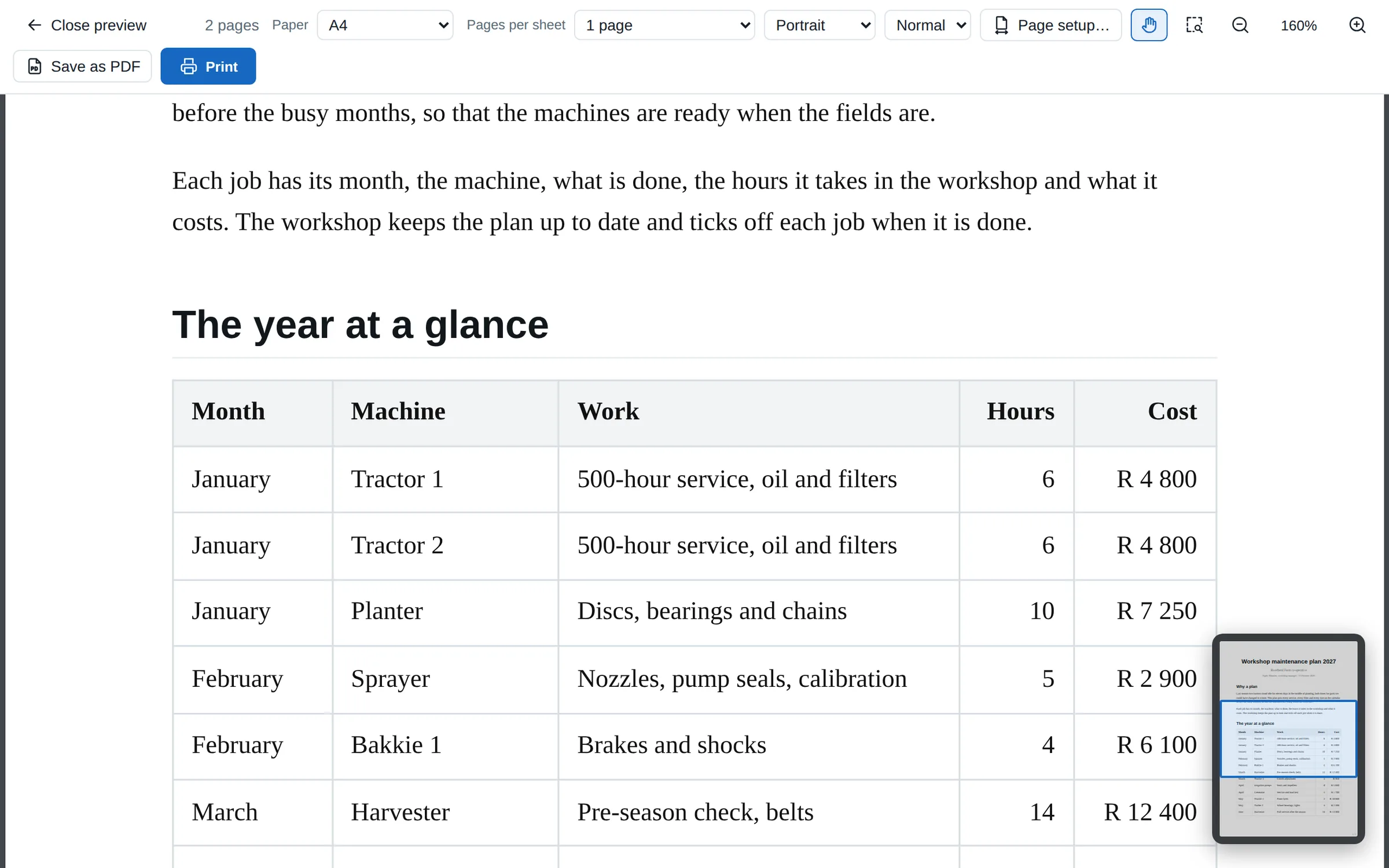
The print preview zoomed to 160% on a maintenance plan: a table of months, machines and jobs filling the window, the hand chosen at the top, and in the corner the Navigator, a small picture of the whole page with a blue box round the part on screen.
The print preview at 160%, with the hand and the Navigator.
The assistant

It knows Scriptorium, and it does the sums.

The assistant writes into the page, reads Scriptorium’s own help, and works out sums with the formulas rather than in its head.

Since 3.43The Assistant tab

An assistant that knows the help

Ask how to do something and the assistant looks it up in Scriptorium’s own help and answers from it, with a button under the answer that opens the page. Every button and menu item is explained in the help.

  • It writes into the page: rough notes become a report, with a summary and a table
  • Your Claude subscription, your own key for an AI service, or Ollama on your own computer

An assistant that edits your document →

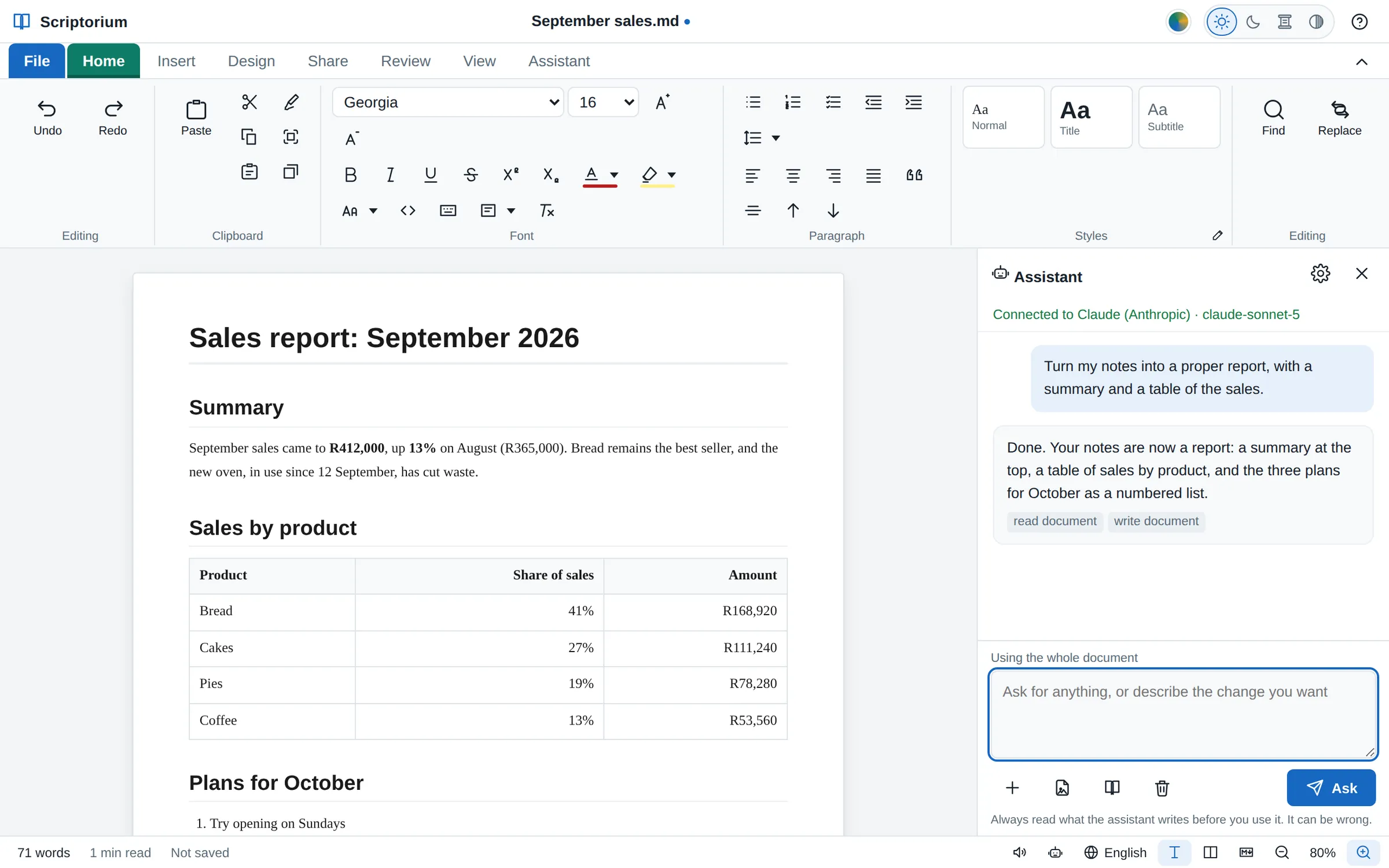
The assistant panel beside a sales report. The request reads: turn my notes into a proper report, with a summary and a table of the sales. The reply says it is done, and the page shows the finished report with its summary and table.
Rough notes turned into a report, in the page itself.
Since 3.44

It does the sums with formulas

The assistant works out any formula against the document instead of in its head, and writes formulas rather than typed totals, so the answers follow when the figures change.

Since 3.46

It knows the new things

It knows how to make a newspaper with stories in columns, an invoice with VAT, a table that other formulas use by name, and algebra with letters.

Since 3.46

Maths read aloud as maths

Read aloud says an answer the way a teacher would: “the fraction 5 plus or minus the square root of 13 over 2”, and a sum as “the sum from i equals 1 to n of”.

Android

On a tablet, too.

The Android app prints, makes PDFs and saves Word files where you choose, and it carries Scriptorium’s own book and quill.

Since 3.47

Print and PDF

Print and PDF go to Android’s own printing, the same page the desktop prints, on the paper the document is set up for. Android’s printers include Save as PDF.

Since 3.47

Word and the rest, where you choose

Word files, web pages, e-books, OpenDocument, RTF and plain text are saved through Android’s own Save box: you choose the folder, Downloads or a drive.

Since 3.47

Its own icon, and a fair trial

The book and the quill on the home screen, the app’s real version on its About page, and a trial that carries on with the days it had left when the app is put on again.

Download the Android app (Android 7 or later) →

Version by version

Nine versions since 4 October.

Each one free for everyone with a licence; the newest has all of them.

  1. 3.4912 October 2026

    Answers that spill into the cells around them, as in Excel 365: FILTER, SORT, UNIQUE, GROUPBY, PIVOTBY and 33 more of Excel’s functions; LAMBDA and functions of your own; Excel workbooks that keep them.

  2. 3.4812 October 2026

    Colours behind the pages, paragraphs and cells that print; Excel’s number formats, names, columns by name and totals rows, fill, and Excel workbooks out and in; the Markdown printed as it is, and its lines numbered and folded.

  3. 3.4712 October 2026

    Lines left out of tables; 88 more of Excel’s functions (110 with their older names) for statistics, bonds, databases and units; headings in their sizes in the Markdown; printing, PDF and Word on Android, and a trial that survives a reinstall.

  4. 3.4612 October 2026

    Algebra with letters, answered as maths; a ribbon that fits its window; Scriptorium’s own icon on Android, and a Home page that fits a phone.

  5. 3.4512 October 2026

    The Pages view; newspapers with the Columns tab and words on pictures; the Markdown in colour; rounded and chamfered tables.

  6. 3.4411 October 2026

    Formulas as in Excel, in tables and in sentences; any maths; 28 templates, eighteen of which calculate; the Markdown and the page scrolling together; an assistant that calculates.

  7. 3.4311 October 2026

    Zoom and pan like CAD and Acrobat; projects on the Home page; an assistant that reads the help; every button explained in the help.

  8. 3.42.16 October 2026

    Repairs: the Paste buttons, Match style, page breaks in Word files, Typewriter mode, and Check spelling’s list of languages.

  9. 3.424 October 2026

    The Home page; AI answers pasted clean; File ▸ Appearance; equations placed where you put them; Split table, and long tables on paper.

Try every one of them on your own work.

Fourteen days with everything switched on, no account and no card. Then USD 100 (R1,799) once, or a free Markdown reader.

Download the free trial Everything Scriptorium does